How to fix a Merchant Center misrepresentation suspension
By Michal Krkoska22 min read
A small skincare shop in Oregon fixed its business information, contact details, shipping and return policies, product descriptions and product data. Then it requested another review. Google rejected it and told the owner they could not request any more reviews (the owner's post on Google's forum). Months of work, and the suspension was now final. Nobody ever told them what was wrong.
That is how a misrepresentation suspension in Google Merchant Center usually goes. I read every thread I could find about it, on the Shopify Community and on Google's own Merchant Center forum, plus Google's policy and help pages. This guide is what I learned.
I'll be honest up front, because most guides aren't:
- Nobody outside Google knows exactly what triggers it. Not the forum experts, not the freelancers, not me.
- Google will not tell you what is wrong. One Australian merchant got this from Google support by email: the enforcement was automated and they were "unable to determine the exact reason" (the thread).
- There is no guaranteed fix. Some accounts come back, many don't.
What you can do is remove every reason Google might have, and then use your few review requests carefully. This guide gives you the full checklist, shows where everything lives in Merchant Center, and explains the review rules. Checking everything takes an afternoon or two. The review itself then takes about a week.
What "misrepresentation" means
Merchant Center is the Google tool where you upload your products so they can show in Google Shopping, both in ads and in free listings.
A suspension means Google has blocked your whole account. None of your products show anywhere on Google until it's lifted.
Misrepresentation is the name of the policy. In plain words, Google thinks your shop is not honest about who you are, what you sell or what the customer will pay. Google's misrepresentation policy lists things like a false business name or contact details, hiding where your business is or where you ship from, hidden costs, not giving refunds your policy promises, and claims that are too good to be true.
Here is the uncomfortable part. Most shops that get this suspension are not scammers. They just look like one to an automated system, because something on the site is vague, inconsistent or unfinished. That is the thing you are going to hunt down.
Two more rules from the same policy page that you should know:
- Google calls three parts of the policy egregious: unacceptable business practices, coordinated deceptive practices, and dishonest pricing and transaction conditions. For those, the account is suspended the moment Google detects the problem, without a warning first. For the other parts (unavailable offers, manipulated media, unreliable claims), Google warns you at least 7 days before it suspends.
- Google says accounts are only reinstated "in compelling circumstances". That is why one sloppy review request can cost you so much.
Step 1: Do not request a review yet
This is the most important step, and it's the one almost everybody gets wrong.
Your number of review requests is limited. Google's review help page says this:
- During a warning period (Google sometimes warns you 7 or 28 days before suspending), you get one courtesy review.
- You may only have one chance to click I disagree with the issue.
- If the issue isn't fixed by your second review attempt, a cool-down period of one week may begin. During that time the review button is greyed out.
- The cool-down may get longer after each failed review, and Google support can't shorten it.
Google doesn't publish the total number of reviews you get. A Diamond Product Expert who answers these threads on Google's forum says merchants typically get two or three before the ban is permanent (thread). A UK shop and the Oregon shop both got the message that they can't request further reviews, and the same expert told both of them there is no other route (UK thread, Oregon thread).
So my rule: never request a review to "see what happens" or to ask what's wrong. Every request has to be your best shot.
Step 2: Find out exactly what Google flagged
Before you change anything, write down what you have. In Merchant Center:
- In the left menu, open Products & store, then click Products.
- Click the Needs attention tab.
- Click View setup and policy issues. This opens Setup and policy issues affecting all products. A suspension shows here, together with which countries it affects.
Google's issues page also mentions a banner at the top of the account with a Review and fix or Fix button. Both lead to the same issue.
Also do these three things:
- Save every email from Google about the suspension. You'll want the date and the case ID later.
- Write down the date the suspension started. Then ask yourself honestly what changed in the week before: a new theme, a new app, a new country, a big product import. In the forum threads, merchants often point at a change like that. One shop on the Shopify Community reported being suspended after changing its theme and leaving placeholder text in it (thread). A UK shop was suspended right after adding Canada and the US as markets and installing a currency-conversion app (thread).
- Do not close the account or create a new one. More on that below.
Step 3: Fix your business identity
This is the most common thing people fixed in the threads, and it's also the first section of Google's own checklist for preparing your business for reviews.
Google wants to know who you are and where you are. Make every page tell the same story.
On your website, check:
- One legal business name, everywhere. Footer, Contact page, About page, every policy page and the checkout. Google's checklist asks for your full legal business name if possible, and for VAT or company registration numbers in the footer for EU businesses (source).
- One full street address, everywhere. Not just "Eugene, Oregon". Google asks for a verifiable street address that matches your formal business registration (source).
- A phone number that someone answers, and an email address on your own domain. Google lists both in its checklist (source). No Gmail address.
- One Contact page. One merchant on Google's forum had two, and a forum expert pointed straight at it (thread).
- Honesty about where you ship from. Google's checklist asks you to state where products ship from and to name fulfillment partners (source). If you dropship, say so in plain words. Hiding it is literally one of the examples in the policy.
Then check Merchant Center:
- In the left menu, open Settings, then click Business info.
- On the Details tab, look at the Business details card. Your business name and address must match your website exactly. So must the Customer service contact. To change them, click Edit business details.
- On the Your online store card, your website should show Verified and Claimed.
- Check the Countries tab too. Only sell where you really deliver.
One more identity problem kills accounts quietly: several websites or several Merchant Center accounts for one business. In one thread on Google's forum, the same phone number appeared on several shops with different addresses, and two Diamond Product Experts said bluntly that this can't be fixed (thread). In a Shopify Community thread, a merchant worried that a second dealer website looked like a copy of the main one, and a forum expert agreed (thread). If you run more than one site, Google's checklist says each needs a distinct purpose and must disclose the connection, for example "Subsidiary of [Parent company]" (source).
Step 4: Make your shipping and return policies match Merchant Center
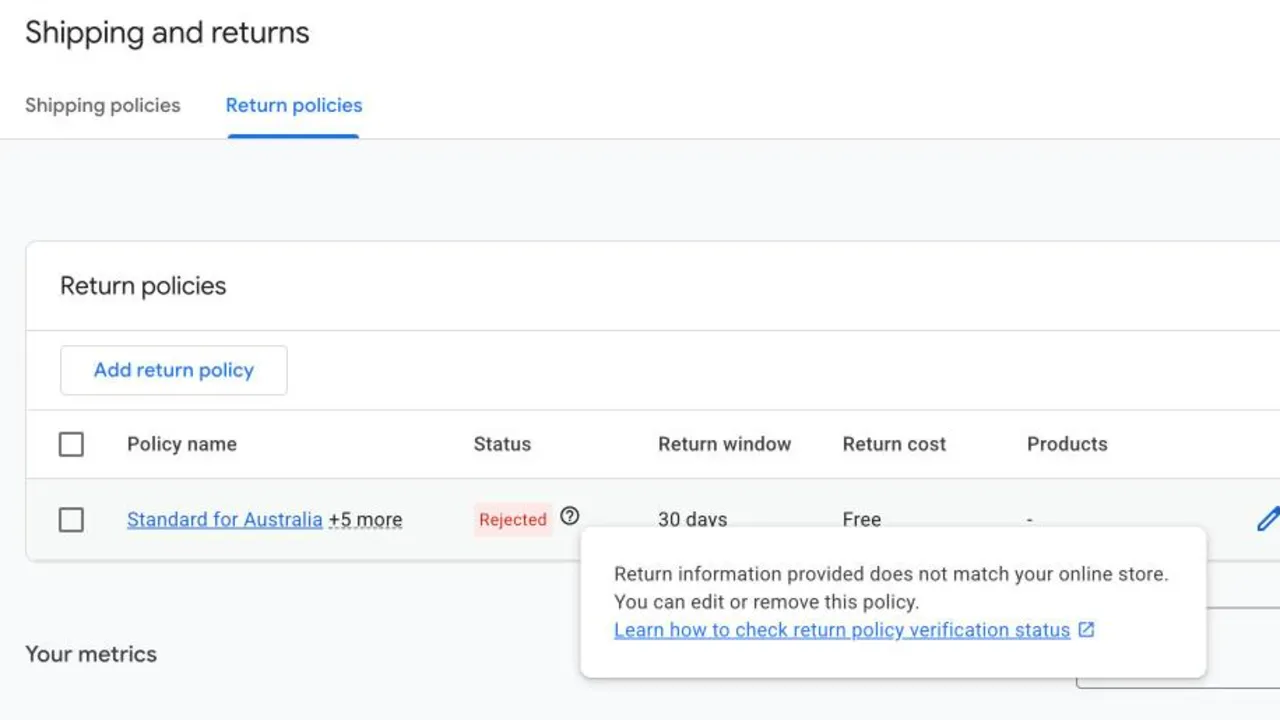
Google compares what you tell Merchant Center with what your website says. I can show you what that looks like, because it's the screen on top of this article. In my own Merchant Center, a return policy shows Rejected, and the explanation says: "Return information provided does not match your online store."
That's the kind of mismatch you are looking for. Google's return policy page says your policies must be consistent in Merchant Center and across your website, including the footer, the returns page and any banner.
To check it:
- In the left menu, open Products & store, then click Shipping and returns.
- On the Shipping policies tab, compare each policy's cost, delivery time and countries with your website's shipping page and checkout.
- Further down, under Settings, check Ship-from locations. It should match where you really ship from.
- On the Return policies tab, look at the Status column. You want Verified for every policy. If one says Rejected, hover over the question mark to see why.
How to fix a rejected return policy
A rejected policy means Merchant Center and your website disagree. Fix it like this:
- Decide which one is true. Open your returns page and compare it with how you really handle returns. If the page is wrong or vague, fix the page first, then make every other place say the same thing: the footer, any banner, the product pages. Google names all of these on its return policy page.
- Write the facts down from the returns page. Countries, whether you accept returns of any product or only defective ones, exchanges, the return window in days, how the customer returns (by mail, in store, at a drop-off point), who pays for the return label, any restocking fee, and how many days the refund takes.
- Open the rejected policy. In Merchant Center, go to Products & store, then Shipping and returns, then the Return policies tab, and click the policy.
- Check the return policy URL. It must open your returns page, and Google says the page must be readable without logging in (source).
- Make every field match your notes. Go through Countries, Accept returns, Exchanges, Product condition, Return window, Return method, Restocking fee and Refund processing time, in that order. My first suspect is always the return window: 14 days in Merchant Center, 30 days on the website, or the other way round.
- Click Save. The status changes to Pending while Google checks the page again. Google's return policy page says it verifies every policy before using it.
- Wait for Verified. Don't request the account review (Step 7 of this guide) while a policy is still Pending or Rejected. If it is rejected again, read the reason again and compare word by word.
On your website, Google asks for these things (checklist, guidelines):
- A shipping policy with handling times, carriers and costs, and the same handling and transit times on product pages and at checkout as in Merchant Center.
- A return and refund policy that is easy to find, says how long the customer has, how to return, and who pays return shipping. If you don't accept returns, say that clearly.
- A return window that starts at delivery, not at purchase, when you ship internationally.
- No "hassle-free" claims. Google names this phrase specifically.
- Policies written for your shop. Not a template with someone else's company name in it.
That last one is more common than you'd think. In one long thread on the Shopify Community, forum members found that the store's Privacy Policy and Contact page gave addresses in two different states, the Terms named a different company than the Contact page, and the Terms still had placeholders like "[INSERT BUSINESS ADDRESS]" (thread).
Step 5: Make prices and stock match your product data
Product data (also called the feed) is the list of products Merchant Center has: title, price, availability and so on. If you use the Shopify Google & YouTube app, the app sends it for you.
Google requires that availability in your product data matches your product page and checkout, and that customers can add in-stock items to the cart and buy them (checkout requirements). Mandatory fees must be shown clearly, and the price must not go up at checkout (same page).
Check these on five or ten of your best sellers:
- The price in Merchant Center, on the product page, and in the cart. Same currency, same tax treatment.
- The hidden price. Your theme also puts the price in code that only Google reads, called structured data. One French shop reported on the Shopify Community that its theme showed prices without VAT there, while its feed had prices with VAT (thread). You can see it by pasting a product URL into Google's Rich Results Test.
- Stock. In one Shopify Community thread, a forum member found 31 of 54 variants of a product marked out of stock in the page code (thread). Whatever the page says, the feed must say the same. If you can't ship it, remove it from the feed.
- "From" prices. An Australian shop on Google's forum removed "Price from:" and "Starting From" labels so each page showed one real price (thread).
- Delivery to the whole country. The same Australian shop only delivered to parts of Australia and blocked checkout by postcode. A forum expert tested a Victorian postcode, got "can not deliver in this area", and said Shopping requires delivery to the whole nation. Google's own checkout page says that if you only sell in certain areas, you should exclude those regions in your shipping settings so checkout matches your product data. Either way: what Merchant Center promises, checkout must deliver.
Step 6: Clean up claims and leftovers
Google's functional store page and preparation checklist list these:
- No placeholder text, like "Lorem ipsum" or "Add customer reviews here", and no placeholder images.
- No broken links, including social media icons that lead nowhere.
- No fake countdown timers, fake "only 2 left" warnings or pop-ups that cover the page.
- Original photos and descriptions. If you use the manufacturer's material, say you are an authorized seller or name the source.
- HTTPS on every page.
- A checkout that works. Google's checkout page says people must be able to buy as a guest or with a free account, and business fields like company name must be optional.
And go through your product titles and descriptions as if a lawyer were reading them. "Miracle", "cures", "authorized", "authentic", "#1", "best in the world": if you can't prove it on the page, delete it. Unreliable claims are part of the policy. One US merchant was told by several people on the Shopify Community to remove "Authorized" and "Authentic" from every product, including image descriptions (thread).
Last, open your shop in a private browser window on your phone and buy something, right up to the payment step. Read every page a first-time customer would see. It's boring. It's also how people find the thing they missed for months.
The full checklist in one table
The source column matters. "Google" means it's written in Google's documentation. "Merchants" means it comes from forum threads, where it was suggested or changed, but nobody can prove it was the cause.
| What to check | Where | Source |
|---|---|---|
| One legal business name on every page, matching Merchant Center Business info | Website footer, Contact, About, policies, checkout. Merchant Center: Settings, Business info | Google (checklist) |
| Full street address matching your business registration, the same everywhere | Website and Merchant Center Business info | Google (checklist) |
| Working phone number and an email on your own domain | Website footer and Contact page | Google (checklist) |
| Where you ship from and who fulfills orders, said openly | Shipping policy, About page | Google (checklist) |
| Return policy in Merchant Center shows Verified and says the same as your site | Merchant Center: Shipping and returns, Return policies | Google (return policies) |
| Shipping costs and times in Merchant Center match product pages and checkout | Merchant Center: Shipping and returns, Shipping policies | Google (checklist) |
| Prices and availability match between feed, product page and checkout, with no surprise fees | Products in Merchant Center, product pages, cart | Google (checkout) |
| Checkout works for a guest and takes a normal payment method | Your checkout | Google (checkout, guidelines) |
| No placeholder text, broken links, fake timers or covering pop-ups | Whole website | Google (store, checklist) |
| No claims you can't prove | Titles, descriptions, banners | Google (policy) |
| Only one website and one Merchant Center account for the business | Your business setup | Merchants (thread, thread) |
| Price in the page code (structured data) matches the feed, including tax | Rich Results Test on product pages | Merchants (thread) |
| No "Price from" labels, one clear price per product | Product and collection pages | Merchants (thread) |
| Policy pages name only your company, with no template leftovers | Every policy page | Merchants (thread) |
| Remove apps that changed prices or currency right before the suspension | Shopify apps | Merchants (thread) |
| Sell only in countries you really deliver to, until you're back | Merchant Center: Settings, Business info, Countries | Merchants (thread) |
Step 7: Request the review once
Only when every row above is done.
Google's review help page describes the clicks:
- Open Products & store, then Products.
- Click the Needs attention tab.
- Click View setup and policy issues.
- Choose I fixed the issue (or I disagree with the issue, if you truly believe Google made a mistake and you have changed nothing).
- Click Request review.
Two things from the same page that confuse people:
- The button can be greyed out because you're in a cool-down. The Needs attention tab shows when it ends.
- It can also be inactive until you complete merchant verification and have at least one product in your product data.
I'd pick I fixed the issue almost every time. You changed things, so say so. Keep "I disagree" for the rare case where you are sure Google is wrong, because you may only get one.
If the form lets you write something, write a short, factual list of what you changed: "Added our full street address to the footer and Contact page. Made the return window in Merchant Center match our returns page (30 days from delivery). Removed 14 products we can't ship." No anger, no "we are a legit business". Every suspended merchant says that.
Then wait. Google says account reviews typically take 7 business days, longer for complex cases (policy), and some reviews take up to 2 weeks (review page). Don't change things during the review, and don't request another one.
Step 8: If the review is rejected
First, breathe. Then:
- Check the Needs attention tab for the cool-down end date. Use that time. The cool-down is not a punishment you can argue away, since Google says support can't shorten it (source).
- Assume you missed something, not that Google is broken. Go through the whole table again with fresh eyes, or have someone who doesn't know your shop do it.
- Contact support from the suspended account. Google links a contact form for suspended accounts from its review page. Reply inside your existing case rather than opening new ones. Don't expect them to tell you the reason.
The only reversal after a long fight that I found came from an agency on the Shopify Community. They report that a client got reinstated after about nine months by asking support in writing for a manual review by the misrepresentation team, quoting the case ID, and sending dated screenshots of every fix, the business registration, and matching contact, returns and shipping pages (thread). It's one agency's story, so take it with salt, although they say themselves that all of it is self-serve. The evidence pack costs you nothing, so I'd prepare it anyway.
And if Google says you can't request further reviews, believe it. On Google's forum, the Diamond Product Expert who answered both the UK and the Oregon shop said nothing more can be done (UK thread, Oregon thread).
If the review passes, your products start showing again. Before you switch Shopping ads back on, check them with my guide to setting up a Google Shopping campaign for Shopify.
What did not work for other merchants
These came up again and again, and none of them helped:
- Requesting reviews after partial fixes. This is how people burn their reviews. The Diamond Product Expert on Google's forum tells merchants not to request a review before every possible issue is fixed, because after the last one the ban is permanent (thread).
- Closing the account and opening a new one. A UK merchant on the Shopify Community did exactly that. The new account passed identity verification, and the misrepresentation flag came straight back (thread). A French merchant reports that Google told them a new account for the same business is "not permitted" (thread). Merchant Center has a Close Merchant Center account button under Settings. Leave it alone.
- A new domain. Same story. In the French merchant's thread, forum members advised against moving to a new domain, and nobody knew of anyone who had recovered that way (thread). Google is judging the business, not the URL.
- Identity verification alone. The UK merchant passed it on the new account and was still rejected for misrepresentation (thread).
- Long messages saying you're legitimate. Nobody gets reinstated for feelings.
And here is what the merchants who did get their Merchant Center back reported on the Shopify Community. One updated the policies, the address, the phone number and the About page (thread). Another changed their policies and got reinstated, then got suspended again after uploading more products (thread). Boring fixes, in other words. Identity and policies, again and again. If your product data changes a lot after reinstatement, check it with the same care.
Should you pay a "reinstatement expert"?
Freelance sites like Upwork and Fiverr are full of people offering to fix a misrepresentation suspension, often for very little money.
My opinion: be very careful. Nobody outside Google has a back door. Google's own page says even its support can't shorten a cool-down. So a freelancer can do exactly what this guide does: audit your site and Merchant Center and fix the mismatches. Nothing more.
The danger is the second part of their service. A cheap freelancer often makes a few quick edits and then presses Request review to show results. That burns one of your few reviews. A Diamond Product Expert who answers these threads on Google's forum every day warns about exactly this (thread).
If you hire someone anyway, here's what I'd do:
- Pay for an audit, not for a "fix". Ask for a written list of every problem they found and why it matters.
- Make the changes yourself, or watch them being made.
- Press Request review yourself. Never let them do it.
- Walk away from anyone who guarantees reinstatement. Nobody can.
- Ignore private messages from "Google experts". The same Product Expert warns that people impersonate Product Experts to sell services, and real ones never contact you privately (thread).
Honestly, a few hundred dollars for a careful second pair of eyes can be worth it when your Shopping sales are on the line. A cheap gig for someone to click a button you can click yourself is not.
Frequently asked questions
How long does a Merchant Center review take?
How many times can I request a review?
Google doesn't publish a fixed number. It does say you may only get one chance to disagree, and that a cool-down of one week may start after a failed second attempt and grow after each failure (source). A Diamond Product Expert on Google's forum says merchants typically get two or three before the suspension becomes final (thread).
Will Google tell me what I did wrong?
No. Support usually replies with the general policy, and one merchant was told by email that support was "unable to determine the exact reason" (thread). That's why you have to check everything, not just the one thing you suspect.
Can I just create a new Merchant Center account?
Is a misrepresentation suspension permanent?
Not at first. As long as you can request a review, you have a real chance. Once Google says you've reached the maximum number of review attempts, the Diamond Product Expert on Google's forum says it's final (thread).