Shopify Facebook catalog setup and sync error fixes
By Michal Krkoska20 min read
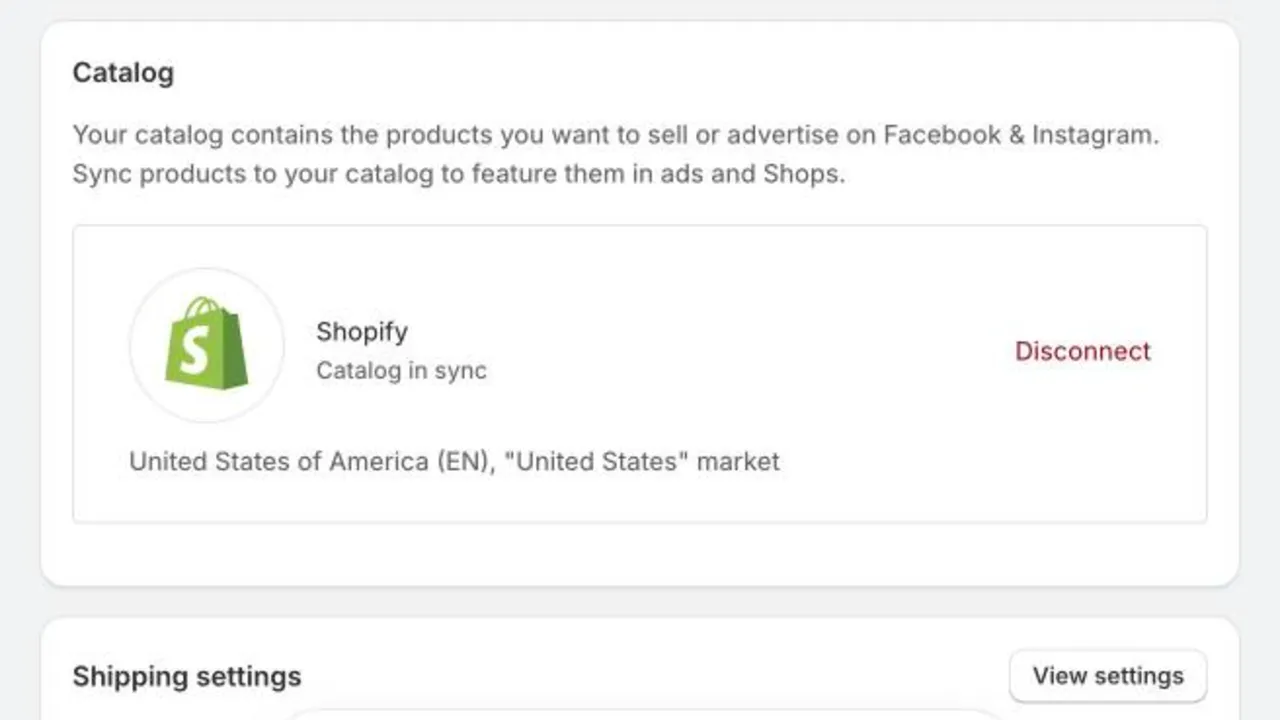
Open the Facebook & Instagram app in Shopify, click Settings, and you will find a card that says Catalog in sync. It looks reassuring. It isn't proof of anything.
"Catalog in sync" means the connection works. It does not mean your products reached the catalog, that Meta approved them, or that anyone on Instagram can see them. Most angry reviews of this app come from people who only checked the connection.
This guide covers the Meta accounts behind the app, how products reach the catalog, how to choose which ones go there, the common sync errors, why a shop gets "not approved", and when disconnecting is the right fix. Checking everything takes about 20 minutes. Shop approval can take days, and that part is out of your hands.
The chain behind the app
The app connects your store to several Meta things at once. One broken link is enough.
- A business portfolio is Meta's container for your business assets (it used to be called Business Manager).
- A dataset is the new name for the pixel: it collects what visitors do on your store so Meta can measure ads.
- A catalog is Meta's list of your products. Ads and shops both read from it.
- A commerce account is what Meta reviews before your shop goes live.
Add your Facebook Page, your Instagram professional account and an ad account, and you have the whole chain. Shopify's requirements page lists the rules for each link. It also says your online store can't be in private mode (password-protected) and needs a valid sender email. The ones that trip people up:
| Link | What must be true | Where I check it |
|---|---|---|
| Your Facebook login | Your personal account needs full control of the business portfolio and the Page. Meta now calls this full access (Meta's permissions page). | Meta Business Suite Settings, then People. If you can't see People, you don't have full control (Meta's guide). |
| Business portfolio | It must own the Page. If a different portfolio owns it, the Page simply doesn't appear in the app's setup (Shopify's setup guide). | Meta Business Suite Settings, then Pages under Accounts (Meta's guide). |
| Facebook Page | It must be published. | The Page itself. |
| Instagram account | It must be a professional account and linked to the Page. | In the Instagram app: Settings and activity, then Account type and tools (Instagram's guide). In the portfolio: Settings, then Instagram accounts under Accounts (Meta's guide). |
| Ad account | It must belong to the portfolio before you can create campaigns. Only someone with full control can add it. | Meta Business Suite Settings, then Ad accounts under Accounts (Meta's guide). |
| Dataset (pixel) | One dataset connected to the store. | Shopify: the app's Settings, then Data sharing. Meta: Settings, then Data sources, then Datasets and pixels (Meta's page). |
| Catalog | One catalog. A commerce account can only link one catalog (Meta's guide). | Shopify: the app's Settings, then Catalog. Meta: Settings, then Data sources, then Catalogs. |
One thing surprised me. The app's Settings page shows Marketing, Data sharing, Catalog and Shipping settings, but not your portfolio, Page or Instagram account. Check those in Meta Business Suite Settings, as in the table, not in Shopify.
Step 1: Check the connection in Shopify
- In Shopify admin, open Sales channels in the left bar and click Facebook & Instagram.
- You land on Overview. On the right is a card called Product Status. Click Connected Product Catalog to expand it. It shows the name and ID of the catalog your products go to, and this line: "Product changes usually take a few minutes to sync, although in some cases it may take longer."
- Write down that catalog ID. You will need it when you look at Meta's side.
- Click the Settings tab at the top.
- Under Data sharing, check which dataset is connected and who owns it. There is a Disconnect button and a Connect a different dataset to your shop link. Don't touch either for now.
- Under Catalog, check two things: the status (mine says Catalog in sync) and the market line below it, which looks like
United States of America (EN), "United States" market.
That market line names the Shopify market the catalog was connected with. A store owner in Kuwait complained in a review of the app that it only syncs in English. Other languages and countries don't come from this card. According to Meta's page on Shopify catalogs, translations and local data for the markets you set up in Shopify Settings, then Markets, sync to the catalog, but only for a fixed list of about 30 countries. Kuwait isn't on it, which explains that review. The card itself has no edit link, only Disconnect, and Shopify's help pages don't say what changing it involves.
Back on Overview, each feature has its own card: Run ads on Facebook and Instagram with a status badge, and Start selling on Facebook and Instagram with Start setup if the shop isn't set up. Ads and shops are separate features on one catalog (Shopify's setup guide). You can promote catalog products in ads without a shop; the shop is an extra you can set up on top (Meta's guide to Commerce Manager).
Step 2: Understand how products get into the catalog
This part explains most of the complaints. The app has no product picker of its own. A product goes to Meta when two things are true:
- Its Status in Shopify is Active. Drafts don't sync. The Product Status card says this in plain words: "you need to set the product status as active and select the Facebook sales channel." Unlisted doesn't work either: Shopify says unlisted products can't be published to any third-party sales channel. If you archive a product, it leaves the catalog (Meta's page on Shopify catalogs).
- The Facebook & Instagram sales channel is switched on for that product.
And here is the catch. Shopify says new products are set to Active by default and that all sales channels and markets are selected by default in a product's Publishing section. When you add a sales channel, all your existing products are automatically available to it. In my store, a brand new product shows all 6 channels the moment it's saved. So the app "sends everything" not because it's greedy, but because every product is published everywhere unless you say otherwise.
After that, product changes sync on their own. Shopify says changes usually show on Facebook within a few minutes, and Meta says Shopify data reaches the catalog every few minutes.
There are also rules a product must pass to be accepted. According to Shopify's guide to publishing products, it must:
- be available to the Facebook & Instagram channel,
- require shipping (digital products don't qualify),
- have a return policy,
- have a title, description and image that meet Meta's catalog specifications,
- follow Meta's Commerce Policy and Facebook's Community Standards,
- have a Google Product Category,
- and not be free.
So downloads and other products that don't need shipping will never appear, however many times you reconnect. And there is only one catalog: a product can't be made available to just one feature, so what's in your ads is also in your shop.
Step 3: Choose which products go to Facebook and Instagram
You have three tools. Use the one that fits how many products you are changing.
One product
- Open the product in Shopify.
- On the right, find Publishing and click the small sliders icon next to it.
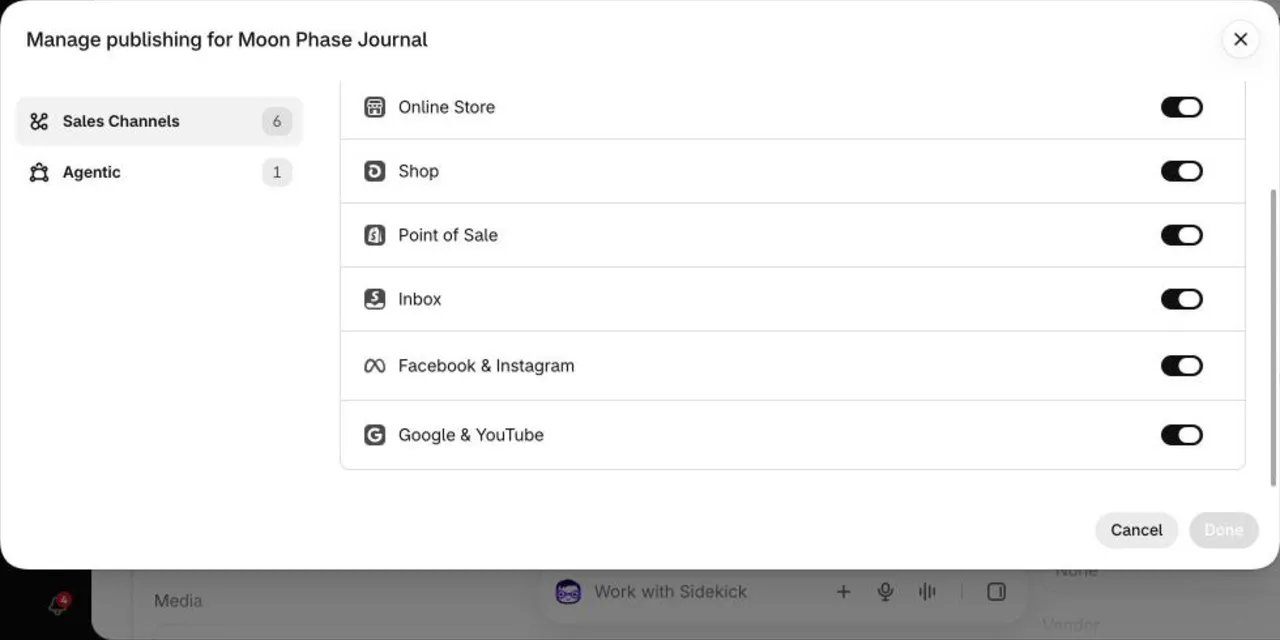
- A window called Manage publishing for (your product name) opens. Under Sales Channels, switch Facebook & Instagram off.
- Click Done, then save the product.
If you only want to hold back some variants, such as one color, Shopify is rolling out a way to publish or unpublish single variants per sales channel. Its help page marks it as early access, so your store may not have it yet.
Many products at once
- Go to Products.
- Tick the products you want to change.
- In the bar that appears, click the ... button.
- Click Exclude from sales channels (or Include in sales channels to add them).
- In the window, tick Facebook & Instagram and click Exclude products.
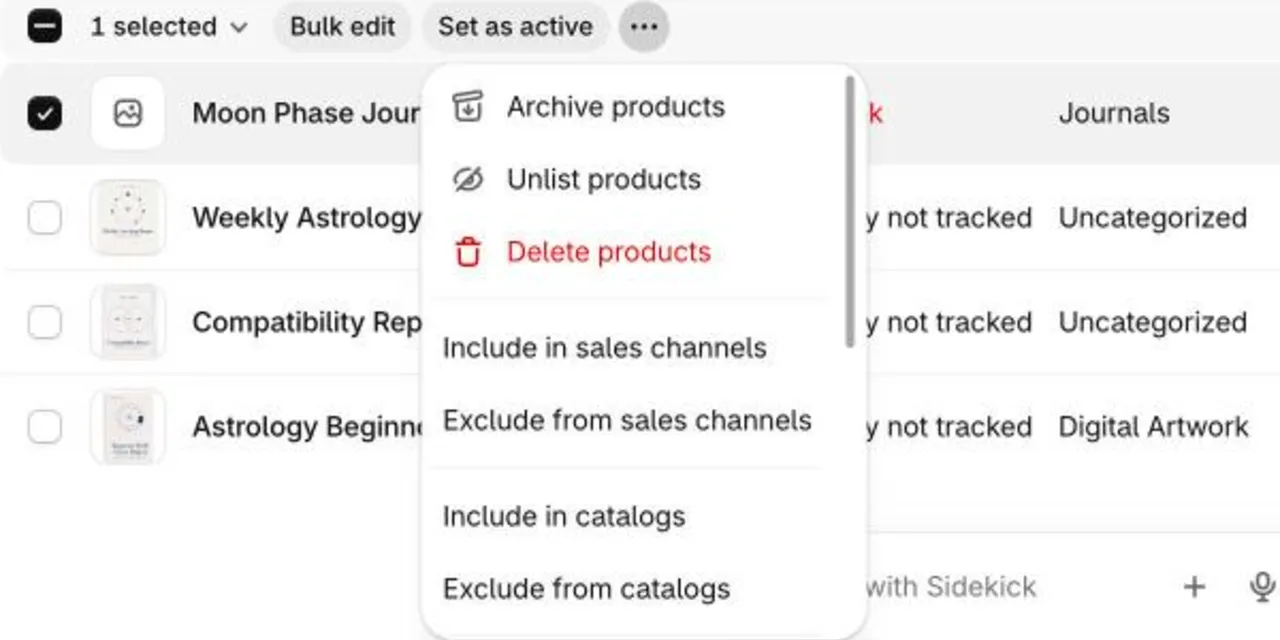
Careful: right next to them in that menu are Unlist products and Delete products. Neither is what you want.
See what is going there now
On the product list, click Search and filter, choose Sales channel, tick Facebook & Instagram and leave it on Is. Switch to Is not to see what you've excluded.
My opinion: exclude anything you would never advertise, such as samples, wholesale items and discontinued products. Meta can put any catalog product in an automatic ad, and you don't review those ads one by one. And remember the default: every new product goes straight back in, so run the filter once a month.
Step 4: Find out what Meta actually did with your products
In Shopify, the Product Status card on Overview shows sync errors, and Shopify's help page says View products opens a list with an Issues column for each product.
On Meta's side, open Commerce Manager and pick the catalog with the ID from Step 1. If you can't find it, switch business portfolio in the drop-down at the top left (Meta's guide). Then, following Meta's troubleshooting page:
- Open the Catalog tab and go to Products.
- Click Filters on the right. Under Status, you can filter by Archived or Hidden from Shops. Under Issues, click Advantage+ catalog ads or Shops and Marketplace and pick the issues you want to see.
- Click a product and open Status and issues to see what is wrong with it.
Catalog, then Data sources shows the latest syncs from Shopify (Meta's page on Shopify catalogs). Don't edit Shopify products in Commerce Manager: the next sync overwrites your changes. Fix them in Shopify.
A store owner in Singapore wrote that clicking an issue in the app opens a blank page. If that happens to you, Commerce Manager has the real reason.
The common sync errors and their real fixes
The first three rows are the errors in Shopify's list. The rest come from Commerce Manager and from what store owners report.
| Error or symptom | What it means | What fixes it |
|---|---|---|
| "Add a product image" | The product has no image. | Add an image in Shopify. |
| "Select a product category" | No Google Product Category, or one that needs more details. | Set a matching Google Product Category on the product, and fill in anything it asks for, such as age. |
| "Fix product variant errors" | Variants are missing details. | Add the details for every variant, such as size and color. |
| Missing or invalid image in Commerce Manager | Meta couldn't download the image. Its image troubleshooting page lists the causes: a server problem, a firewall blocking Meta's crawler, a broken link, a timeout, a file over 8 MB, an image too small, or a format other than JPEG or PNG. | Fix the cause on that list, then replace the image in Shopify. Meta only notices a changed image when its link changes. |
| "Another item with the same retailer id was already uploaded to this catalog" | Two items in one catalog have the same content ID, the ID Meta uses for each item. Every content ID must be unique. Shopify's sync uses each variant's ID, so the usual suspect is a second source sending the same products. | Neither Shopify nor Meta documents a fix for this message. In this thread, the advice was to look under Catalog, then Data sources for old feeds or manual uploads and delete the ones you don't need. In the main thread, some owners traced it to products made with Duplicate, and one fixed it by duplicating the product again and deleting the original. Others said nothing worked. That thread has 50 replies, no accepted fix, and nothing new since 2021. |
| Approved in Shopify but "not visible" in Commerce Manager | The product may be archived, hidden from the shop, out of stock or rejected, or the shop itself isn't live yet. | Filter by status and issues as in Step 4. A product hidden from the shop can be shown again from the Shops tab or the Products tab (Meta's page). If nothing shows up, check the shop's status (next section). In this thread, the only reported fix was creating a collection under Shops in Commerce Manager, and it worked for one person. The thread is still unsolved. |
| Ads show a variant image instead of the main photo | Each variant is its own catalog item. Meta says Shopify usually syncs one image per variant: the variant's own image, or the product's main image if the variant has none (Meta's page). | Put the main photo first and largest in Shopify, and give each variant the photo you want in ads. If that's already right, check Data sources for another feed overriding the images. Store owners in this thread still report the problem in late 2025, and the ones who solved it used a third-party image app. |
| Old descriptions stay on Meta after you edit them | The catalog still holds old data. A merchant in Japan was rejected over a description he had already changed. | Open the product in Commerce Manager and look at Added by and Last updated by to see which source wrote the old text (Meta's page). If Shopify has the right text but it hasn't arrived, Meta says to wait for the next sync or contact the platform's support. When a product is edited, Meta reviews it again automatically (Meta's page). |
| "Item currency and storefront dominant currency mismatch" | A shop can show only one currency. This product's price is in a different currency from most others in the shop (Meta's page). | Meta says to keep one currency in the main data and add other countries as country feeds. On Shopify, local prices come through Markets for the supported countries (Meta's page on Shopify catalogs), and Shopify lets you set a currency and catalog per channel. Neither page covers fixing this error for a Shopify store, and in this thread nobody answered a store owner whose US market didn't sync. |
A rejected product is a policy problem, not a sync problem. According to Meta's page on policy violations, you can either edit the product so it complies, which starts a new review on its own, or request a review in Commerce Manager if you think the rejection was wrong. You can select up to 100 products per request and submit up to 5,000 every seven days, and reviews typically take up to a few days. After a review is done, you can't ask again for the same products unless you edit them first. Editing a product cancels a pending review, so wait for the answer before you change anything.
Why your shop is "not approved"
A shop is the storefront on your Facebook Page and Instagram profile, with the View shop button. Since September 2025, shops send buyers to your own website to pay (Meta's page on the change). Meta reviews every shop before it goes live, and Shopify says only Meta can approve it.
Meta's commerce eligibility requirements come down to five things:
- Follow the policies. Your Page and Instagram account must follow Meta's terms and Community Standards, and your products the Commerce Policy, which bans some products entirely.
- Represent your business and domain. Your listings must be available for direct purchase on your website. You give Meta the single, non-shortened domain you sell from, and Meta may ask you to verify that you own it.
- Be in a supported country. Meta's list of supported countries gives the full shop experience only in the United States. Canada, Brazil, Mexico, the United Kingdom, much of Western Europe, Australia, India, Japan and several other Asian countries are in an open beta where "some sellers may not have full capabilities". Meta decides the shop's country from the commerce account, for example the country chosen at setup or where the account's creator is.
- Demonstrate trustworthiness. Meta asks for an authentic, established presence, which may include enough followers.
- Give accurate information. No misleading prices or availability, and refund and return policies that are clearly shown and easy to find.
Also, the commerce account name must match your business's public name, with no special characters, and must not include "facebook", "ig" or "meta" (Shopify's setup guide).
Rejections usually come with one generic sentence and no reason. This Shopify Community thread has almost 300 replies from store owners in that spot. The rejection message they quote says you can "see details and request a review in Account Quality". Meta's help pages explain how to request a review of rejected products, but I found no Meta page on asking for another review of a rejected shop. What I'd do, in this order:
- Remove the store password, and check that your domain is the one you gave Meta and that your return and refund policies are easy to find. Several owners in that thread were rejected while their store was still password-protected.
- Check that every product in the catalog meets Shopify's requirements from Step 2 and has no errors in Commerce Manager. Exclude anything doubtful (Step 3). One owner reported that Meta and Shopify both pointed to catalog errors as part of the reason.
- Only then request a review. Several owners in that thread wrote that the button disappeared after one request, and Meta support told one of them that only one review was allowed. Those reports date from 2020 and 2021, and Meta hasn't published a limit, but I wouldn't waste the one review on a half-finished store.
How long does it take? Meta doesn't publish a time for shop reviews. In a 2025 thread, a store owner had waited over two weeks, and the replies guessed anything from 48 hours to four weeks.
If Instagram shows no View shop button although everything looks connected, look at your profile from a different account first. Two store owners in this thread found that the button doesn't show while you're logged in to the shop's own account. If it's still missing, check that the account is professional and linked to the right Page, then check the shop's status in Commerce Manager. In Europe, store owners report in 2025 and 2026 that the shop is set up but visitors get "Content not available". Nobody in those threads has a working fix.
When disconnecting and reconnecting is the right fix
"Disconnect and reconnect" is the first advice in every forum thread. Shopify documents it for only two cases, and it can make things worse: in a 2025 thread, a store owner who disconnected could only create a new catalog and pixel when reconnecting, not pick the old ones.
| Situation | Reconnect? | Why |
|---|---|---|
| Setup shows "You haven't installed this app" or "Something went wrong" | Yes | This is Shopify's documented reset (setup guide): remove Facebook & Instagram under Sales channels, remove Shopify under Business Integrations in the Facebook account's settings so Meta issues a new authorization, open a private window signed in to only one Facebook account, and install the channel again. |
| You renamed the commerce account | Yes | Shopify says to connect it again after a rename. |
| The Page you want doesn't appear, or the wrong portfolio was connected | Yes, after fixing ownership | Shopify says the portfolio you connect must own the Page. Move the Page into the right portfolio, or connect a different portfolio (setup guide). |
| The catalog is missing a language or country | No, not first | Local data comes from Shopify Markets for the supported countries (Meta's page). Neither Shopify nor Meta documents reconnecting as the fix. |
| Product tagging stopped after a Facebook or Instagram password change | No, not first | In this thread, a Shopify staff member advised contacting Instagram Support before disconnecting. The original poster's tagging came back on its own. |
| Products rejected for policy | No | Meta rejected the product, not the connection. Fix the product or request a review. |
| Shop "not approved" | No | Only Meta approves shops. A 2025 forum suggestion to reconnect the Page to restart the review isn't confirmed, and the store owner couldn't even click Disconnect. |
| Duplicate retailer ID errors | No | Nobody has reported that reconnecting fixes it, and a new catalog leaves the old one behind. |
If you do reconnect, write down the catalog ID, dataset ID and market first, and try to choose the existing catalog and dataset when you connect again. A new dataset starts with no history. If the app only offers new ones, the store owner in that 2025 thread was told that only Meta support can release the old catalog.
Frequently asked questions
How long does it take for Shopify products to sync to Facebook?
Usually a few minutes. Shopify says changes usually take a few minutes, and Meta says Shopify data syncs every few minutes. If a product still isn't there after a day, it's almost always an error or a rejection, not a slow sync.
Can I send only some products to Facebook and Instagram?
Yes. Switch the Facebook & Instagram channel off for the products you don't want, one at a time under Publishing, or in bulk with Exclude from sales channels on the product list. New products get every channel by default, so keep checking.
Why don't my collections show up on Facebook?
Shopify's help page says collections sync to Facebook only for stores in the United States, and that stores elsewhere create collections in Commerce Manager. Meta's page on Shopify catalogs says products and collections sync automatically and doesn't mention that limit. Outside the US, I would go with Shopify and build collections under Catalog, then Sets in Commerce Manager.
Can I sell digital products on Facebook and Instagram from Shopify?
No. Shopify's product requirements say a product must require shipping, so digital products don't qualify. Free products don't either.