How to set up Google Ads conversion tracking on Shopify
By Michal Krkoska19 min read
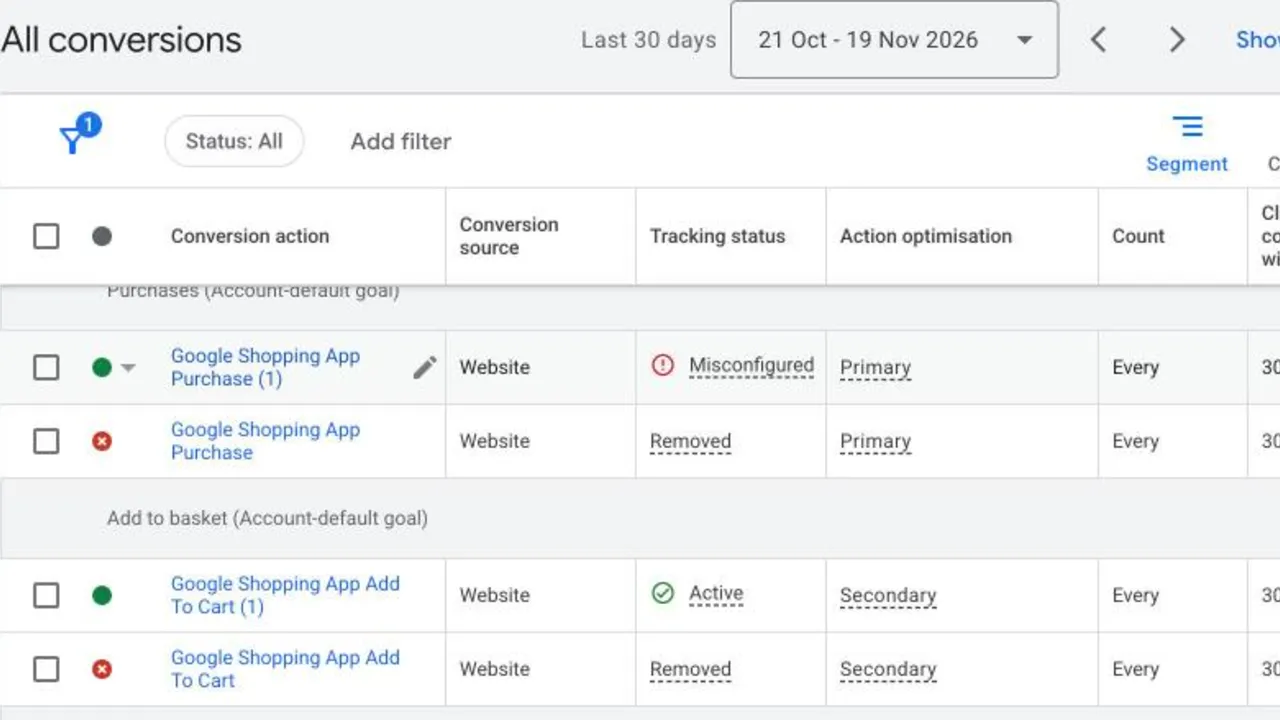
I opened the conversions page of my Google Ads account to write this guide. One small Shopify store, and Google Ads listed 14 conversion actions. Half of them had the same name twice: "Google Shopping App Purchase" and "Google Shopping App Purchase (1)". One copy said Removed. The other, the one my store actually sends purchases to, said Misconfigured.
If your account looks anything like that, you are not alone. Missing, doubled and wrong-value purchases are the recurring complaints in the reviews of Shopify's Google app.
It's worth getting right. Google Ads uses your conversions to decide who to show your ads to and how much to bid. If it can't see your sales, it is bidding blind, with your money.
This guide covers the three ways to track Shopify purchases in Google Ads, the one I'd use and why, how to check that it works, and how to fix the usual failures: no purchases recorded, purchases counted twice, and the wrong order value. My Misconfigured action is the example all the way through: Steps 1 to 4 take it from that status to a purchase that Google Ads has really received. The setup itself takes about 15 minutes. Checking it takes a day, because Google is slow.
The words you need first
A conversion is something valuable a visitor does after clicking your ad. For a shop, that's a purchase.
A conversion action is the thing in Google Ads that counts one kind of conversion. "Purchase" is one conversion action, "Add to cart" is another.
A tag is a small piece of code that runs in the visitor's browser and tells Google "a purchase just happened, worth $48".
A primary conversion action is one that Google Ads uses for bidding and shows in the Conversions column. A secondary one is only for watching: it shows in the All conv. column and Google doesn't bid on it (Google's explanation). Keep this in mind. It's the key to most double counting.
The three ways to track purchases from Shopify
| Way | How it works | Who it's for |
|---|---|---|
| Google & YouTube app | Shopify's official Google app sends your store's events (purchase, add to cart and so on) straight to Google Ads. No code. | Almost every store. This is what I recommend. |
| Import from Google Analytics 4 | Google Analytics 4 (GA4) records the purchase, and Google Ads copies it from there as a conversion. | Stores that already trust their GA4 setup and want one source of truth for both tools. |
| Manual Google tag in a custom pixel | You paste Google's conversion code into Shopify's Customer events as a custom pixel. | Stores with a special need, such as a second Google Ads account. Not supported by Google. |
My recommendation: the Google & YouTube app, and nothing else as primary
Use the Google & YouTube app's built-in conversion measurement. Make its purchase action your only primary purchase action. That's it.
Here is why:
- Google recommends it. Google says it recommends the Google & YouTube app for setting up all Google measurement on Shopify (Google's FAQ).
- It survives Shopify's checkout changes. Shopify has been removing the old ways of adding tags to the checkout and thank you pages. Google's own advice for that change is to move your tags to the app (Google's migration guide).
- The custom pixel route is officially unsupported. Google says running Google tags inside a Shopify custom pixel is not a supported setup, that data can get lost, and that Google support won't help you troubleshoot it (Google's list of limitations). Why would you build on that if you don't have to?
- GA4 import adds a middleman. It works, but it's one more system that has to be right, and imported conversions arrive later (more on timing below).
The only good reason to go manual: the app links to just one Google Ads account (Google's setup guide). If you advertise from two accounts, the second one needs its own setup.
Which combinations count every sale twice
Double counting happens when two primary conversion actions count the same purchase. Google then thinks you sold twice as much as you did, and it bids far too high. Here are the common combinations:
| Your setup | What happens | What to do |
|---|---|---|
| App purchase action is primary, nothing else | Each purchase is counted once. | Nothing. This is the goal. |
| App purchase action is primary, and an imported GA4 purchase is also primary | Each purchase is counted twice. | Set the GA4 purchase to secondary, or remove it. |
| App purchase action is primary, and an old Google Ads tag still sits in your theme or checkout scripts | Each purchase can be counted twice. | Delete the old tag and set its conversion action to secondary or remove it. |
| App purchase action is primary, and a custom pixel sends a purchase to another primary action | Each purchase is counted twice. | Remove the custom pixel's Google code, or make its action secondary. |
| App purchase action is primary, and an imported GA4 purchase is secondary | Each purchase is counted once in Conversions and once more in All conv. That's fine, bidding only uses the first. | Nothing. This is a safe way to compare the two. |
| You reconnected the app and now have "Purchase" (Removed) and "Purchase (1)" | Each purchase is counted once. Removed actions don't count anything. | Nothing. The "(1)" is just the new copy the app created. |
Google's own setup guide also tells you to check for duplicate tags and remove legacy tags when you use the app (Google's setup guide).
Step 1: Turn on conversion measurement in the Google & YouTube app
If you haven't installed the app yet, install Google & YouTube from the Shopify App Store and connect your Google account, Merchant Center and Google Ads account when it asks. (If you also want Shopping ads, my guide to setting up a Google Shopping campaign covers the Merchant Center side.) When you link Google Ads, the app suggests purchase, add to cart and checkout started conversion actions by default (Google's setup guide).
Then check the settings:
- In your Shopify admin, under Sales channels, click Google & YouTube, then Settings.
- Under Google services, check that Google Ads is connected and shows the right account.
- Scroll to Data sharing and tag management. Conversion measurement should say On.
- Click Additional conversion measurement settings to expand it. You'll see three rows: Conversion event settings, Google tags and Enhanced conversions.
- Click Conversion event settings. This window shows which Shopify event goes to which Google Ads conversion action.
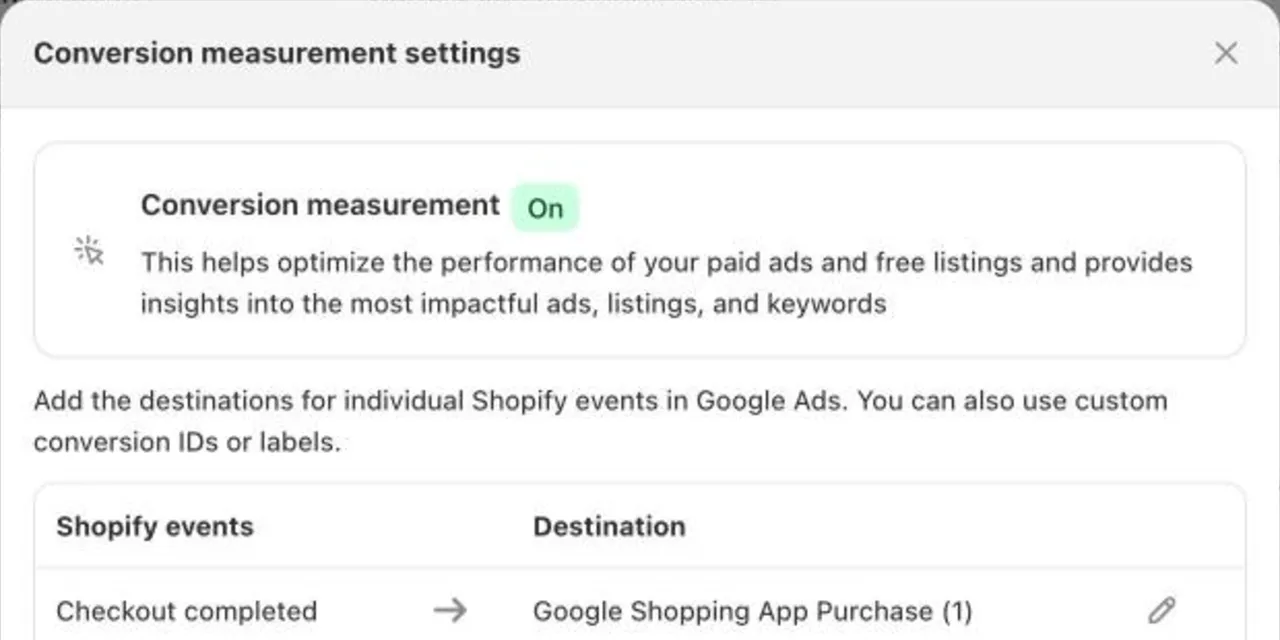
The row that matters is Checkout completed. Its destination is your purchase conversion action. In my store it goes to "Google Shopping App Purchase (1)". Write that name down. You'll look for exactly this name in Google Ads.
My store also sends Checkout started, Added to cart, Page viewed, Product viewed, Search submitted and Payment info submitted. That's fine, as long as only the purchase is primary in Google Ads.
- Close the window with the X if you changed nothing.
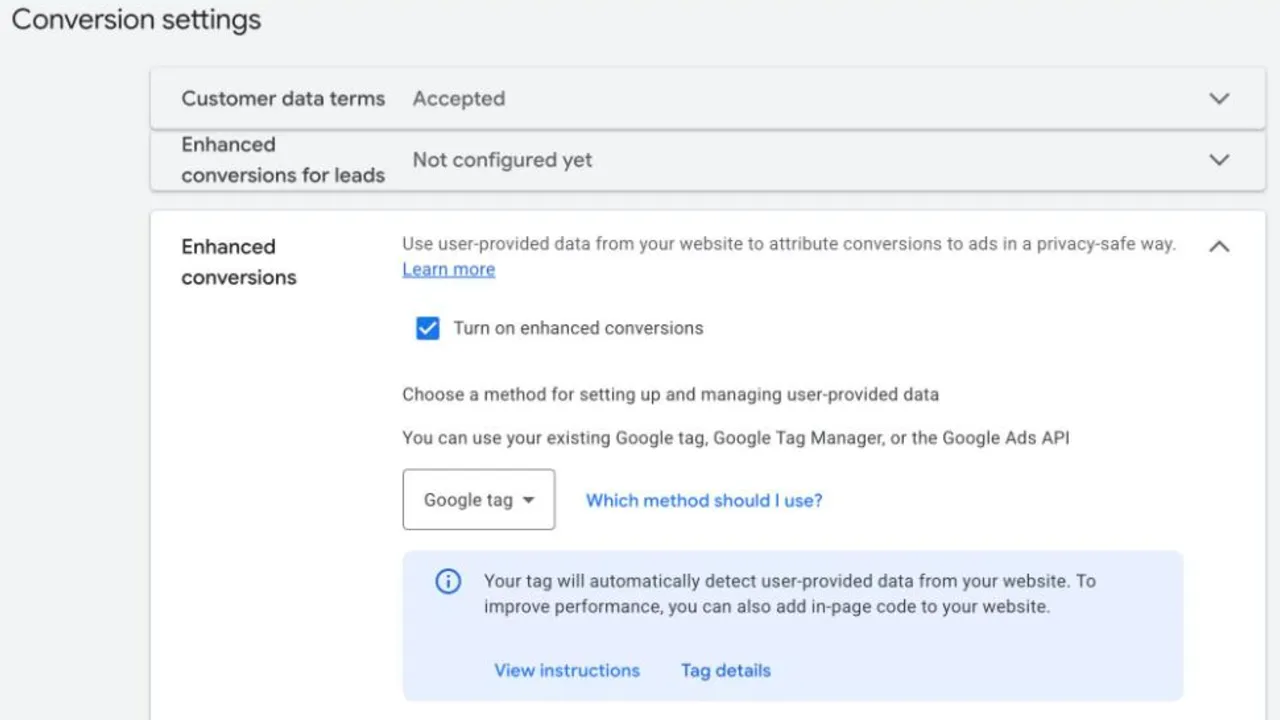
- Check that Enhanced conversions says On. Enhanced conversions sends hashed customer data from your checkout, such as the email address, so Google can match more sales to ad clicks (Google's setup guide). I keep it on. If it says Off, my guide to enhanced conversions on Shopify shows the switch and how to check it works, but finish this guide first: enhanced conversions can't repair a purchase tag that doesn't fire.
One thing to check while you're here: click Google tags. The window lists the tags the app installed. It also says that manual conversion tags are not shown there. So an old tag you once pasted into your theme won't appear in this list, even though it may still be running.
Step 2: Check your Shopify pixels for duplicates
- In your Shopify admin, click Settings, then Customer events.
- Look at the Pixels list.
In my store it shows Facebook & Instagram, Google & YouTube and Klaviyo: Email Marketing & SMS, each with a green Server and Web status. The status means the pixel is connected and tracking events.
If you see a custom pixel here with Google code in it (look for gtag, AW- or GTM-), it may be sending a second purchase to Google Ads. Open it and read it before you delete anything. Then find out which conversion action it sends to. That's Step 3.
Also look in your theme. In older stores, a Google Ads tag is often pasted into theme.liquid. Click Online Store, then Themes, then the ... button, then Edit code, open theme.liquid and search for AW-.
Step 3: Check the conversion actions in Google Ads
- In Google Ads, click Goals in the left bar.
- Click Conversions to open the menu, then click All conversions.
You get a table grouped by goal, with Purchases at the top. The columns that matter:
- Conversion action: the name. Find the one you wrote down in Step 1.
- Conversion source: Website for the app and for a custom pixel. An imported GA4 purchase names Google Analytics (GA4) here.
- Tracking status: whether it works. The next section explains every status.
- Action optimisation: Primary or Secondary.
- Count: Every or One. For purchases it should be Every, because every purchase is worth money.
Now apply the rule from earlier. In the Purchases group, exactly one active action should be Primary: the app's purchase action. If an imported GA4 purchase or an old manual "Purchase" action is also Primary and still recording, you are double counting.
To change one to secondary, click the action's name, open its Settings tab, and change Action optimisation to Secondary. If the action is dead and you're sure nothing uses it, tick its box, click Edit, then Remove.
Careful with one thing. If a campaign uses a custom goal, secondary actions in that goal are still used for bidding (Google's explanation). Most small accounts don't use custom goals, but check before you relax.
What every tracking status means
Click the status of any action to see why it has that status. In my account the popup even names the exact problem.
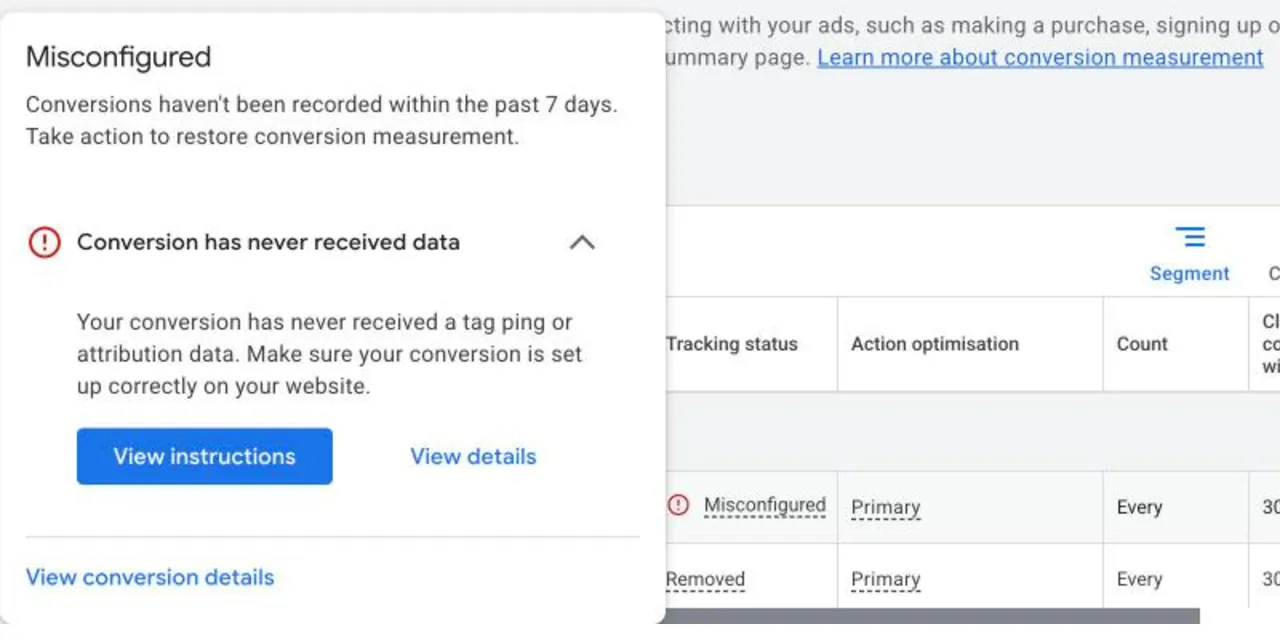
That popup belongs to my "Google Shopping App Purchase (1)", the action Checkout completed goes to. "Never received a tag ping" means the tag for this action has not fired a single time. In my store the mapping from Step 1 is right and nothing from Step 2 competes with it, so the likely reason is simple: no purchase has gone through since the app created this copy. A test order (Step 4) settles it either way.
These are the statuses Google Ads shows today (Google's list):
| Status | What it means | What I'd do |
|---|---|---|
| Active | Everything works. | Nothing. |
| Awaiting conversions | No conversions in the last 7 days. Usually because the action is less than 48 hours old, your campaigns are paused, or you have too little traffic. | Wait 48 hours after creating it. If your ads are running and it stays, place a test order (Step 4). |
| Needs attention | Conversions are still recorded, but something is wrong. | Click the status and read the issue. In my account it was enhanced conversions missing customer data on page views, which doesn't matter for purchases. |
| Misconfigured | Conversions have stopped recording completely, because of a setup error or a broken tag. | Click the status. If it says the conversion has never received data, the tag for this action isn't firing. Check Step 1 (is this the action Checkout completed goes to?) and place a test order. |
| Removed | Someone deleted it. It records nothing. | Nothing, unless it's the one you meant to use. |
Older guides and some of Google's own pages still use older names: Unverified (the tag hasn't fired yet), Tag inactive or Inactive (Google no longer sees your tag) and No recent conversions (the tag is seen, but nothing was recorded in 7 days, most often because no ads are sending people to your shop) (Google's definitions). The advice in the table above still applies.
Two things that confused me at first:
- "Inactive" or "Awaiting conversions" doesn't always mean broken. A conversion only counts when the buyer clicked one of your ads first. If your campaigns are paused, Google has nothing to count, even if the tag works perfectly.
- The "New conversion" wizard may say "No tag found for this account". It said that in my account too, while the app's tags were happily sending page views. The app's tags run inside Shopify's pixel system, so Google's website scan doesn't see them. Trust the status column, not the wizard.
Step 4: Test with a real order
The only test that tells the truth is a real purchase.
- Buy something cheap in your own store, with a real payment method, the way a customer would.
- In Shopify, refund and cancel the order afterwards.
- The next day, go to Goals, then Conversions, then All conversions, and click the status of your purchase action. The popup shows Last event ping, which is the last time the tag fired.
If the last ping is from your test order, the tag works, and a Misconfigured action like mine is fixed. The status then moves on to Awaiting conversions, because your test order didn't come from an ad click, and then to Active once a real ad click turns into a purchase.
If there is no ping, the tag isn't firing on your thank you page. Go back to Step 1 and check that Checkout completed goes to this exact action. If it does and there is still no ping after a second test order, check that Conversion measurement is On and that the app shows the right Google Ads account, then use Google's support form for the Shopify app, because the app's code is not something you can edit.
Don't click your own ads to test. It costs money and it doesn't test anything the order didn't already test.
How long data takes to appear
Be patient. Google says Google Ads conversion tag data takes about 3 hours to show with last-click attribution and about 15 hours with other attribution models. Conversions imported from Google Analytics take about 12 and 24 hours (Google's data freshness table). A brand new conversion action can take up to 48 hours to record anything, as Google Ads itself says when you click its status.
And remember that Google Ads reports a conversion on the date of the ad, not the date of the purchase (Google's explanation). So yesterday's numbers can still grow for days.
Fix: purchases stopped after Shopify's checkout upgrade
This is the classic. Your ads ran fine for years, then Shopify upgraded the thank you and order status pages, and Google Ads dropped to zero conversions while Shopify kept getting orders.
The reason: many stores tracked purchases with code in checkout.liquid or in the Order status page additional scripts box. Shopify removed both. Shopify Plus stores had until August 28, 2025, and all other stores until August 26, 2026 (Google's migration guide). After that, the old code simply doesn't run anymore.
The fix:
- Turn on conversion measurement in the Google & YouTube app (Step 1).
- In Google Ads, make the app's purchase action Primary and set the old purchase action to Secondary (Step 3). The old one records nothing anymore anyway.
- Place a test order (Step 4).
In the Shopify community, people with this exact problem got their conversions back by rebuilding the tracking from scratch in Customer events rather than patching the old setup (the thread). They used a custom pixel. I'd use the app instead, for the support reasons above, and keep a custom pixel only for the second-account case.
Fix: duplicate conversions
Signs of double counting: Google Ads shows more purchases than Shopify had orders from Google, or your return on ad spend looks too good to be true. It probably is.
- Go to Goals, then Conversions, then All conversions.
- In the Purchases group, list every action that is Primary and not Removed.
- Keep exactly one primary purchase action, the one the app's Checkout completed event goes to. Set the others to Secondary.
- Remove the code behind the extra actions: an old tag in
theme.liquid, a custom pixel in Customer events, or an app that also sends Google Ads conversions. - Check that Count says Every for purchases. One counts only one purchase per ad click, which undercounts repeat buyers.
Don't remove the duplicate code before you've decided which action stays. If you remove the wrong one, you'll have zero tracking instead of double, and that's worse.
Fix: conversion value is wrong or missing
First, know what the app sends. For purchases, the value is the order subtotal minus item and order discounts. It does not include shipping or tax (Google's Shopify parameter reference).
So if a customer pays $60 for a $50 product with $10 shipping, Google Ads shows $50. That's not a bug.
My opinion: subtotal minus discounts is the right number to bid on. Tax isn't your money, and shipping mostly pays the courier. If you bid on order totals, your return on ad spend looks better than your bank account does.
What to check when the value still looks wrong:
- Discounts seem ignored. That was a real bug: order-level discounts were not subtracted from the value until Shopify fixed it around the end of April 2025 (Google's FAQ). If you compare with older data, older values are too high. If you use a target return on ad spend, Google suggests adjusting it.
- Values look too high. Take one recent order and compare its value in Google Ads with its subtotal minus discounts in Shopify. If Google Ads shows more, another tag (in your theme or a custom pixel) is probably sending the order total to the same action, or to a second primary action.
- Every purchase is worth $1 or the same amount. That's the default value of a manually created action when no value is passed. In my test the manual setup used 1 US Dollar as the default. You're looking at the wrong action, or a manual tag that doesn't send the order value. Switch to the app's purchase action.
Fix: consent settings are blocking the tags
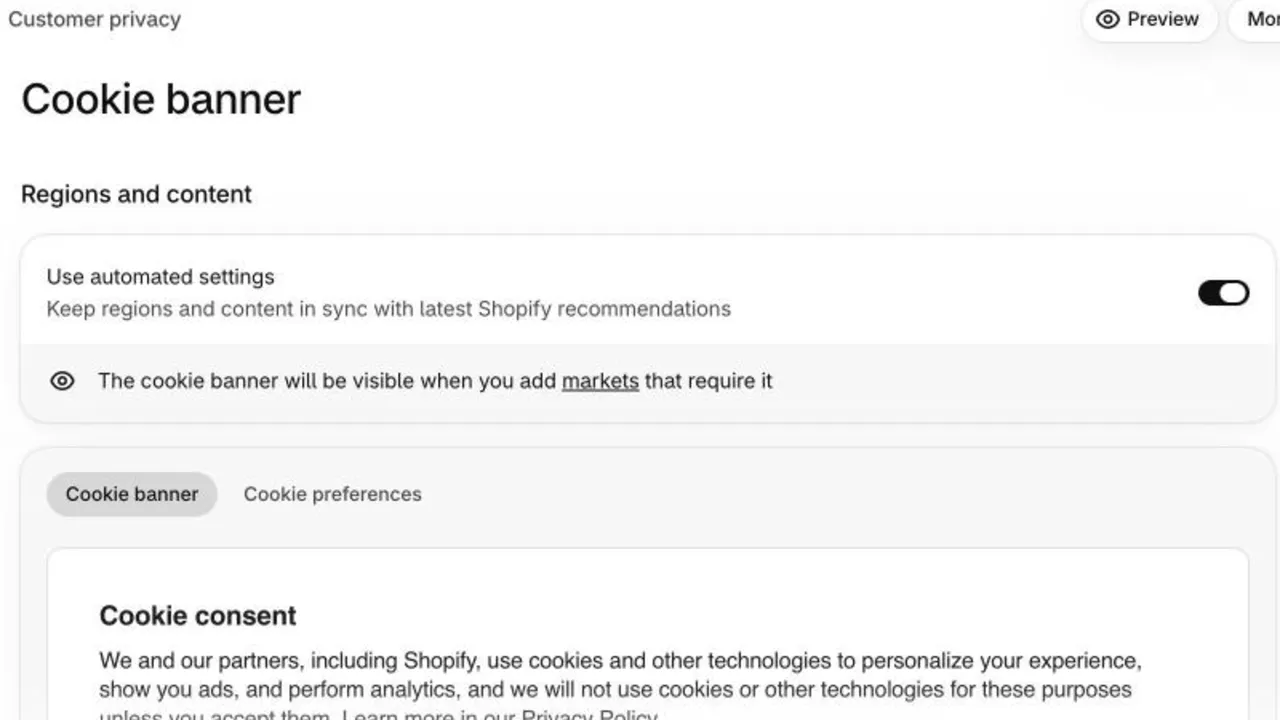
If your shop sells to Europe or other regions that require a cookie banner, Shopify collects visitor data in those regions only after the visitor agrees (Shopify's privacy settings guide). Visitors who decline don't send a normal purchase event to Google. So fewer conversions in Google Ads than orders in Shopify is expected there.
What to check:
- In your Shopify admin, click Settings, then Customer privacy.
- Look at Cookie banner. It tells you whether a banner is shown, and for which regions.
- If you use a third-party cookie banner app, make sure it's connected to Shopify's customer privacy settings. Otherwise consent may never reach your pixels (Shopify's guide).
- For visitors in the European Economic Area, Google uses their data for personalized ads only with Google Consent Mode v2 and valid consent. Shopify's guide says the customer privacy settings pass consent to Google, and that a custom pixel needs extra code for it (Shopify's guide). One more reason to use the app.
Don't switch the banner off to get more conversions. That's a legal question, not a tracking one.
Fix: the conversions arrive, but not for my ads
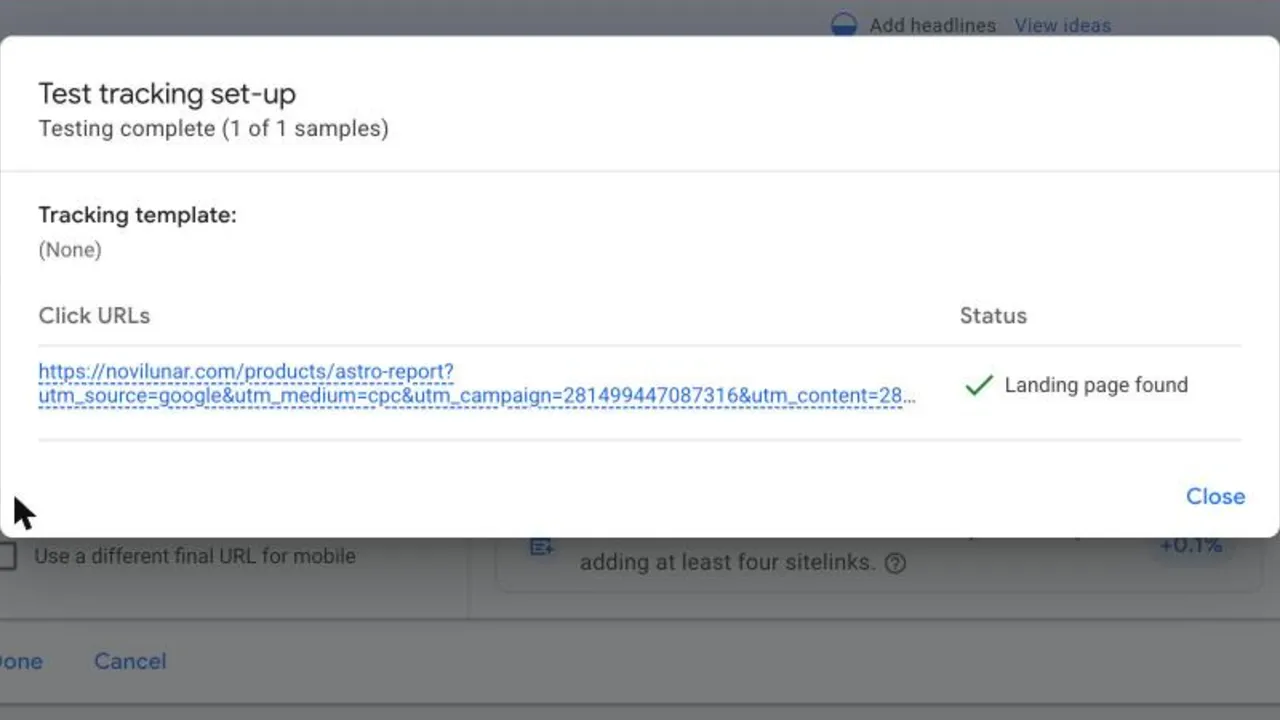
Sometimes the tag works and Google still gives the ads no credit. One common cause sits outside Shopify: the click ID gets lost on the way to your store. Google Ads adds a gclid (Google click ID) to every ad click when auto-tagging is on, and if a redirect or a broken tracking template drops it, Google can't connect the purchase to the click. My Google Ads tracking template guide shows how to check auto-tagging and add UTM tags without breaking it.
Frequently asked questions
Why does Google Ads show fewer conversions than Shopify shows orders?
Because Google Ads only counts orders that came after a click on your ad. Orders from email, Instagram or people typing your address never appear there. On top of that, visitors who decline cookies and conversions still being processed can lower the number further.
Should I import GA4 purchases or use the Google & YouTube app?
Use the app as your primary purchase action. If you also want GA4 purchases in Google Ads, import them as secondary so you can compare without counting anything twice.
My purchase action says Misconfigured, but the app says conversion measurement is On. What now?
Click the status and read the reason. If it says the conversion never received data, check in the app's Conversion event settings that Checkout completed goes to that exact action, then place a test order and look for Last event ping the next day.
Can I add the Google Ads tag with Google Tag Manager on Shopify?
You can put Google Tag Manager in a custom pixel, and Shopify has a tutorial for it. But Google says Tag Manager in Shopify's custom pixel sandbox isn't supported (Google's list of limitations). For purchase tracking I'd stay with the app.
Should I count shipping and tax in the conversion value?
I wouldn't. The app sends subtotal minus discounts, and that is closer to the money your ads really earned. What matters most is that you don't change it later, because your bidding targets depend on it.