How to set up Google Consent Mode v2 on Shopify
By Michal Krkoska13 min read
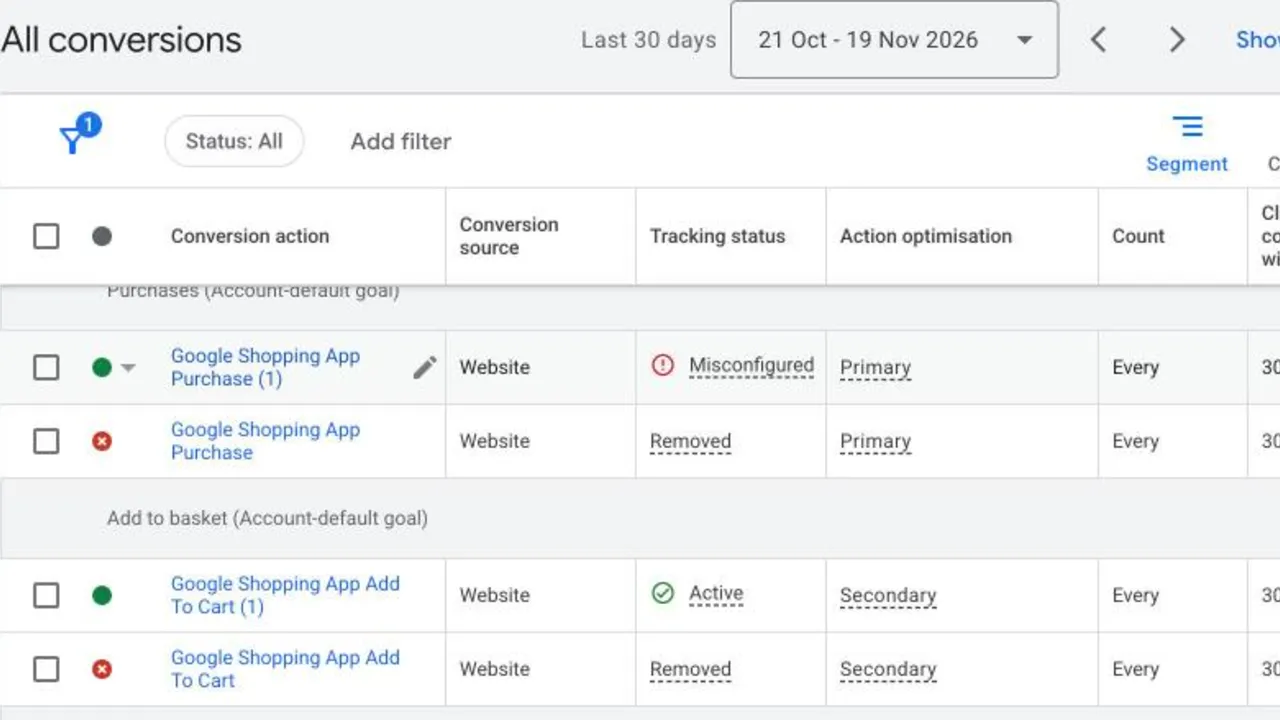
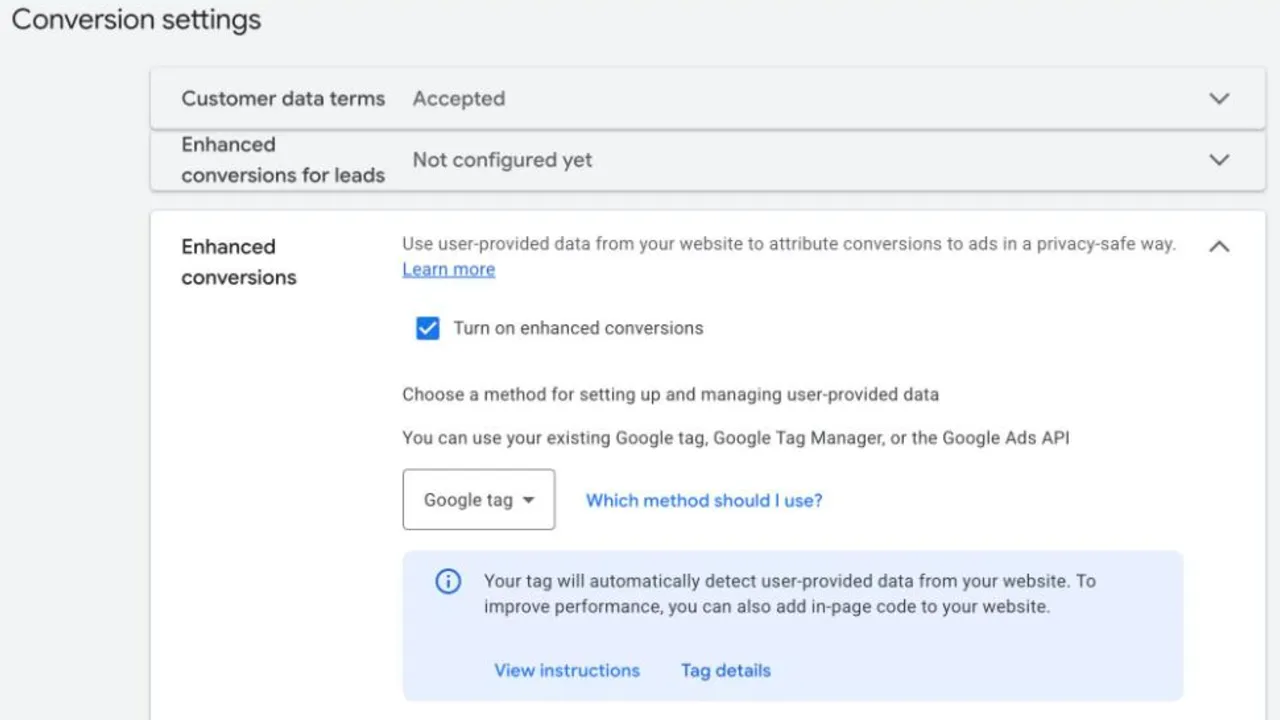
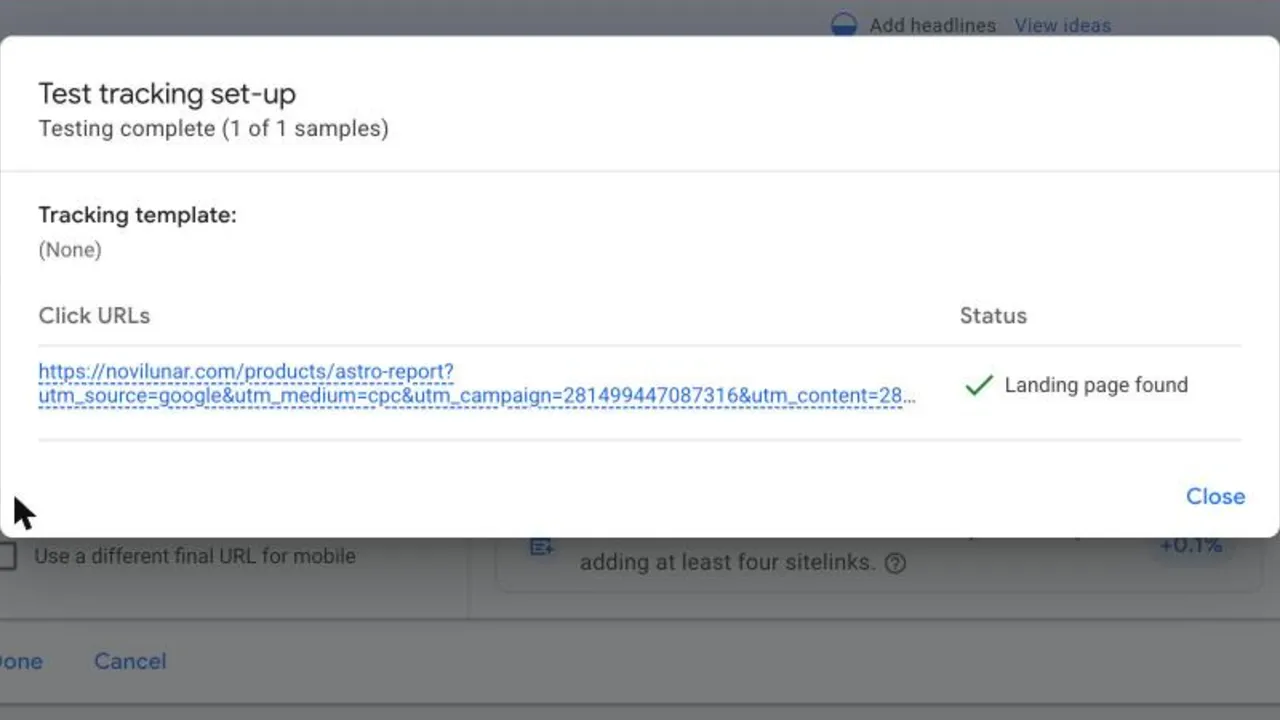
Sooner or later Google Ads sends you an email that says "Act now to preserve conversion tracking and remarketing". It sounds like your ads are about to break. A store owner on the Google Ads forum kept getting that email although consent mode was already active. On the Shopify forum, the thread asking how to switch on Consent Mode v2 has more than 50 replies, and most of them are people being sent from Shopify support to Google and back.
The good news: on Shopify, most of the work is built in. This guide shows where each setting lives, how to check that Google receives the signals, what happens to your numbers when people click "Decline", and whether you need any of it. It takes about 20 minutes.
This is not legal advice: which regions get a banner and what it says are your responsibility as the store owner.
What Consent Mode v2 is, in plain words
A cookie banner asks visitors whether you may use cookies for ads and analytics. Consent Mode is the way your Google tags learn the answer. The banner says yes or no, and Consent Mode passes that yes or no to Google (Google's overview).
"v2" means Google now expects four separate answers instead of two. Each one is called a consent signal. Here is what each controls and what happens when it is denied, as Google defines them:
| Signal | What it controls | When it is denied |
|---|---|---|
ad_storage | Storing ad cookies on the visitor's device. | Google Ads does not use its cookies for that visitor. |
analytics_storage | Storing analytics cookies, for example to measure visit length. | Google Analytics does not use its cookies for that visitor. |
ad_user_data | Sending the visitor's data to Google for advertising, including conversion tracking and enhanced conversions. | Google does not use that visitor's personal data for online ads. |
ad_personalization | Using the visitor's data for personalized ads, such as remarketing. | No personalized ads, and remarketing lists get no data from that visitor. |
The two new ones are ad_user_data and ad_personalization. Google needs both granted before it uses a visitor for personalized ads. That is why the "act now" emails talk about remarketing.
Who needs it, and who can ignore it
Google's rules are written for visitors from the European Economic Area (EEA: the EU plus Iceland, Liechtenstein and Norway). Shopify puts it bluntly: data from EEA visitors is not used for personalized advertising unless Consent Mode v2 is active and valid consent is collected (Shopify's help page). Google says consent mode can behave differently in the EEA, the UK and Switzerland (Google's overview), and Shopify shows its banner in the UK and EEA by default when you sell there (Shopify's privacy settings).
So:
| Your store | Do you need Consent Mode v2? |
|---|---|
| Sells to the EEA, UK or Switzerland and runs Google Ads | Yes. Without it, Google drops those visitors from remarketing and measures them badly. |
| Sells to the EEA, UK or Switzerland and uses Google Analytics only | Yes, if you want Google Analytics audiences and modelled data for those visitors. |
| Sells only in the US (or other places without a banner rule) | No real work. Leave Shopify's automated privacy settings on and stop there. |
| Does not use any Google ads or analytics | No. |
My opinion on US-only stores
If you sell only in the US, don't bother. Do not install a consent app "to be safe".
US privacy laws are mostly opt-out laws. Shopify already handles them with the data sharing opt-out page, which lets visitors say no to the sale or sharing of their data, and which also respects the browser's Global Privacy Control signal (Shopify's privacy settings). In my store, Shopify switched it on automatically in California, Colorado and 13 other states.
A cookie banner app that blocks Google until a US visitor clicks "Accept" just throws away your own data. One US merchant wrote in a review of a Google feed app that consent mode "lost me hundreds of dollars and time." That is what happens when you add a European solution to an American problem you don't have.
Basic and advanced Consent Mode
Google offers two ways to run Consent Mode (Google's overview):
| Basic | Advanced | |
|---|---|---|
| Before the visitor answers the banner | Google tags do not load at all. | Google tags load, set to "denied". |
| If the visitor declines | Nothing is sent to Google. | The tags send cookieless pings: small signals without cookies or identifiers. |
| If the visitor accepts | The tags load and send full data. | The tags send full data. |
| Conversion modelling | Google uses a general model. | Google builds a model for your account, which is more detailed. |
On Shopify there is no basic or advanced switch in Customer privacy, Customer events or the Google & YouTube app. To see what your store does, use Tag Assistant in Step 5.
Step 1: Set up the cookie banner
- In Shopify admin, click Settings (bottom left).
- Click Customer privacy.
You see three rows: Privacy policy, Cookie banner and Data sharing opt out page. Next to the last two is a status, for example Automated. Under the cookie banner, Shopify tells you where it is shown. In my store it says "Not required for regions you're selling in", because I only sell in the US.
- Click Cookie banner.
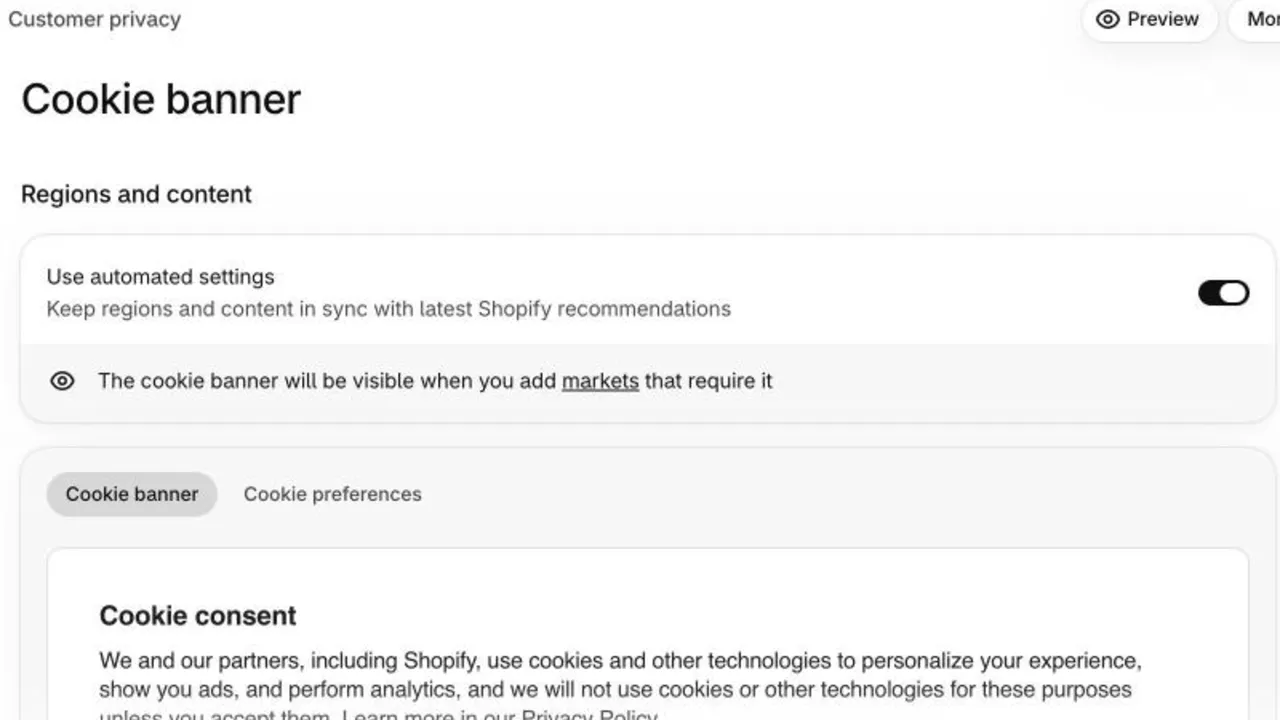
The top card is Use automated settings, with the line "Keep regions and content in sync with latest Shopify recommendations". When it is on, Shopify decides which regions get the banner, based on your Markets (the countries you sell to). In my store the card says "The cookie banner will be visible when you add markets that require it". So if you start selling to Germany, the banner switches itself on for Europe.
My advice: leave Use automated settings on. It is the simplest way to make sure the banner appears where it should, and you don't have to follow every change in European law yourself. If you turn it off, you choose the regions and the text yourself and have to click Save (Shopify's privacy settings).
Below that you can preview and style the banner. The Cookie banner tab shows the first window (Manage preferences, Accept, Decline). The Cookie preferences tab shows the detail window with four groups: Required, Personalization, Marketing and Analytics. You also pick colors, the position, and whether to Show cookie banner in checkout. More actions (top right) has View consent log, which is handy when you need proof of what a visitor chose.
With the customer privacy settings set up this way, Shopify passes the visitor's answers on to Google for you (Shopify's help page).
Step 2: Connect Google with the Google & YouTube app
Shopify's banner talks to the pixels that Shopify runs. So the cleanest setup is to let the Google & YouTube app place your Google tags.
- In Shopify admin, click Google & YouTube under Sales channels.
- Click Settings.
- Scroll to Data sharing and tag management.
- Check that Conversion measurement says On. The app explains that it is "Required for Google Ads, YouTube, Google Analytics, and to add and update tags for conversion measurement, site analytics, remarketing, and more".
- Open Additional conversion measurement settings. You see Conversion event settings, Google tags and Enhanced conversions.
There is no consent setting in the app. That's fine: consent comes from Shopify's privacy settings. If conversion measurement is off, I explain the whole setup in Google Ads conversion tracking on Shopify.
Step 3: Check the pixel in Customer events
A pixel is a small piece of code that sends events, such as "purchased", to an app like Google.
- Click Settings, then Customer events.
- In the Pixels table, Google & YouTube should show Server and Web in green.
- Click Google & YouTube. Under Data you choose Optimized (marked Recommended) or Always on. Leave it on Optimized.
Shopify says pixels follow the consent collected in each region (Shopify's privacy settings), so a "Decline" on the banner still counts.
What to look for: one Google pixel, not three. If a custom pixel or a second app also sends Google tags, two systems set consent and they will argue.
Step 4: If you use another banner app or Google Tag Manager
You don't have to use Shopify's banner. Many stores use a separate banner app. That works, with two rules from Shopify:
- The app must be integrated with Shopify's customer privacy settings (Shopify's help page). Apps do that through the Customer Privacy API, the way apps tell Shopify what the visitor chose. Otherwise the consent never reaches your pixels.
- The app must show its banner in exactly the same regions as Shopify's settings. If they don't match, Shopify warns that data can be processed before the visitor agrees (Shopify's privacy settings).
If you run Google tags through Google Tag Manager in a custom pixel (code you add yourself in Customer events), Shopify says you have to add a code snippet for Consent Mode v2 yourself (Shopify's help page). Google also lists consent mode URL passthrough among the features that may not work inside a custom pixel (Google's list). If you go that way, my Google Tag Manager on Shopify guide has the setup. Unless you already know you need Tag Manager, the Google & YouTube app plus Shopify's banner is less to break.
Step 5: Check that the signals reach Google
Don't trust any settings screen, including Shopify's. Check what Google receives. There are two places.
In Tag Assistant
Tag Assistant is Google's free tool that shows what your Google tags do on a page. Google describes the check like this (Google's verification guide):
- Open tagassistant.google.com and enter your store's address.
- Your store opens in a new window. Accept the cookie banner. (Use a VPN set to a European country if your banner only shows in Europe.)
- Back in Tag Assistant, click the first Consent event in the left column. All four signals,
ad_storage,ad_personalization,ad_user_dataandanalytics_storage, should be there and Denied. In the tag's Consent tab this is the On-page Default column. - Click the latest Consent event. After you clicked Accept, the four signals should be Granted. This is the On-page Update column.
- Repeat in a private window and click Decline. The update should stay Denied.
If the first Consent event is missing, the tags don't know about consent. If the default already says Granted for a European visitor, often a second tool is fighting Shopify.
In Google Ads
- In Google Ads, click Goals in the left bar.
- Click Summary, then the Diagnostics tab.
- Scroll down to the Consent mode card. It shows a rating for Web.
- Click View details.
In my account it says Excellent: "Your website ads consent setup is active and fully optimised in the European Economic Area."
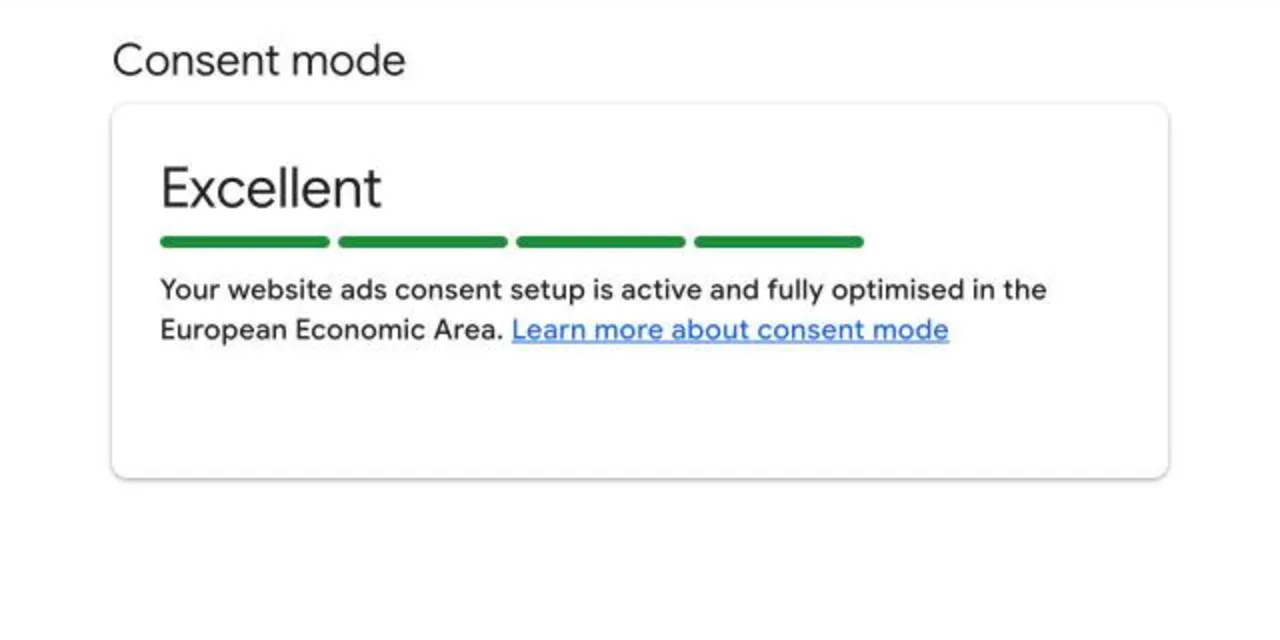
Google also shows consent on a single conversion action, under Goals, Conversions, Summary, the action's name and its Diagnostics tab. There, "Consent mode is implemented" means the setup works but your account is not yet big enough for modelling. "Consent mode is implemented and modeling is active" means modelled conversions are being added (Google's verification guide). Google says the status can take 48 hours to appear, and up to two weeks in some cases. So don't panic on day one.
What happens to your numbers when people decline
Your conversions will drop in Europe. That is not a bug: some sales from visitors who declined are never matched to an ad.
Google tries to fill the gap with conversion modelling: it estimates the conversions it could not see, based on similar visitors who said yes. But there are thresholds:
- Google Ads needs 700 ad clicks over 7 days, per country and domain grouping (Google's modelling page). Per country. So 700 clicks spread over ten European countries is not enough for any of them.
- Google Analytics needs at least 1,000 events per day from visitors who declined, for at least 7 days, and at least 1,000 daily users who accepted, on at least 7 of the last 28 days (Google's behavioral modelling page).
Most small stores never reach these numbers. So expect fewer conversions reported from Europe, no modelling to fill the gap, and Shopify's own orders by country as the truth. Don't cut a European campaign just because it reports fewer conversions after the banner went live.
When it goes wrong
These are the problems store owners report most.
Google keeps emailing you to "act now", although you set it up. The email is general. Check the Consent mode card in Goals, Summary, Diagnostics instead. If it shows a good rating, ignore the email.
Shopify sets consent and fights your Tag Manager setup. On the Shopify forum, store owners who manage consent in Tag Manager report that Shopify still sends its own consent default and update, even after disconnecting Google Analytics. There is no switch to turn it off. The fix is to choose one owner for consent. Either let Shopify's settings own it (and connect your banner app to the Customer Privacy API), or move all Google tags into one custom pixel. Don't run both.
A banner app broke the other pixels. Check the app's regions against Shopify's and its connection to Shopify's customer privacy settings.
Conversions dropped right after the banner went live. Expected in Europe. If they dropped in the US too, your banner is showing in the US. Check the regions under Settings, Customer privacy, Cookie banner.
Frequently asked questions
Is Shopify's free cookie banner enough for Consent Mode v2?
For most stores, yes. Shopify says that with its customer privacy settings set up correctly, consent is passed on to Google (Shopify's help page), and its pixels, including the Google & YouTube one, follow the consent collected in each region (Shopify's privacy settings). You need a paid app only if you want features Shopify's banner doesn't have, such as a detailed cookie list.
Should I put the cookie banner in checkout?
Next to that setting, Shopify warns that it "may reduce checkout conversion rate". Most visitors have already answered the banner before they reach checkout, so I leave it off unless I have a specific legal reason to show it there.
Can I set up Consent Mode v2 with Google Tag Manager on Shopify instead?
Yes, in a custom pixel, and you add the consent code yourself (Shopify's help page). Make sure the same Google tag is not also sent by the Google & YouTube app, or two systems will be sending consent.