How to set up enhanced conversions in Google Ads on Shopify
By Michal Krkoska13 min read
Sooner or later Google Ads shows you a banner: "Use enhanced conversions to preserve your conversion measurement." A store owner on the Shopify forum got exactly that message, tried for weeks, switched apps, and still had no working setup. Twenty-five replies later, the thread was not solved. (The fix for that setup is further down.)
On Shopify, the job is mostly one switch. The catch is that three places look like the switch, and Google Ads and Shopify don't always agree on whether it's on.
This guide covers what enhanced conversions are, what they fix, the three ways to turn them on and the one I'd use, and how to check they work. Turning them on takes 5 minutes. Checking takes about 3 days.
If your basic purchase tracking doesn't work yet, fix that first with my guide to Google Ads conversion tracking on Shopify. Enhanced conversions can't repair a broken purchase tag.
What enhanced conversions are
A conversion is a valuable thing a visitor does after clicking your ad. For a shop, a purchase.
Normally Google connects a purchase to an ad click with a cookie. If the cookie is gone (another device, blocked cookies), Google can't connect them. The sale happened, but Google Ads never hears about it.
Enhanced conversions add a second way. When someone buys, your store sends details the customer typed at checkout, such as the email address, along with the conversion. Before the data leaves the browser it is hashed: turned into a long code that can't be turned back into the email, with an algorithm called SHA256 (Google's explanation). Google compares that code with the hashed emails of its signed-in users. Same email, same code, match. Now Google knows the buyer is the person who clicked your ad, even without the cookie.
What they fix and what they don't
| Problem | Do enhanced conversions fix it? |
|---|---|
| Buyer clicked the ad on a phone and bought later on a laptop | Often, yes, if the buyer is signed in to Google with the email used at checkout. |
| Buyer's browser blocked or deleted the cookie | Often, yes. The email match doesn't need the cookie. |
| Your purchase tag doesn't fire at all | No. No conversion, nothing to enhance. |
| Every sale is counted twice | No. Fix your primary conversion actions first. |
| The order value is wrong | No. The value comes from the purchase tag. |
| Buyer's email isn't a Google account | No. There is nothing to match it with. |
| Visitor declined cookies on your banner | No. Their data isn't sent to Google in the first place. |
It recovers some of the sales Google was missing. It's a fine-tuning tool, not a repair kit.
How much lift to expect
Honestly: a few percent more reported conversions is a realistic hope, and some small stores see almost nothing. And remember, a jump after you switch it on is better measurement, not better ads.
The uplift figures Google quotes are averages across many advertisers. Your number depends on how many buyers are signed in to Google with their checkout email, and how much your tracking was losing before.
The only number I trust is the one for my own account. About 30 days after enhanced conversions start working, the conversion action's status changes to Recording (enhanced conversions). Hover over it and Google shows the percentage of reported conversions they added, but only for 30 days (Google's page on impact results). Screenshot it when you see it.
Web or leads: which one you need
The Google Ads settings page shows two rows:
- Enhanced conversions (for web): for sales on your website. This is the one for a Shopify store.
- Enhanced conversions for leads: for businesses where a website form starts the sale and the money arrives later, offline. A roofer, a car dealer. The tag captures the hashed email from the form, and later you upload the closed deals so Google can match them (Google's comparison).
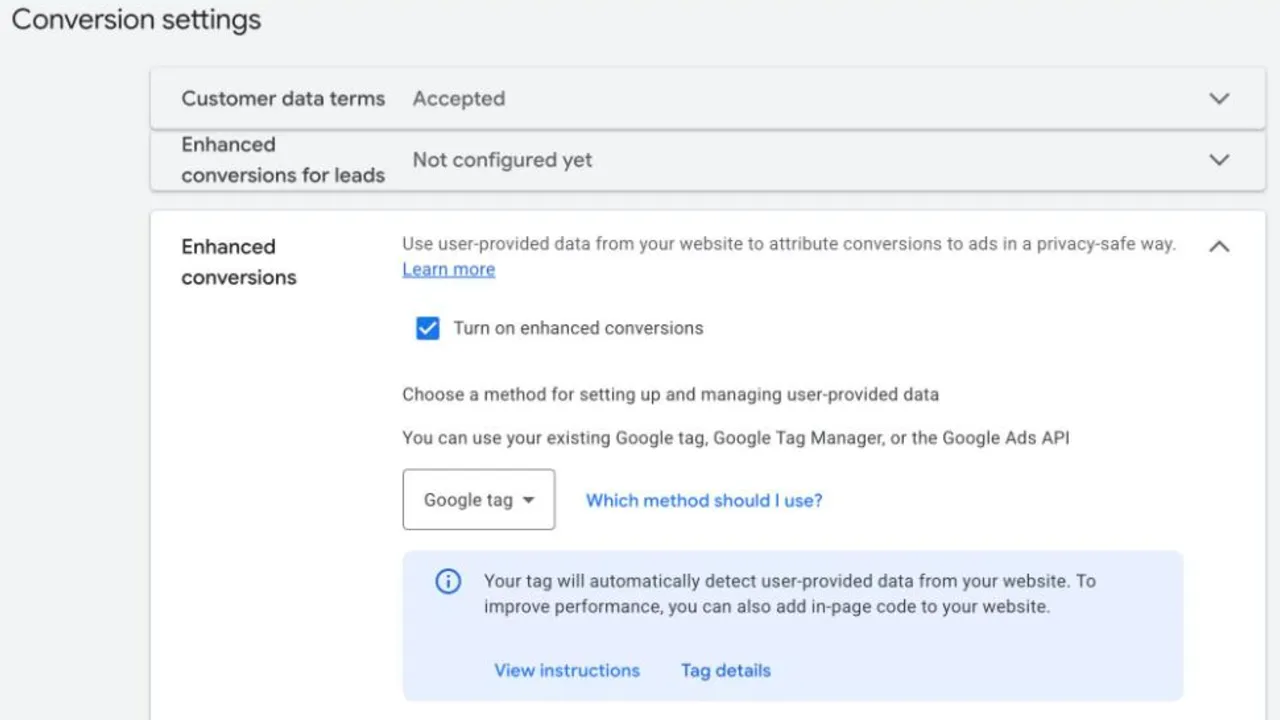
In my account the leads row says Not configured yet, and that's correct. Expanded, it explains that when it's off, the Google Click ID (GCLID) is used to measure leads that converted offline. I sell online, so I leave it off. You should too, unless you also sell through a form and a sales call.
Google says that as of April 2026, web and leads were combined into a single setting (Google's setup guide). The page may still show both rows for a while, as mine does.
The three ways to turn them on for a Shopify store
| Way | How it works | My verdict |
|---|---|---|
| Google & YouTube app switch | Shopify's official Google app sends the hashed checkout details with each purchase. One switch, no code. | Use this. |
| Google tag with automatic detection | You choose Google tag in Google Ads, and the tag finds emails and addresses on your pages by itself. | With the app installed, this is what you already have. Don't build it separately. |
| Google Tag Manager | A Tag Manager tag reads the customer data and sends it, inside a Shopify custom pixel. | Only if your whole tracking already runs there. Google says Tag Manager in Shopify's custom pixel isn't supported (Google's list of limitations). |
Why the app: it owns your purchase tag, so it attaches the checkout email directly. A second way next to it means two systems feeding one conversion, the start of many long forum threads.
Step 1: Turn it on in the Google & YouTube app
- In your Shopify admin, under Sales channels, click Google & YouTube, then Settings.
- Under Google services, check that Google Ads is connected to the right account.
- Scroll to Data sharing and tag management. Conversion measurement must say On.
- Click Additional conversion measurement settings to expand it. You'll see Conversion event settings, Google tags and Enhanced conversions.
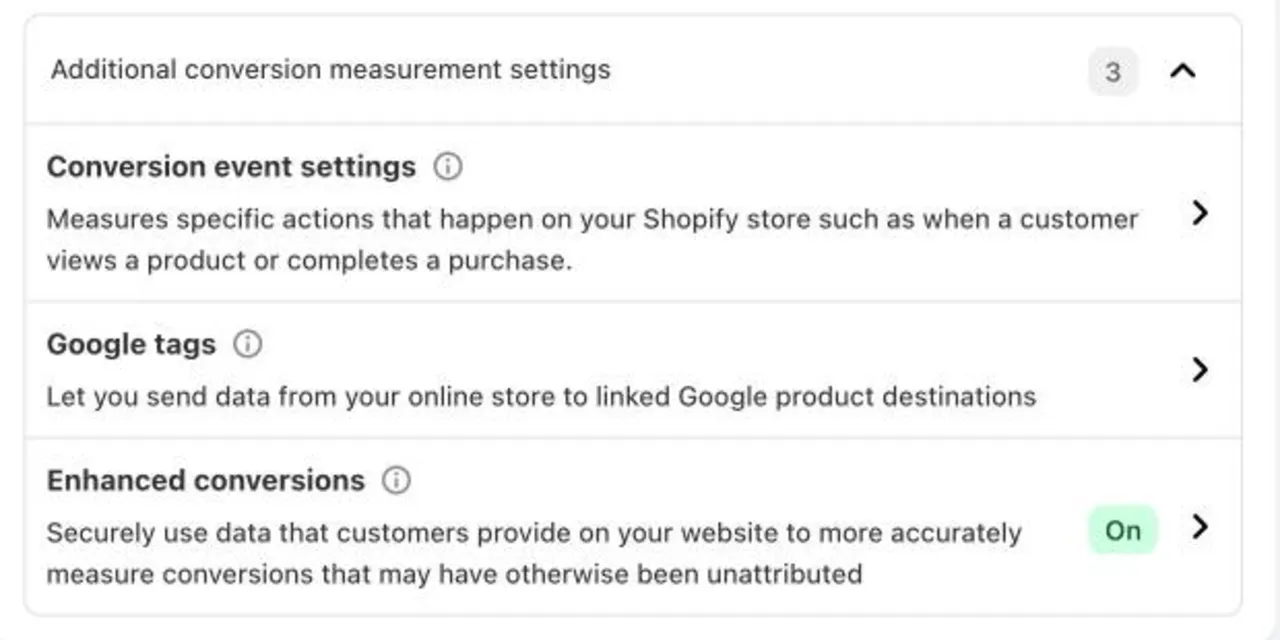
- If Enhanced conversions says On, this step is done. If it says Off, click the arrow on the right.
- A window offers Turn on enhanced conversions (marked Recommended) and Turn off enhanced conversions. Pick the first and click Save.
- If your Google Ads account hasn't accepted the customer data terms yet, the app asks you to review and agree to them (Google's setup guide).
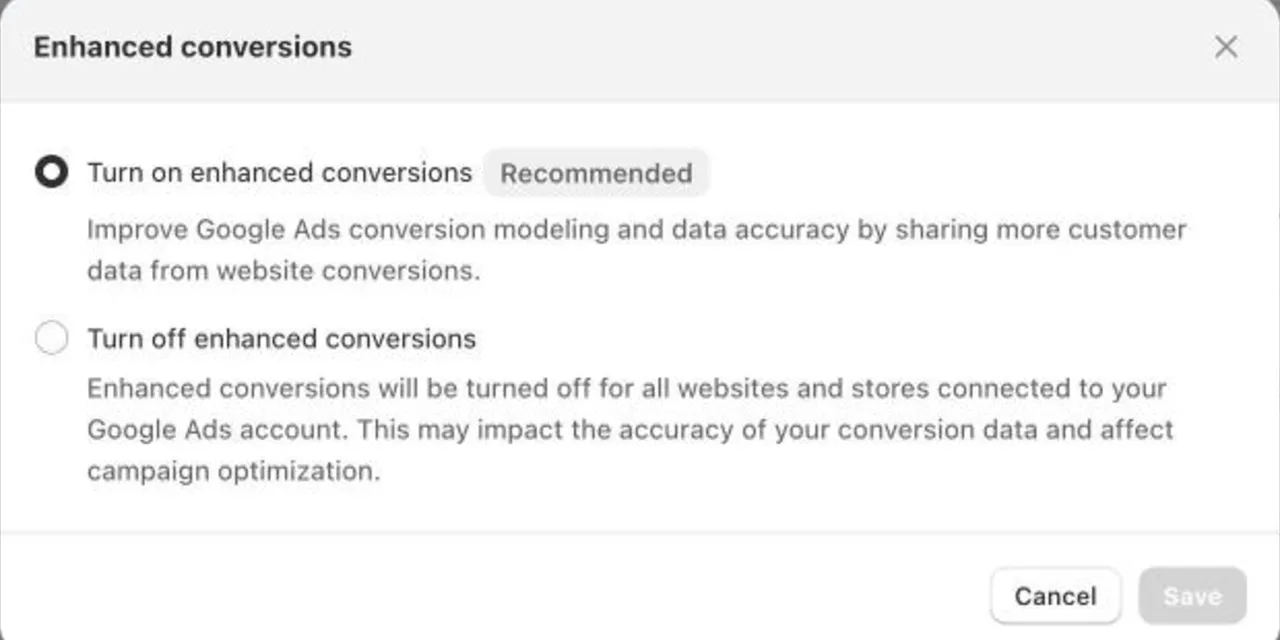
Read the small print under Turn off enhanced conversions: it says they "will be turned off for all websites and stores connected to your Google Ads account". The app's switch flips the setting in your Google Ads account. If a second website advertises from the same account, it's affected too.
Step 2: Check the customer data terms in Google Ads
The customer data terms are Google's rules for customer data you send it. Until you accept them, Google doesn't process enhanced conversion data, and data sent before acceptance isn't processed later (Google's diagnostics guide). This is the quiet reason behind many "it's on but nothing happens" complaints.
- In Google Ads, click Goals in the left bar.
- Click Conversions, then Conversion settings.
- The first row, Customer data terms, should say Accepted. Expanded, it lists what they cover (Enhanced conversions, Enhanced conversions for leads, Shop sales (uploads)), links the Google Ads Data Processing Terms, and in my account shows You've read and accepted these terms.
Only accept them if you're allowed to: you confirm the data was collected in line with Google's policies. Google's Shopify guide also says to tell customers what data you collect and get consent where the law requires it (Google's setup guide). Put Google advertising in your privacy policy.
Step 3: Check the setting in Google Ads matches
Still on Conversion settings:
- The Enhanced conversions row should say something like Managed through Google Tag. Recording Enhanced Conversions., as mine does.
- Click it. You'll see a ticked Turn on enhanced conversions box and a dropdown under Choose a method for setting up and managing user-provided data, with Google tag, Google Tag Manager and Google Ads API.
- With the app, the method is Google tag, because the app installs a Google tag on your store. A blue box says your tag will automatically detect user-provided data from your website.
- Click Cancel if you changed nothing.
Does the dropdown matter? Google's setup guide says two things on the same page: that data sent through a different method than the one selected may not be processed, and that since April 2026 Google accepts data from website tags, Data Manager and the API at the same time (Google's setup guide). I don't gamble on which sentence is newer. With the app, Google tag is the right answer anyway, so if an old setup left it on Google Tag Manager, set it to Google tag. Unsure what's installed? Which method should I use? checks your website for a Google tag.
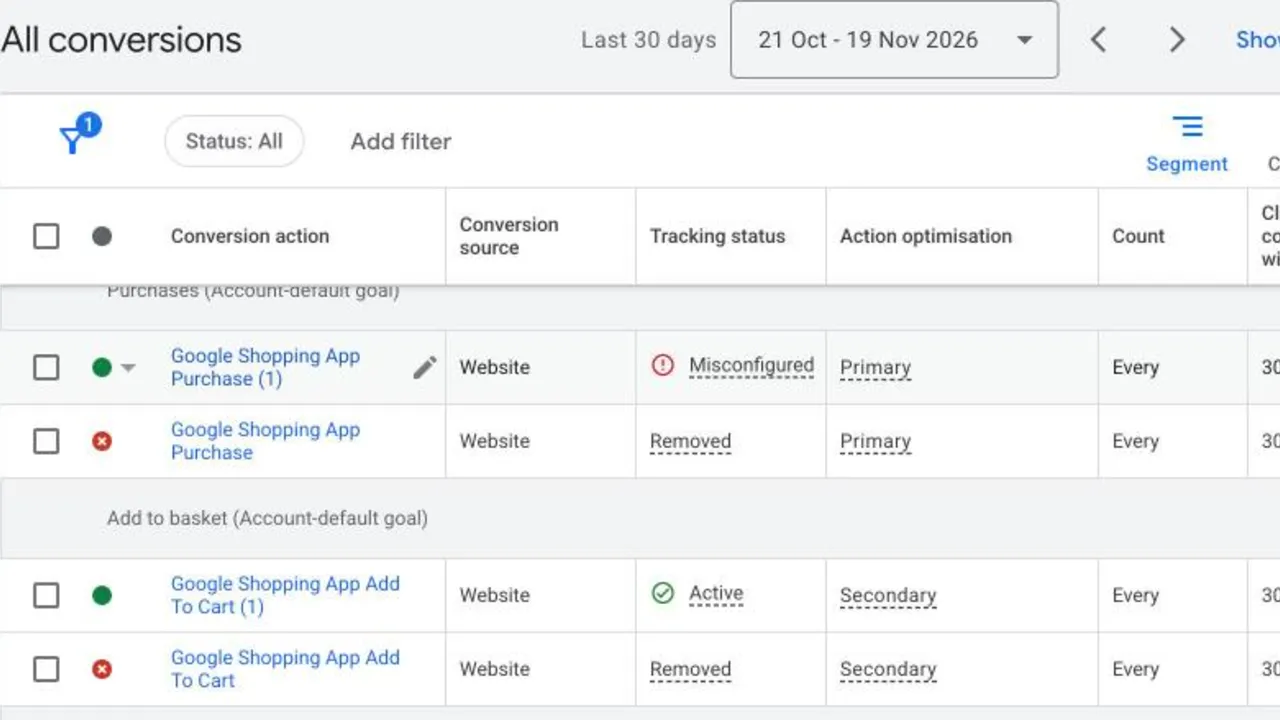
Then open All conversions, click your purchase action (with the app, something like "Google Shopping App Purchase"), and scroll to Settings on its Details tab. The line Enhanced conversions should say Managed through Google Tag.
Step 4: Check that it works
Wait about 72 hours after turning it on (Google's setup guide). Then:
- In Google Ads, click Goals, then Summary, then the Diagnostics tab.
- The Enhanced conversions card shows how many actions use enhanced conversions and a bar per status. Click See details.
The statuses (Google's diagnostics guide):
| Status | What it means | What I'd do |
|---|---|---|
| Excellent | Active and fully optimised. | Nothing. |
| Good | Active, but more customer details would match more. | Nothing, on Shopify. The app decides what it sends. |
| Needs attention | Active, but something is wrong, such as missing data. | Open the alert and read which action it affects. |
| No recent data | No enhanced conversion data in the last 7 days. | Check the app's switch and that your ads run. |
Below that, Impact (website only) shows Coverage (share of conversions that came with customer data) and Match rate per action. Match rate is LOW from 0% to 15% and HIGH above 15% (Google's diagnostics guide).
Three things that confuse people:
- "Insufficient conversion volume" is not an error. Google shows no alerts for an action with fewer than 20 conversions in the past 7 days (Google's diagnostics guide). Small stores see this a lot.
- A warning on a page view action doesn't matter. If conversions "weren't processed because they are missing user-provided data" and the action is a page view or product view, relax. Nobody types an email to view a page. Watch the purchase action.
- Impact takes a month. Up to 30 days of training first (Google's page on impact results).
Want proof today? Place a test order with Chrome DevTools open on the Network tab, filter for "google", and open the conversion request's Payload. An em parameter starting with tv.1~em plus a long string means the hashed email went out. Just tv.1~em means the field was empty (Google's setup guide).
Fix: on in Shopify, but "not set up" in Google Ads
The most common complaint. Check in this order:
- Do you bid on an imported GA4 purchase? The store owner from the opening did. Their purchase conversion was imported from Google Analytics 4 (GA4), and they found no way to enhance it. My fix: make the app's purchase action your primary purchase action and set the GA4 import to secondary, as my conversion tracking guide shows.
- Are the customer data terms accepted? Step 2. Google's Shopify FAQ lists this check (Google's FAQ).
- Does the method dropdown say Google tag? Step 3.
- Is it the same account? The app links only one Google Ads account directly (Google's setup guide). A second account isn't covered.
- Did you wait 72 hours? Banners lag behind.
Fix: data doesn't match, or "Issues with your API set up"
A marketer on the Google Ads forum reconnected the Google & YouTube app for a client, which created duplicate conversion actions. Afterwards the purchase diagnostics said "Issues with your API set up are limiting enhanced conversions data received", even though a test order sent the hashed email.
What the Product Experts in that thread advised, and what I'd add:
- Open the diagnostics for that one action. For this kind of problem the report lists error codes that say what's blocking the data (Google's API diagnostics guide).
- If a different feed app sends your products to Merchant Center, check that its product IDs match the ones your tag sends (forum advice).
- Keep one primary purchase action, the one the app's Checkout completed event goes to (my addition).
- Wait. A Product Expert said tracking changes take a few weeks to show in Google Ads.
- If it persists, the problem is inside the app, whose code you can't edit. Contact the app's support (Google's Shopify app support form).
For data that arrives but doesn't match, Google lists the usual causes: emails without "@", phone numbers without a country code, incomplete addresses (first name, last name, postal code and country are needed together), and pages not served over HTTPS (Google's diagnostics guide). Shopify's checkout handles most of this. If you see these alerts on your purchase action, look for a second tag sending data next to the app.
Fix: consent
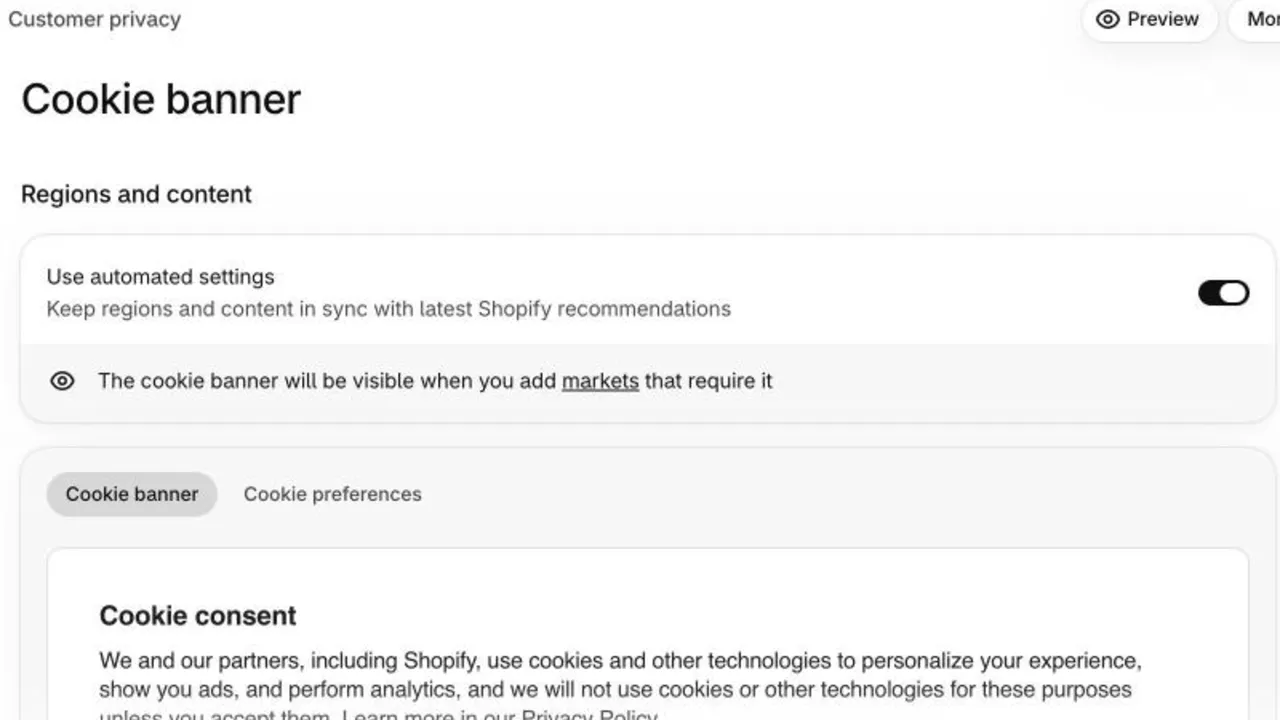
If you sell to regions with a cookie banner, such as Europe, Shopify collects visitor data there only after the visitor agrees (Shopify's privacy settings guide). A visitor who declines sends no normal purchase event to Google, so there's nothing to enhance.
- In Shopify, click Settings, then Customer privacy, and look at Cookie banner.
- If you use a third-party banner app, make sure it's connected to Shopify's customer privacy settings, so the choice reaches the Google app (Shopify's privacy settings guide).
- In Google Ads, the Diagnostics tab has a Consent mode card next to the enhanced conversions card. Excellent means Google receives your visitors' choices.
Don't remove the banner for better numbers. More conversions aren't worth a fine.
Frequently asked questions
Is enhanced conversions safe to turn on?
The data is hashed with SHA256 before it leaves the browser, and Google uses it to match your buyers to signed-in Google accounts (Google's explanation). You still accept the customer data terms and mention Google advertising in your privacy policy. I keep it on.
Should I turn on enhanced conversions for leads for my Shopify store?
No, not for online sales. Leads is for sales that start with a form and close offline, with the deals uploaded later. Your Shopify purchases use the normal setting.
How long until I see results?
About 72 hours until diagnostics have data, and up to 30 days until Google shows how many conversions were added. With fewer than 20 conversions a week, the report may say there's not enough volume for a long time. That's normal.