How to edit SEO titles and meta descriptions in Shopify
By Michal Krkoska16 min read
I typed a 78-character page title into a Shopify product. The counter under the field said "78 of 70 characters used". I clicked Save, and Shopify said "Changes saved".
So the limit is not a limit. It is a hint. Google is the one that cuts your title, and it does it without telling you.
That is the kind of thing this guide is about. You will learn where every title and description lives in Shopify, what Shopify writes when you leave them empty, which limits matter, how to edit hundreds of products at once without an app, and how to check what Google really shows. One product takes about two minutes. A hundred products take about an hour with the bulk editor.
The two things you are editing
A page title (also called the SEO title or title tag) is the blue headline Google shows in search results. It is also the text on the browser tab.
A meta description is the grey text under that headline. It does not change your ranking much, but it decides whether people click.
Both are invisible on the page itself. Your product name on the page can say "Lavender Dream" while the page title says "Lavender Soy Candle, 8 oz". That is the whole point: the product name is for the people already in your store, the page title is for the people still on Google.
Where each title and description lives
Shopify puts them in a different place for each kind of page:
| Page | Where to edit it | Fields you see |
|---|---|---|
| Product | Products, open the product, scroll to the bottom, Search engine listing, click the pencil. | Page title, Meta description, URL handle |
| Collection | Products, Collections, open the collection, scroll to the bottom, Search engine listing, click the pencil. | Page title, Meta description, URL handle |
| Page (About, FAQ, Contact) | Online Store, Pages, open the page, scroll to the bottom, Search engine listing, click the pencil. | Page title, Meta description, URL handle |
| Blog post | Content, Blog posts, open the post, scroll to the bottom, Search engine listing, click the pencil. | Page title, Meta description, URL handle |
| Home page | Online Store, Preferences, section Social sharing image and SEO. | Home page title, Meta description |
| The /collections page that lists all collections | Nowhere in the admin. It needs a change in the theme code. | None |
That last row catches a lot of people. There is a long Shopify Community thread from merchants who searched every menu for it. You are not blind. The field does not exist.
What Shopify does when you leave the fields empty
I created a draft product, wrote a product description and left both SEO fields empty. Then I opened Search engine listing:
- Page title fell back to the product's name.
- Meta description fell back to the product description, from its first word.
That sounds fine until you look at a real product description. Most of them start with a story ("We started pouring candles in my kitchen in 2019...") or a shipping note. Google then shows that story, cut off in the middle of a sentence.
There is a second thing your theme does. In Dawn, Shopify's free default theme, the title code adds " – Your Store Name" to the end of every page title, unless the title already contains your store name (Dawn's source code). Many other themes copy this. So:
- If you type "Lavender Soy Candle, 8 oz", Google gets "Lavender Soy Candle, 8 oz – Your Store".
- If you type "Lavender Soy Candle, 8 oz | Your Store", Dawn leaves it alone.
My opinion: don't type your store name into product titles. The theme adds it for free. Use the space for words people search for.
The limits that actually matter
Here is what Shopify shows and what Google does with it:
| Field | Counter in Shopify | Can you save more? | What Google shows |
|---|---|---|---|
| Product, collection, page and blog post Page title | "of 70 characters used" | Yes. I saved 78 characters without an error. | Roughly the first 55 to 60 characters, then "...". |
| Product, collection, page and blog post Meta description | "of 160 characters used" | Yes. I saved 177 characters without an error. | Roughly the first 150 to 160 characters, then "...". |
| Home page title | "of 70 characters used" | Same as above. | Roughly the first 55 to 60 characters. |
| Home page Meta description | "of 320 characters used" | Up to 320. | Roughly the first 150 to 160 characters. |
| CSV column SEO title | None | Shopify's CSV docs say up to 70. | Roughly the first 55 to 60 characters. |
| CSV column SEO description | None | Shopify's CSV docs say up to 320. I imported 193 characters without an error. | Roughly the first 150 to 160 characters. |
Google does not count characters. It cuts by pixel width, so a title full of "W"s gets cut sooner than one full of "i"s. That is why every guide gives you a slightly different number. Mine: titles under 60 characters, descriptions between 120 and 155. Then you never have to think about it again.
When you go over, the Shopify preview shows it. My 78-character title appeared as "TEST guide product: hand-poured soy candle, 8 oz, lavender and cedarwo...". If the preview cuts it, Google will too.
Step 1: Edit one product by hand
Do one by hand first, even if you have 500. You will learn what a good one looks like before you do them in bulk.
- Click Products and open the product.
- Scroll to the very bottom, to Search engine listing.
- Click the pencil icon on the right.
- Fill in Page title.
- Fill in Meta description.
- Leave URL handle alone for now (more on that below).
- Click Save at the top.
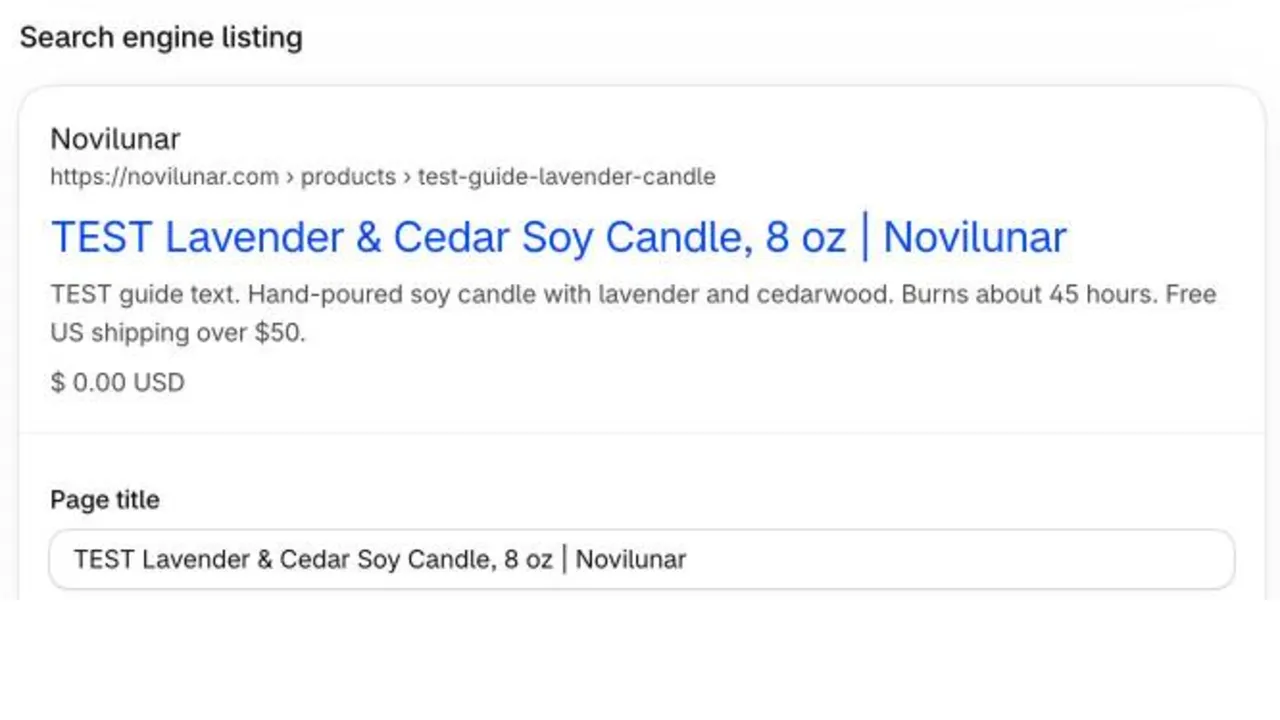
The preview above the fields updates while you type. That preview is close to what Google shows, so use it.
What a good product title and description look like
Most advice says "include your keyword". True, but it leaves you staring at the box. Here is my rule.
The title answers "what is it?" Product type first, then the one or two details people filter by: size, material, scent, colour, quantity. Not your clever product name, unless people search for it.
The description answers "why this one?" One concrete fact about the product, one fact that removes a worry (shipping, returns, size), and nothing else. No "Shop now!", no "best quality", no story.
Two examples I wrote:
| Before (empty fields, Shopify's fallback) | After | |
|---|---|---|
| Title | Lavender Dream – Your Store | Lavender Soy Candle, 8 oz, 45-Hour Burn – Your Store |
| Description | We started pouring candles in my kitchen in 2019, when my sister asked for a gift that didn't smell like a chemistry lab. Today every... | Hand-poured soy candle with lavender and cedarwood. Burns about 45 hours, cotton wick, no paraffin. Free US shipping over $50. |
| Before | After | |
|---|---|---|
| Title | Moon Mug – Your Store | Handmade Ceramic Mug, 12 oz, Dishwasher Safe – Your Store |
| Description | Moon Mug. Our bestseller! Shop now. | Wheel-thrown stoneware mug with a matte moon glaze. Holds 12 oz, safe in the dishwasher and microwave. Ships in 2 days. |
"Lavender Dream" is a lovely name. Nobody has ever typed it into Google.
One more thing. Don't write a template like "Buy {product} online at the best price" and paste it everywhere. Hundreds of near-identical descriptions are exactly what Google rewrites or ignores. Short and specific beats long and generic.
Step 2: Edit many products at once with the bulk editor
This is the fastest way without an app, and most guides bury it.
- Click Products.
- Tick the products you want to edit. To get them all, tick the box in the header, then click the link that offers to select all products in your store.
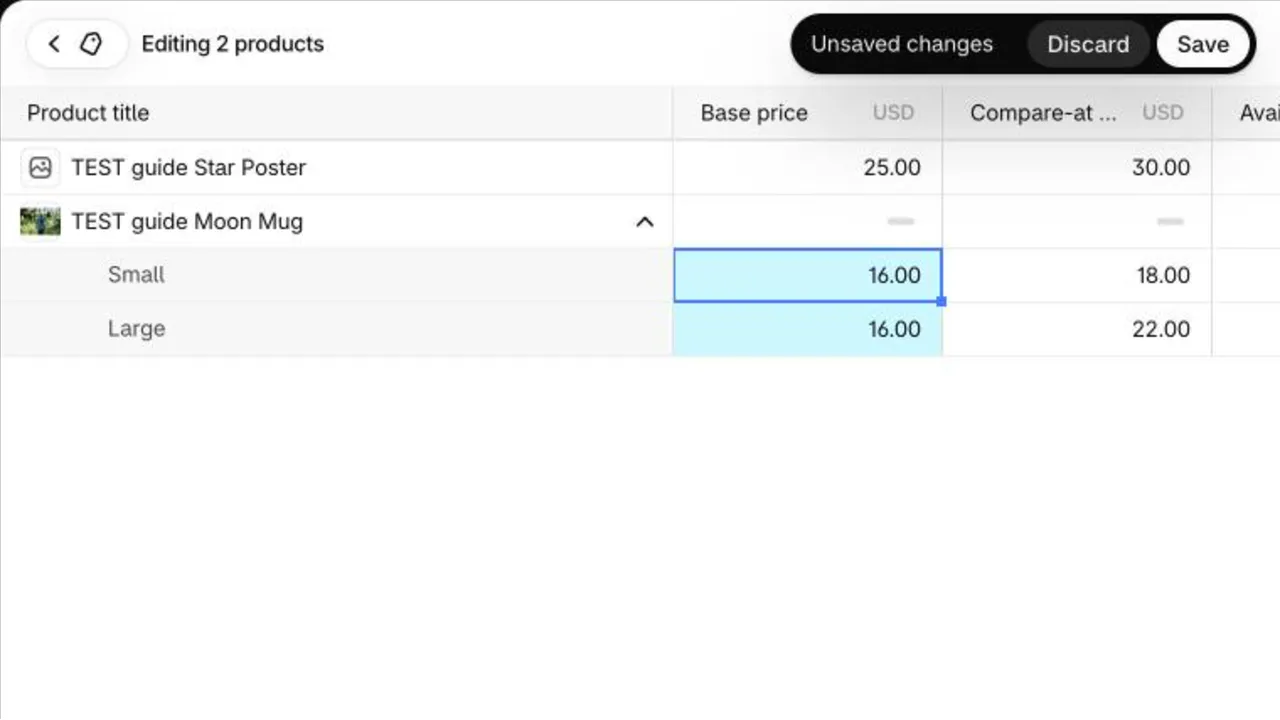
- Click Bulk edit. A spreadsheet opens.
- Click Columns (top right).
- Scroll down to the SEO group and tick Page title (SEO), Meta description (SEO) and URL handle (SEO).
- Click into a cell and type. Each row is one product.
- Click Save at the top.
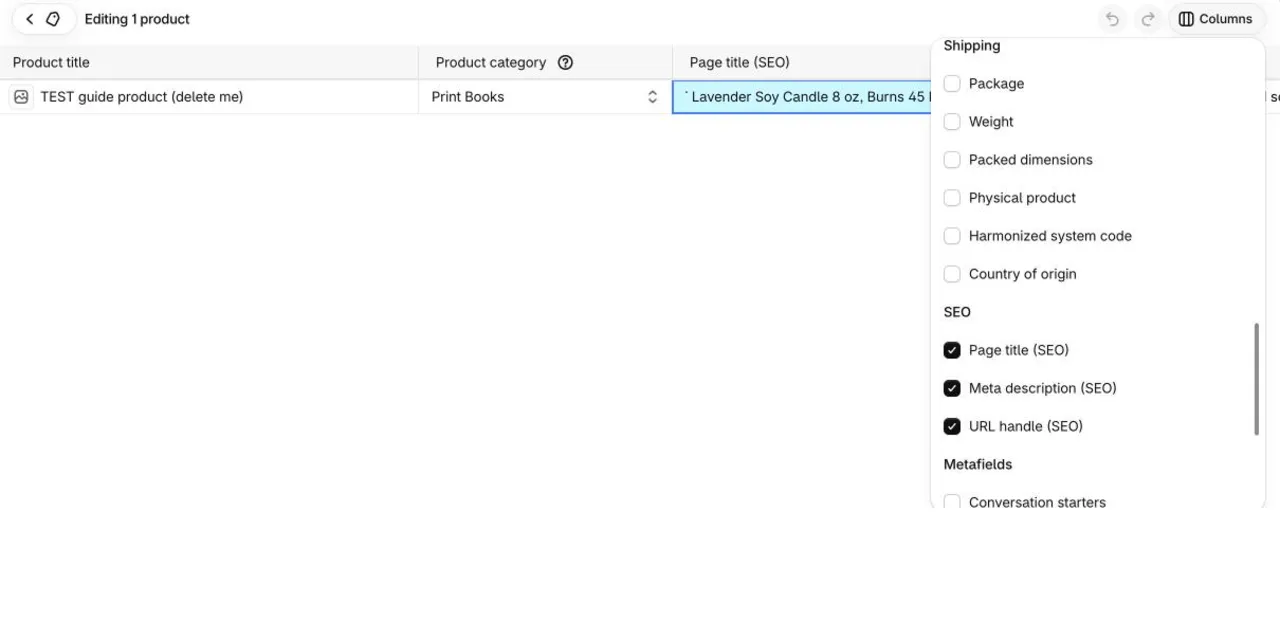
Two traps:
- The column search doesn't find "SEO". I typed "SEO" into the search box in Columns and got "No columns found". Don't search. Scroll down to the SEO heading.
- Empty cells look empty, but the product still has a fallback. A blank Page title (SEO) cell means Google gets the product name. Fill the blanks first, they are your biggest wins.
You can copy a column from Google Sheets and paste it into the bulk editor. That is how I would do 500 products: write them in a sheet, sort the sheet in the same order as the editor, paste.
Step 3: Or use a CSV export and import
The CSV route is better when you want to write everything in a spreadsheet first, or hand the job to someone else.
Export
- Click Products, then Export (top right).
- Choose All products (or Products you have selected if you ticked some).
- Choose CSV file for Excel, Numbers, or another spreadsheet program.
- Click Export products.
Watch the column names. Shopify's sample template calls the columns you want SEO title and SEO description, and the product's identifier URL handle (Shopify's CSV documentation). An export can still use the older names: mine said SEO Title, SEO Description and Handle. Shopify accepts both, so keep the headers exactly as your file has them. The handle column is how Shopify recognises each product when you import it back.
Edit
Delete every column except the handle, Title, Status and the two SEO columns. Then edit the SEO columns.
Why delete the rest? Because of this rule from Shopify's import guide: when you overwrite products, a column that is in your file replaces the value in your store, even if the cell is empty. A column that is not in your file is left alone. So the fewer columns you upload, the less you can break.
Why keep Status? When I uploaded a file with only the handle, Title and the SEO columns, the import preview for my draft product said "Product Status: Active". I put the Status column back with "draft", and the preview said "Draft". Keep the column, keep your drafts as drafts.
Save the file as CSV UTF-8. One merchant in the Shopify Community spent ages on an import that silently ignored 200 SEO titles. The cause was invisible junk in an Excel column header. If an import "works" but nothing changes, retype the header row by hand.
Import
The import window and its traps are covered step by step in how to import and bulk edit Shopify products with a CSV. The short version:
- Click Products, then Import.
- Click Add files and pick your CSV.
- Tick Overwrite products with matching handles. Without it, Shopify ignores every product that already exists, which is all of them.
- Untick Publish new products to all sales channels. You are not adding new products, and if a typo in a handle creates one by accident, you don't want it live.
- Click Upload file.
- Read the preview. Check the status and the SEO fields of the first product.
- Click Import products.
Open one product afterwards and look at Search engine listing. Mine had the new title and description, and its product description was untouched.
What happens when you change a URL handle
The URL handle is the last part of the address: in yourstore.com/products/lavender-soy-candle, it's lavender-soy-candle.
Changing it is the one SEO edit that can actually hurt you. Google, your ads, your emails and every link anyone has shared still point to the old address. If nothing redirects it, all of them land on a "page not found".
Here is what I saw when I tested it:
| Where you change the handle | Does Shopify create a redirect? |
|---|---|
| Product page, Search engine listing | It shows a checkbox, Create a URL redirect for old-handle → new-handle. On my draft product it was not ticked. Tick it. |
| Bulk editor, URL handle (SEO) column | No. No checkbox, no redirect. The old address simply stops working. |
| CSV import | No. The handle is how Shopify matches rows to products, so a new handle in the file means a new product, not a renamed one. |
So my opinion is simple: change handles one at a time on the product page, and tick the redirect box. Use the bulk editor only for titles and descriptions.
You can see and fix every redirect under Content, Menus, then URL redirects (Shopify's guide). Two things I found there:
- If you change a handle twice, the first redirect still points to the second handle, which now redirects again to the third. That is a redirect chain. Edit the old redirect so it points straight to the newest address.
- Deleting a product does not delete its redirects. Clean them up yourself.
Finding the old addresses that still get visitors, importing redirects by the hundred and fixing chains are covered step by step in how to fix 404 errors and create redirects in Shopify.
Should you change handles at all? If a product has been live for months and has sales, I wouldn't, unless the handle is truly awful (like copy-of-product-7). The gain is tiny and the risk is real. For new products, get the handle right before you publish.
How to check what Google actually shows
Your admin preview is a guess. Here is how to see the truth:
- View the page source. Open the product on your live store, right-click, choose View Page Source, and search for
<title>andname="description". This is what Google reads. If an SEO app claims it "fixed" a title and this still shows the old one, the app didn't fix anything. - Search Google for the page. Type
site:yourstore.com/products/your-handleinto Google. You'll see the title and description Google currently uses. - Ask Google to look again. In Google Search Console, paste the product's address into the search bar at the top, then click Request indexing. It still takes a few days to a few weeks before search results change.
Don't panic if Google shows a different title or description than yours. Google rewrites them when it thinks something else matches the search better. It does this most when your title is too long, stuffed with keywords, or the same as on 50 other pages. A short, specific, unique title is the best way to get Google to keep yours.
If an SEO app broke your titles
The app reviews are full of this: "uninstalled and all of the updates I made over months were undone", "they deleted title tag and meta description from all pages".
Here is why it happens. Shopify's own Page title and Meta description fields belong to your store. Some SEO apps store their titles somewhere else and inject them into your theme. Uninstall the app and those titles go with it. A few apps also comment out your theme's own title code, so after uninstalling you have no title at all.
What I'd do:
- Before you uninstall any SEO app, export your products. The SEO Title and SEO Description columns show what Shopify's own fields contain. If they're empty while Google shows nice titles, the app was storing them elsewhere. Copy them over first, with the bulk editor or a CSV import.
- After uninstalling, view the source of a product page (see above). If
<title>is missing or shows only your store name, open Online Store, Themes, click ..., then Edit code, openlayout/theme.liquidand look for the<title>block. Compare it with a fresh copy of your theme from the theme store. - From then on, write titles in Shopify's own fields. They survive every app you ever install or remove.
Frequently asked questions
Why does Google show a different title than the one I wrote in Shopify?
Either Google hasn't crawled the page since you changed it, or Google decided to rewrite it. Check the page source first to make sure Shopify is serving your title. If it is, request indexing in Search Console and wait. If Google keeps rewriting it, make the title shorter and more specific.
What is the meta description limit in Shopify?
The admin counter says 160 characters for products, collections, pages and blog posts, and 320 for the home page. Shopify lets you save more than 160. Google shows roughly the first 150 to 160 characters, so I aim for 120 to 155.
Can I bulk edit meta descriptions in Shopify without an app?
Yes. Select your products, click Bulk edit, open Columns and tick Meta description (SEO) under SEO. For larger jobs, export a CSV, edit the SEO description column (SEO Description in an export with older names) and import it with Overwrite products with matching handles ticked.
Do I need a unique meta description for every product?
You don't need one, but blank fields fall back to the start of your product description, and copy-pasted ones get ignored. Start with your best-selling products and your empty fields. A product nobody searches for can wait.
Will I lose my SEO titles if I uninstall my SEO app?
Only if the app stored them outside Shopify's own fields. Export your products before uninstalling and check the SEO Title column. If it's filled in, you're safe.