Black Friday on Shopify: what to check this week
By Michal Krkoska12 min read
Here is a Black Friday sum I don't want to do with real money. A 25% automatic discount and a forgotten 15% welcome code are both order discounts, and both are allowed to combine. Shopify calculates each one on the original subtotal (Shopify's combining rules). So a $200 order loses $80, not the $50 you planned. Multiply that by the busiest weekend of the year.
This is not a list of promotion ideas. It's the things that break or quietly cost money when traffic jumps: a discount that stacks, ads that can't see sales, emails that land in spam. Each check says where to click, what "good" looks like, and which of my guides has the full fix. Do them in this order. It takes one evening.
Check 1: The discount works, and nothing else stacks on it
Start here, because every other channel sends people to this discount.
- In the Shopify admin, click Discounts.
- Read the Status column, row by row. Old influencer codes, a "test" code from last spring, a friends-and-family code: if it says Active, it works on Black Friday too.
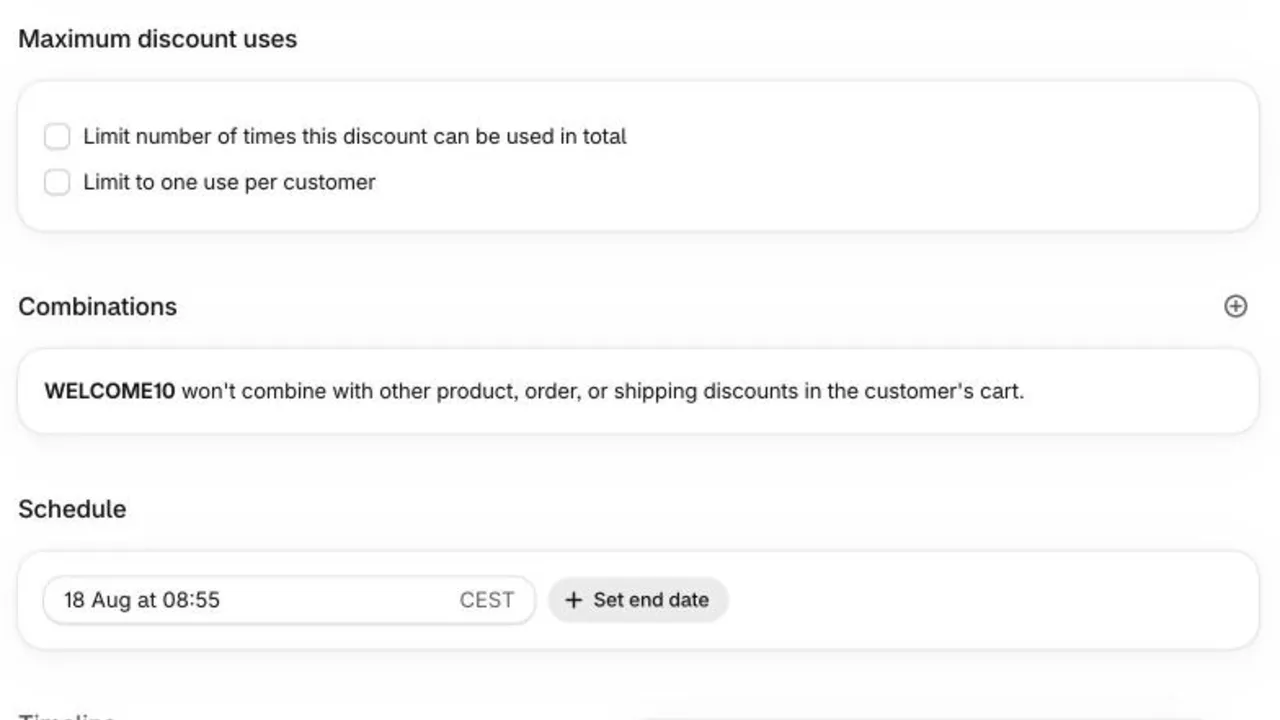
- Look at the Combinations column. Each discount has three small icons (product, order, shipping). Dark icons are the classes it combines with.
- Open your Black Friday discount. Under Combinations, tick only the classes you really want it to combine with. Usually that is Shipping discounts, so free shipping still applies.
- Under Schedule, click Set end date. Shopify uses your store's time zone.
What good looks like: your Black Friday discount combines with free shipping and nothing else, and every old code you don't want used this weekend either has an end date or doesn't allow your sale's class.
Combining is a handshake: both discounts must tick each other's class, so one side is enough to block it. To make your sale stand alone, untick Order discounts and Product discounts on the sale itself. My guide on setting up discounts in Shopify has the full rules table, including which pairs never combine.
My strong preference for a store-wide sale is an automatic discount: nobody has to find a code, so nobody leaves checkout to search for one. The catch is that Shopify shows automatic discounts in the cart and at checkout only, not on the product page.
Then test it like a customer:
- Open your store in a private browser window.
- Add a product to the cart. Check the discount appears.
- Type your old welcome code at checkout. You want to see "Discount couldn't be used with your existing discounts."
- Place one real order and refund it. Shopify itself recommends placing a test order before a sale, and you need that order for Check 3 anyway.
Check 2: You can't sell what you don't have
Overselling is worse than selling out. You spend Monday refunding.
- Click Products, then Inventory.
- Tick all products, click Bulk edit, then Columns, and add Continue selling when out of stock.
- Make sure that box is unticked for every product you can't restock in a day, then click Save.
This is exactly how Shopify's guide to managing increased sales says to stop overselling. What good looks like: the column is empty, except for products you make to order.
Check 3: Purchases reach Google Ads
Google Ads decides who sees your ads and how much to bid using the purchases it can see. In the most expensive week of the year, an account that can't see sales is bidding blind.
- In Google Ads, click Goals, then Conversions, then All conversions.
- In the Purchases group, find your purchase action. If you use Shopify's Google & YouTube app, it's the one the app's Checkout completed event goes to.
- Click its Tracking status. The popup shows Last event ping.
What good looks like: exactly one purchase action is Primary, and its last ping is from your test order in Check 1. Two primary purchase actions means every sale is counted twice, and Google bids as if you sold double. My guide to Google Ads conversion tracking on Shopify explains every status and fixes missing, duplicate and wrong-value purchases.
Sales show up late, because tag data takes hours to arrive (Google's data freshness table). Saturday's numbers still grow on Tuesday.
Should you add a seasonality adjustment?
A seasonality adjustment tells Google's automatic bidding "my conversion rate will jump on these dates". You find it under Tools, then Budgets and bidding, then Adjustments, on the Seasonal tab.
Google says to use it only when you expect a big change in conversion rate, because its bidding already knows about normal seasonal events. It's built for short events of 1 to 7 days, and it only works with Target ROAS or Target CPA in Search and Shopping campaigns (any bid strategy in Performance Max) (Google's explanation).
My opinion: most small stores should skip it. With manual bidding or Maximize clicks it does nothing, and for a modest 15% off Google adapts on its own. I'd only add one for a deep, short sale, set to exactly the sale days.
And check your budget. Google can spend up to twice your daily budget on one day, so a $20 budget can be a $40 Black Friday.
Check 4: Black Friday searches bring bargain hunters for things you don't sell
People search "black friday deals" for televisions and flights, and Google happily matches that to your keywords with "deals" or "sale" in them.
- In Google Ads, click Campaigns, then Insights and reports, then Search terms.
- Set the date to Today or Yesterday from Thursday on. Last year's junk is not this year's junk.
- Sort by Cost.
- Tick every search for something you don't sell, click Add as negative keyword, and save it to a negative keyword list.
What good looks like: the top ten searches by cost are all things you sell.
Do this every morning from Thursday to Monday. Five minutes, the cheapest money you'll save all week. Delete the square brackets Google adds, so the negative blocks every search containing the word. My guide on finding and adding negative keywords shows every click and the match type trap.
Check 5: The abandoned cart flow fits a four-day sale
Your abandoned checkout flow was built for normal weeks. Two things go wrong during a sale.
It emails people who already bought. Sale shoppers often abandon a checkout and buy ten minutes later.
- In Klaviyo, click Flows and open your abandoned checkout flow.
- Click the trigger.
- Under Profile filters, look for Placed Order zero times since starting this flow.
What good looks like: the filter is there, and the third dropdown says since starting this flow, not in the last 30 days.
Its timing outlives the sale. If your last reminder goes out three days later, someone who abandons on Sunday gets "last chance" on Wednesday, for a price that no longer exists. And if that reminder carries its own code, check it against Check 1: it may stack with the sale.
Klaviyo's own last-minute BFCM checklist suggests shorter time delays during the sale and turning Smart Sending off in these flows. In practice: clone the flow, shorten the delays in the clone (I'd do 1 hour, 12 hours and 24 hours), untick Skip recently emailed profiles, then turn the clone on and pause the original for the weekend. Turn them back the other way when the sale ends.
The full build, the filter and how to test without emailing customers are in my guide on setting up an abandoned cart flow in Klaviyo.
Check 6: Your email volume doesn't jump overnight
The classic Black Friday email mistake: a store that usually emails 3,000 engaged people sends to all 30,000 on Friday morning. Mailbox providers read a sudden spike as a warning sign, and the most important email of the year goes to spam.
- In Klaviyo, click Analytics, then Deliverability, and look at your Score.
- Look at your recent campaigns. Write down how many people you normally send to.
- Plan your Black Friday sends from that number, not from your list size.
Klaviyo's BFCM course says to grow each send's audience by about 50% at a time, starting with your most engaged people, and to leave a few buffer days before the sale (Klaviyo's volume guide). With one week left, you can't do a full ramp, so be honest with yourself: send Black Friday to people who clicked in the last 90 days, plus recent subscribers. Leave the never-engaged people out.
What good looks like: no single send is more than about one and a half times your normal one, and every send goes to an engaged segment.
My guide on why marketing emails go to spam shows how to build the engaged segment and check each mailbox provider separately.
Check 7: Google Shopping shows the price and stock your store shows
If you run Shopping ads or free listings, Google compares the price in your product data with your product page. When they don't match, the product can be disapproved (Google's mismatched price page), in the middle of your sale.
How your sale reaches Google depends on how you discount:
| How you discount | What Google shows | What to check |
|---|---|---|
| Automatic discount or code | The normal price. The discount appears only at checkout, so Google never sees it. | Nothing breaks. The ad just doesn't show the deal. |
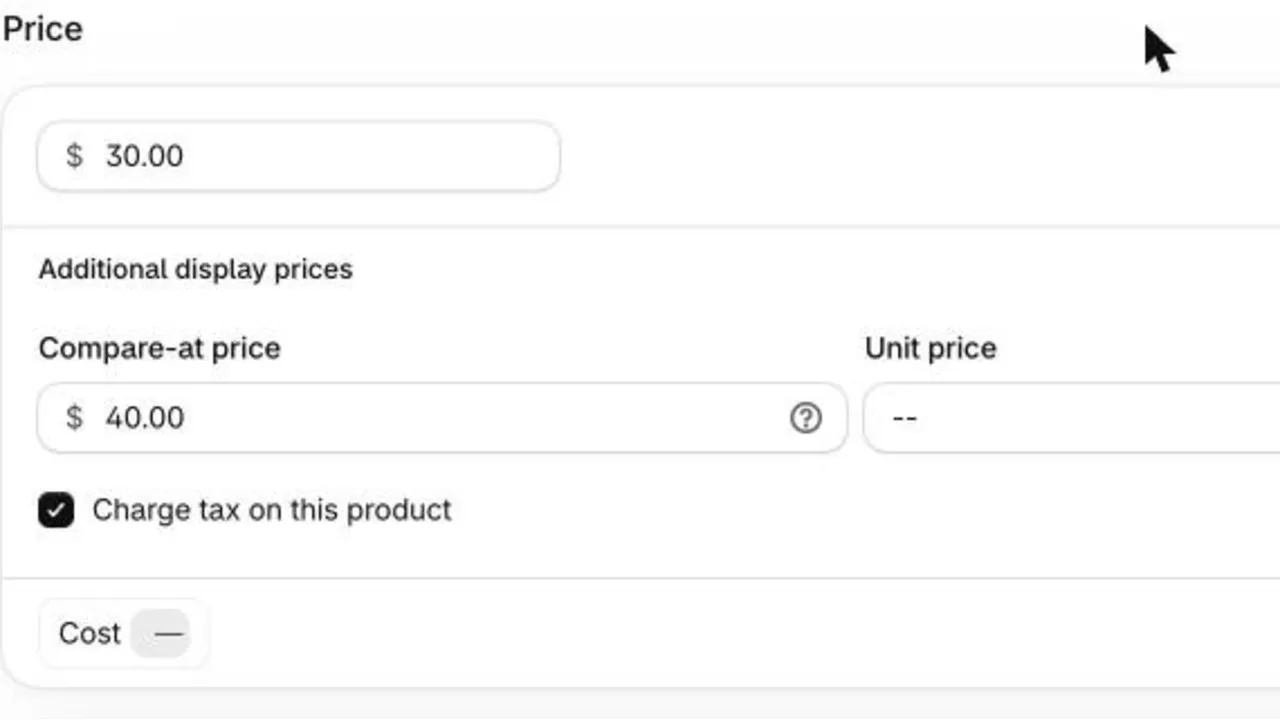
| Compare-at price (product price lowered, old price kept as compare-at) | The Google & YouTube app sends the new price as the price to Google. | That the change reached Merchant Center before the sale starts. |
Change prices once, before the sale, and once after. Google's automatic price updates can fix an occasional mismatch for you, but Google warns they don't work well when a price changes more than once a day, and the product may be disapproved instead (Google's automatic updates page).
Then check:
- Open Merchant Center, click Products & store, then Products, and open the Needs attention tab.
- Look for price or availability issues.
- Open one sale product and compare its price with your product page.
What good looks like: nothing about price or availability under Needs attention, and the price Google has matches your store.
How product data travels from Shopify to Merchant Center is in my guide to Google Shopping product data in Shopify. Planning a Shopping campaign just for the sale? Read setting up a Google Shopping campaign for Shopify first, because new products can take days to be reviewed.
Check 8: The numbers you will read on Monday
Black Friday brings bots along with buyers: scrapers, price checkers, fake carts. They inflate your sessions and drag your conversion rate down. Prepare your Monday report now, while you're calm:
- In Shopify, click Analytics, then Reports, and open Conversion rate breakdown and Sessions by referrer.
- Check that each one has the filter Human or bot session set to Human. The built-in reports usually do. A report you build yourself with New exploration does not, until you add it.
- Set the comparison to Previous year (match day of week), so Black Friday is compared with last year's Black Friday.
What good looks like: every report you plan to read on Monday filters to humans. And when you compare with last year, keep in mind that Shopify changed how it counts sessions in the autumn of 2026, so sessions and conversion rate can jump across that date while orders and sales don't.
Judge the weekend on orders and net sales, not sessions. My guide on reading Shopify Analytics reports has the full bot check.
Check 9: The day the sale ends
Write down now everything you switch on for the sale (compare-at prices, the cloned flow, the banner), because each one has to be switched off again. My guide on how to end a sale in Shopify covers putting prices back and checking nothing is left running.
Frequently asked questions
Is one week enough to prepare for Black Friday on Shopify?
For these checks, yes. They are settings and tests, not projects. One week is not enough for a theme change or a new app. Shopify suggests switching off extra apps and features for a big sale, not adding them.
Should I use an automatic discount or a code for Black Friday?
For a store-wide sale, an automatic discount: nobody has to find a code, and nobody gets stuck at checkout because a code didn't combine. Use codes for people you treat differently, like VIP early access, and give them an end date.
Should I raise my Google Ads budget for Black Friday?
Only after Check 3 passes. If Google can't see your purchases, a bigger budget buys more blind clicks. If tracking works and your campaigns were limited by budget, raise it for the sale days and lower it again on Tuesday.
Should I email my whole list on Black Friday?
No. A sudden jump to people who never open is the fastest way into the spam folder, on the day your email matters most. Send to people who clicked recently, and widen the audience gradually.