How to set up discounts in Shopify (and combine them)
By Michal Krkoska14 min read
The most upvoted discount thread on the Shopify forum has 989 votes and 563 replies. A merchant ran an automatic "10% off every second product" and wanted to keep it forever. But every customer who also typed a discount code at checkout got an error, and only one discount applied.
That thread is from 2019. Shopify has fixed most of it since then. Today you can combine an automatic discount with a code, and a customer can enter several codes on one order. But it only works if you tick the right boxes, on both discounts, and almost nobody tells you the second part.
This guide shows you how to set up the three discounts most shops need: a discount code, an automatic discount and a Buy X get Y deal. Then how to make them combine, and what Shopify simply can't do without an app. I did all of it in my own store's admin while writing this. Each discount takes about 5 minutes.
The words you need first
A discount code is a word the customer types at checkout, like WELCOME10. No code, no discount.
An automatic discount applies by itself in the cart and at checkout when the cart qualifies. The customer does nothing.
Every discount also has a class, which decides what it reduces. This is the part that matters for combining:
- A product discount reduces the price of specific items.
- An order discount reduces the whole order subtotal.
- A shipping discount reduces the shipping cost.
When you click Create discount, Shopify asks you to pick a type. Each type belongs to one class:
| Type in Shopify | What it does | Class |
|---|---|---|
| Amount off products | A percentage or fixed amount off chosen products or collections | Product discount |
| Buy X get Y | Buy something, get something else cheaper or free | Product discount |
| Amount off order | A percentage or fixed amount off the whole order | Order discount |
| Free shipping | Free or cheaper shipping | Shipping discount |
Every one of these types can be either a code or automatic. You choose that with the Method switch at the top of the form.
Which discount to use for which goal
This is my opinion after setting up all of them:
| Goal | What I would use | Why |
|---|---|---|
| Welcome offer for newsletter sign-ups | Discount code, Amount off order | A code feels earned, and you can see in reports how many people used it. |
| Store-wide sale (Black Friday) | Automatic discount, Amount off products | Nobody has to find or type a code, so nobody abandons checkout to search for one. |
| "Spend $100, get $5 off" | Automatic discount, Amount off order, with a minimum purchase | The customer sees the reward appear in the cart, which is the whole point. |
| Buy 2, get 1 free | Automatic discount, Buy X get Y | It is the only native type that understands "buy this, get that". |
| Discount for one influencer's audience | Discount code, Amount off products, with a usage limit | You can count the uses and switch it off without touching anything else. |
One rule I follow: give customers one obvious discount, not five clever ones. Every extra discount is one more way for two of them to fight at checkout.
Step 1: Create a discount code
- In the Shopify admin, click Discounts in the left menu.
- Click Create discount (top right).
- Pick the type. For this example, Amount off products.
- Under Method, leave Discount code selected.
- Type your code in Discount code, or click Generate random code. Spaces are allowed, but I keep codes short and in capitals so people can type them on a phone.
- Under Discount value, choose Percentage or Fixed amount and type the number.
- Under Applies to, choose Specific collections or Specific products, then click Browse and tick what the discount covers.
- Check Purchase type. It defaults to One-time purchase. If you sell subscriptions and want those discounted too, pick Subscription or Both.
- Under Eligibility, choose who can use it: All customers, Markets, Customer segments or Specific customers. For a first-order offer, use a segment like "Customers who haven't purchased".
- Under Minimum purchase requirements, pick No minimum requirements, Minimum purchase amount ($) or Minimum quantity of items.
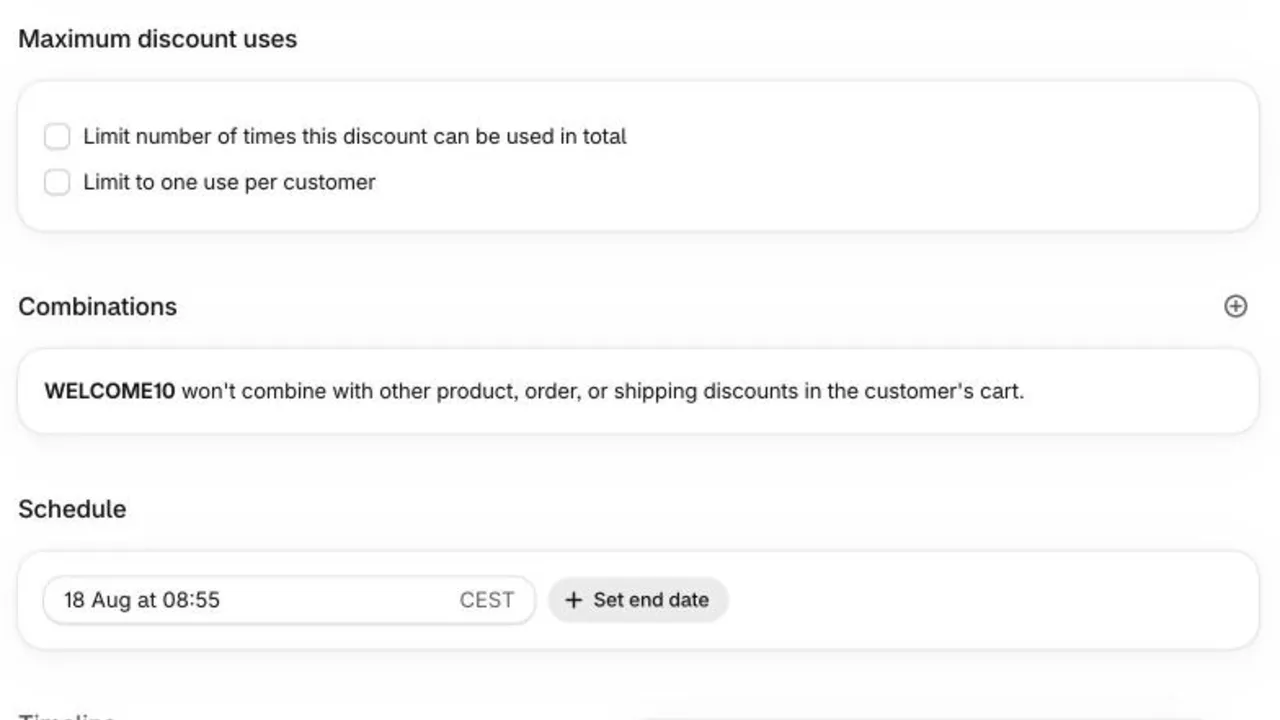
- Under Maximum discount uses, tick Limit number of times this discount can be used in total and/or Limit to one use per customer. For a welcome code, always tick the second one. Otherwise the same person can use it on every order.
- Leave Combinations for now. Step 4 covers it.
- Under Schedule, set the start date and click Set end date if the offer should stop by itself. Shopify uses your store's time zone.
- Click Save.
Two things on the right side of the form are worth a look before you save:
- The Details summary. It repeats your settings in plain words ("10% off Personal Astrology Reports", "No usage limits", "Can't combine with other discounts"). Read it. It catches mistakes faster than scrolling back up.
- Sales channel access, with the checkbox Allow discount to be featured on selected channels. This lets your connected sales channels show the discount to shoppers. Leave it off for private codes. Merchants in the Facebook app's reviews complain that Meta started showing an old friends-and-family code to everyone.
After saving, Shopify offers Get shareable link. That link applies the code automatically when someone opens it, which is handy for emails and social posts.
Step 2: Create an automatic discount
- Click Discounts, then Create discount.
- Pick the type. For "spend $100, get $5 off", pick Amount off order.
- Under Method, click Automatic discount.
- Type a Title. Customers see it in their cart and at checkout, so write it for them: "$5 off orders over $100", not "Q4 promo v2".
- Under Discount value, choose Fixed amount and type 5.
- Under Minimum purchase requirements, choose Minimum purchase amount ($) and type 100.
- Set Eligibility and Schedule as in Step 1.
- Click Save.
What is different from a code:
- There is no Maximum discount uses section. An automatic discount applies to every qualifying cart until it ends.
- It is POS excluded by default. If you sell in person with POS Pro, tick Apply on POS Pro locations.
- You can have at most 25 active automatic discounts at the same time, including ones created by apps (Shopify's limit).
Step 3: Create a Buy X get Y discount
- Click Discounts, then Create discount, then Buy X get Y.
- Under Method, I pick Automatic discount and type a title like "Buy 2, get 1 free".
- Under Customer buys, choose Minimum quantity of items (or Minimum purchase amount). Type the Quantity, choose Specific products or Specific collections under Any items from, and click Browse to pick them.
- Under Customer gets, type the Quantity and pick the products or collections the same way.
- Under At a discounted value, choose Percentage, Amount off each or Free.
- Tick Set a maximum number of uses per order and type 1, unless you really want "buy 6, get 3 free".
- Set Eligibility, Combinations and Schedule, then click Save.
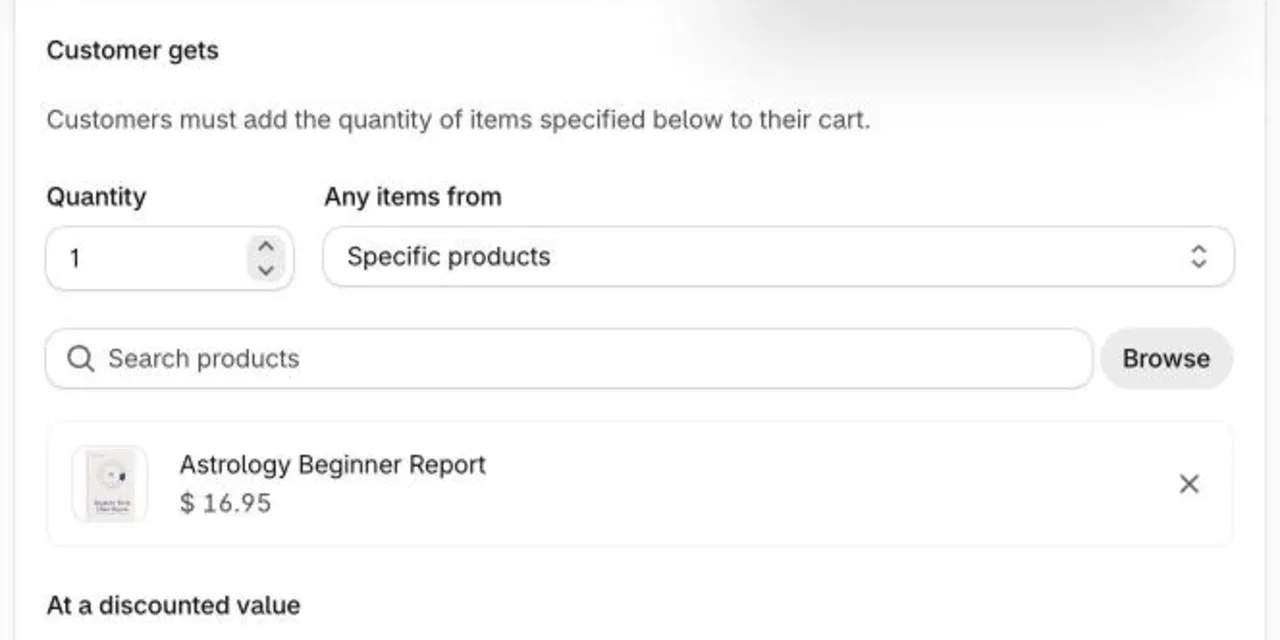
Read the grey line under Customer gets: "Customers must add the quantity of items specified below to their cart." Shopify does not put the free item in the cart for you (Shopify's Buy X get Y page says the same). If the customer only adds two items, they pay for two and get nothing free. This is the number one Buy X get Y complaint on the forum.
So say it on the product page: "Add 3 to your cart, the cheapest one is free." When X and Y are the same products, Shopify discounts the cheaper qualifying item.
Step 4: Make discounts combine
Every discount form has a Combinations section near the bottom. By default it says the discount "won't combine with other product, order, or shipping discounts in the customer's cart."
Click the + next to Combinations. You get three checkboxes:
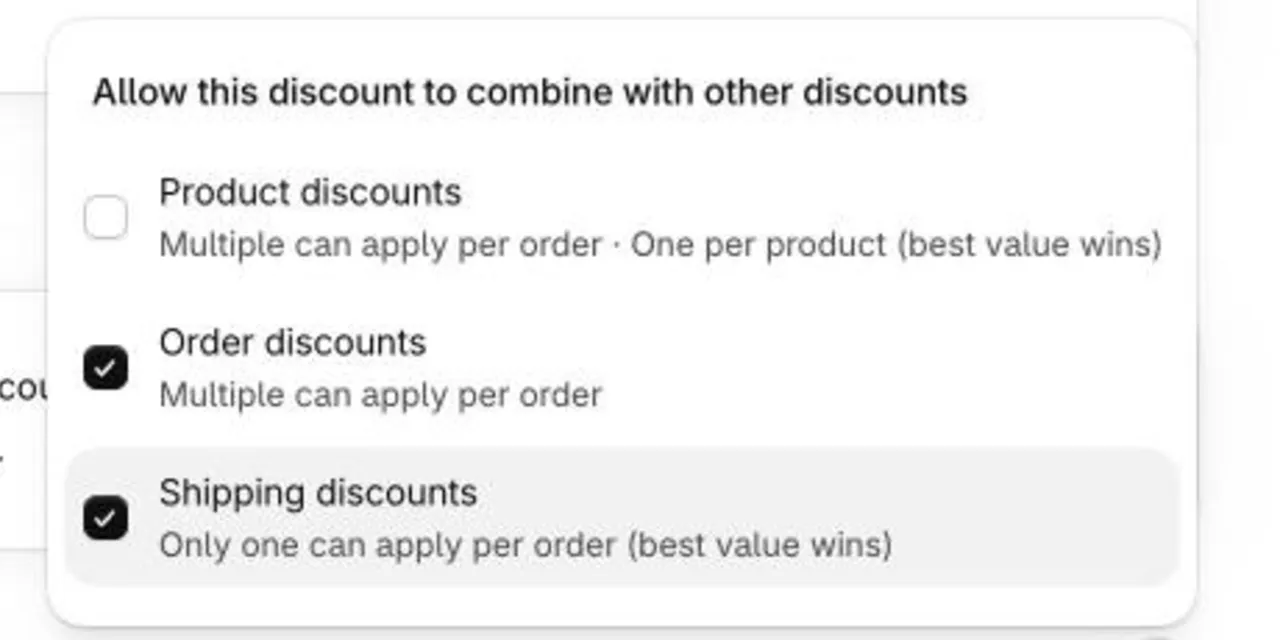
| Checkbox | What it means |
|---|---|
| Product discounts | This discount may apply together with product discounts. Several can apply per order, but only one per product, and the best value wins. |
| Order discounts | This discount may apply together with order discounts. Several can apply per order. |
| Shipping discounts | This discount may apply together with a shipping discount. Only one shipping discount can apply per order, and the best value wins. |
Here is the part that trips everyone up: combining is a handshake. Both discounts must allow each other's class.
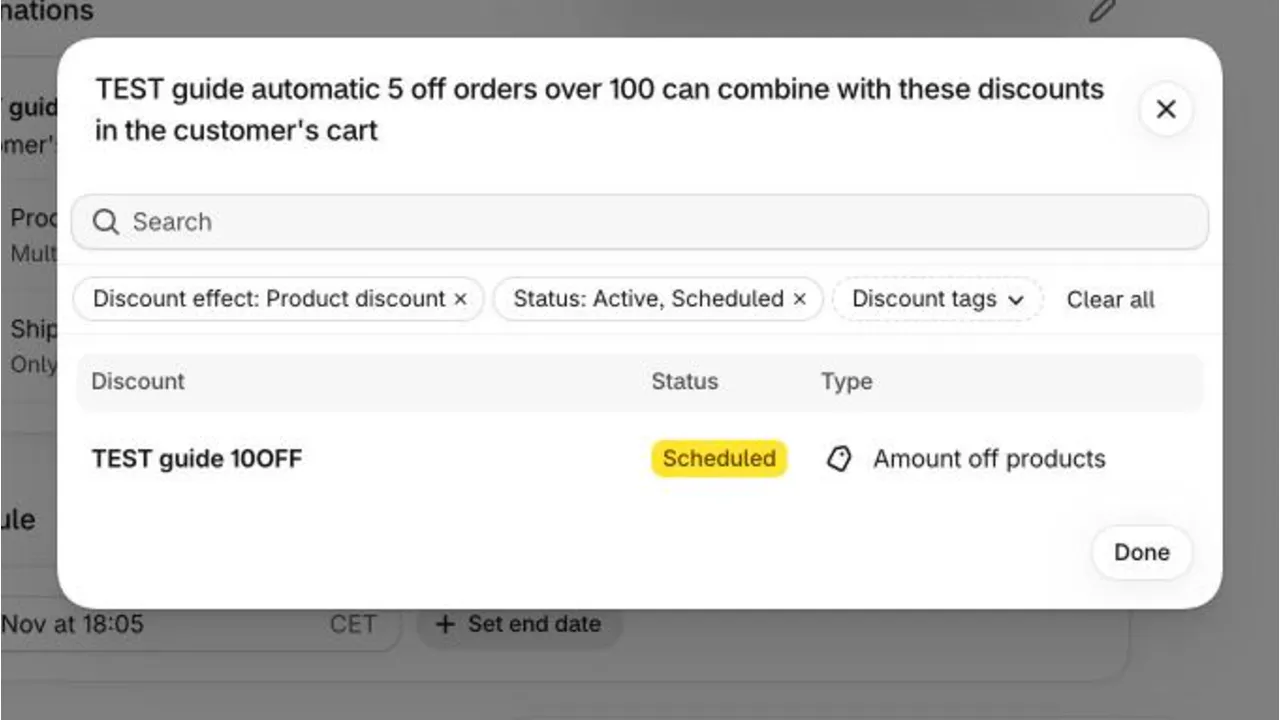
Example from my test. My code TEST guide 10OFF is a product discount. I ticked Order discounts on it. My automatic "$5 off orders over $100" is an order discount. I ticked Product discounts on it. Only because both boxes were ticked did Shopify list the code as a partner of the automatic discount (that's the cover picture of this article). If I had ticked only one side, they would not combine.
Shopify helps you check this. Next to each ticked class, there is a small number. It counts how many of your existing discounts can combine with this one. Click the number to see them. If it says 0, the other side hasn't agreed yet.
After saving, the Combinations column on the Discounts list shows three small icons per discount (product, order, shipping). Dark icons are the classes it combines with. That column is the fastest way to audit a store with many discounts.
The rules, in one table
These come from Shopify's combining rules:
| Combination | Allowed? |
|---|---|
| Product discount + shipping discount | Yes, on every plan. |
| Order discount + shipping discount | Yes, on every plan. |
| Product discount + product discount, on different items | Yes, on every plan. |
| Product discount + order discount | Yes, unless your store still uses checkout.liquid customizations. |
| Order discount + order discount | Yes, unless your store still uses checkout.liquid customizations. |
| Two product discounts on the same item | Only on Shopify Plus, and only with matching discount tags. |
| Buy X get Y + another product discount on the same items | No, except on Shopify Plus for the "gets" item. Buy X get Y can combine with order discounts. |
| Shipping discount + shipping discount | Never. One shipping discount per order. |
And the limits:
- A customer can enter at most 5 product or order discount codes and 1 shipping code on one order.
- Combining works on the Online Store and Shopify POS (and custom storefronts). Other channels apply one discount.
- Product discounts are applied first, then order discounts on the reduced subtotal, then shipping.
- Several percentage order discounts are each calculated on the original subtotal. 10% and 15% off a $350 order gives $262.50, not $267.75.
When discounts can't combine, Shopify applies the one that is best for the customer. If a customer types a code that doesn't combine with what's already in the cart, they see "Discount couldn't be used with your existing discounts."
Why your discounts still won't combine
Go through this list in order. One of these is almost always the reason:
- Only one side allows it. Open both discounts and check the Combinations section on each.
- You ticked the wrong class. A Buy X get Y is a product discount, even though it feels like an order deal. A code that takes 10% off the whole order is an order discount.
- Two product discounts hit the same item. Without Plus, only the better one applies to that item.
- One of them is a Buy X get Y and the other is a product discount on the same products.
- The order isn't on the Online Store or POS, for example a draft order or another sales channel.
- The discount isn't active. Check the Status column. "Scheduled" and "Expired" discounts do nothing.
- Your store uses checkout.liquid or the Licensify app. Then product + order and order + order are not available (Shopify's combining rules). Shopify says to contact support if you meet the requirements and still don't see the options.
Note that discounts you add by hand to a draft order or a POS cart always apply, whatever their combination settings.
What Shopify can't do without an app
Plain answers to the five things people ask most:
| You want | Native Shopify? | What to do |
|---|---|---|
| "20% off, up to $50" (a cap) | No. There is no maximum discount amount setting. | Use a fixed amount with a minimum purchase instead ("$20 off orders over $100"), or a discount app with a cap. |
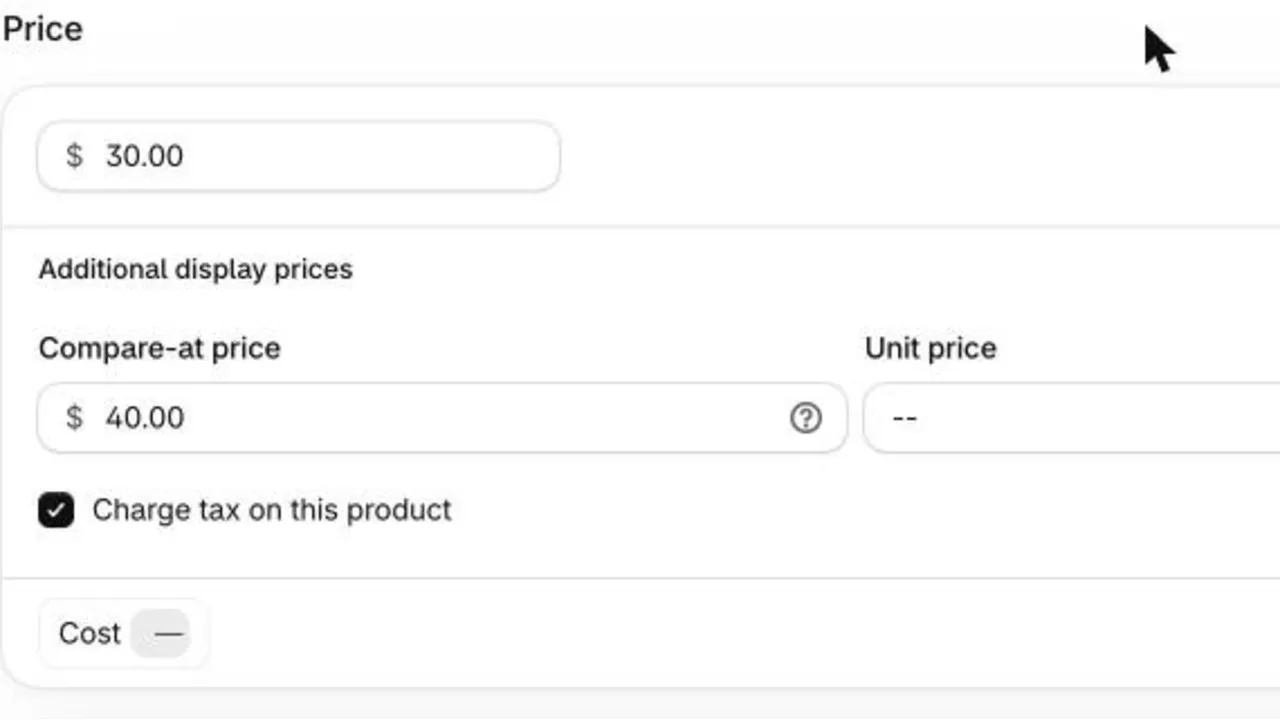
| Show the automatic discount price on the product page | No. Automatic discounts appear in the cart and at checkout only. | Put the sale price in Price and the old price in Compare-at price, or use an app that displays discounts. |
| Add the free gift to the cart automatically | No. Customers must add it themselves. | Tell them on the page, or use a free gift app. |
| Exclude sale items from a code | Not with a checkbox. | Limit the code to a collection that leaves sale items out (see below). |
| More than 25 automatic discounts at once | No. The limit includes app discounts. | Merge offers. 25 live promotions is too many for any shopper anyway. |
On the cap: this is the oldest open request in the forum. The thread asking for it started in 2019 and has 167 votes. Shopify staff answered that it isn't possible and gave no timeline. So my advice is to stop fighting it. A fixed amount with a minimum purchase is easier for the customer to understand anyway. "$20 off orders over $100" is clearer than "20% off, up to $50, terms apply".
How to exclude sale items from a code
There is no "exclude sale items" checkbox. The workaround that merchants confirmed works:
- Go to Products, then Collections, and create a new collection.
- Make it automated (smart), with the condition Compare-at price is empty. This collects every product that is not marked down.
- Keep this collection out of your store's menu. It is only for the discount.
- Create the code as Amount off products (not Amount off order), and under Applies to pick Specific collections and choose this collection.
One limitation: Shopify puts a product in the collection if at least one of its variants matches. So if only some variants of a product are on sale, the code can still apply to the sale variants. If that matters to you, you need an app.
Frequently asked questions
Can customers use two discount codes on one order?
Yes, up to 5 product or order codes plus 1 shipping code, on the Online Store and POS. Every code involved must allow the other codes' class in its Combinations section. If even one doesn't, Shopify keeps the best one and rejects the rest.
Can I combine an automatic discount with a discount code?
Yes. Treat them like any two discounts: tick the other one's class in the Combinations section of both. The automatic discount stays in the cart and the code is added on top.
Why does Shopify only apply one discount?
Because at least one of the discounts doesn't allow combining with the other's class, or both are product discounts on the same item. When discounts can't combine, Shopify picks the one that gives the customer the biggest saving.
How do I make a discount for first-time customers only?
Under Eligibility, choose Customer segments and pick a segment of customers who haven't purchased yet. Also tick Limit to one use per customer, so the same person can't use it again on their second order.
Do discounts work with Shopify POS?
Discount codes do. Automatic discounts are excluded from POS by default and only work at POS Pro locations, after you tick Apply on POS Pro locations on the discount.