How to end a sale in Shopify without breaking your prices
By Michal Krkoska13 min read
A store owner left this review of a discount app: "I manually changed over 100 products to remove the discounted price, but after a few minutes they all went back to the discounted price." The app was still running and kept putting the sale back.
That's the dramatic version. The common one is quieter: the sale ends on Monday night, and on Thursday some products still show "was $40, now $30". Or the strikethrough is gone but the price is still $30, and nobody notices for a month.
Black Friday is 27 November this year, but the steps work for any sale. This guide shows how to end a sale for each way it can be set up, how to rescue prices a sale app left behind, and what else to clean up. I did every step in my own Shopify admin on test products. For 20 products it takes about 10 minutes.
First, find out how your sale was set up
| How the sale was set up | What it changed | How to end it |
|---|---|---|
| You lowered Price and put the old price in Compare-at price (by hand, bulk editor or CSV) | The product prices themselves | Put the old price back in Price and clear Compare-at price. Steps 2 to 4. |
| A Shopify discount (code or automatic) | Nothing on the product. The discount applies in the cart and at checkout. | It ends at its end date, or you deactivate it. See "If your sale was a Shopify discount". |
| A sale or discount app | Usually the product prices themselves, with the originals saved inside the app | End the campaign in the app before you uninstall it. See "If a sale app changed your prices". |
Not sure? Open one sale product. If Compare-at price has a value, the price was changed. If it's empty but the cart still shows a lower price, it's a discount.
Step 1: Export your products before you touch anything
A product export is a CSV file of every product with its current prices. It's your only undo: Shopify has no button that brings back old prices.
- Click Products, then Export (top right).
- Choose All products and CSV for Excel, Numbers, or other spreadsheet programs.
- Click Export products. For a big store the file arrives by email (Shopify's export guide).
The one rule: move the old price back, then clear Compare-at price
Compare-at price is the "was" price. When it's higher than Price, most themes show it crossed out. That's what makes a product look on sale. So during a sale, your old price lives in Compare-at price, not in Price.
To end the sale, do two things for every product, in this order:
- Copy the value from Compare-at price into Price.
- Clear Compare-at price.
The classic mistake is doing only the second step. The strikethrough disappears and you sell at the sale price forever, because nothing looks wrong.
Two smaller traps I found while testing:
- Shopify saves a Compare-at price equal to the Price without any warning. I set both to $40 and it saved. Most themes then hide the strikethrough, because a sale only shows when Compare-at price is higher than Price (Shopify's sale pricing page). But a "Sale" collection with the condition "Compare at price is set" still includes the product. Clear the field.
- Empty is not $0.00. Shopify says to clear the field entirely (same page). In the admin, an empty field shows a grey 0.00 placeholder. That's fine. A typed 0.00 is not.
Step 2: End the sale on one product by hand
Fine for up to five products.
- Click Products and open the product.
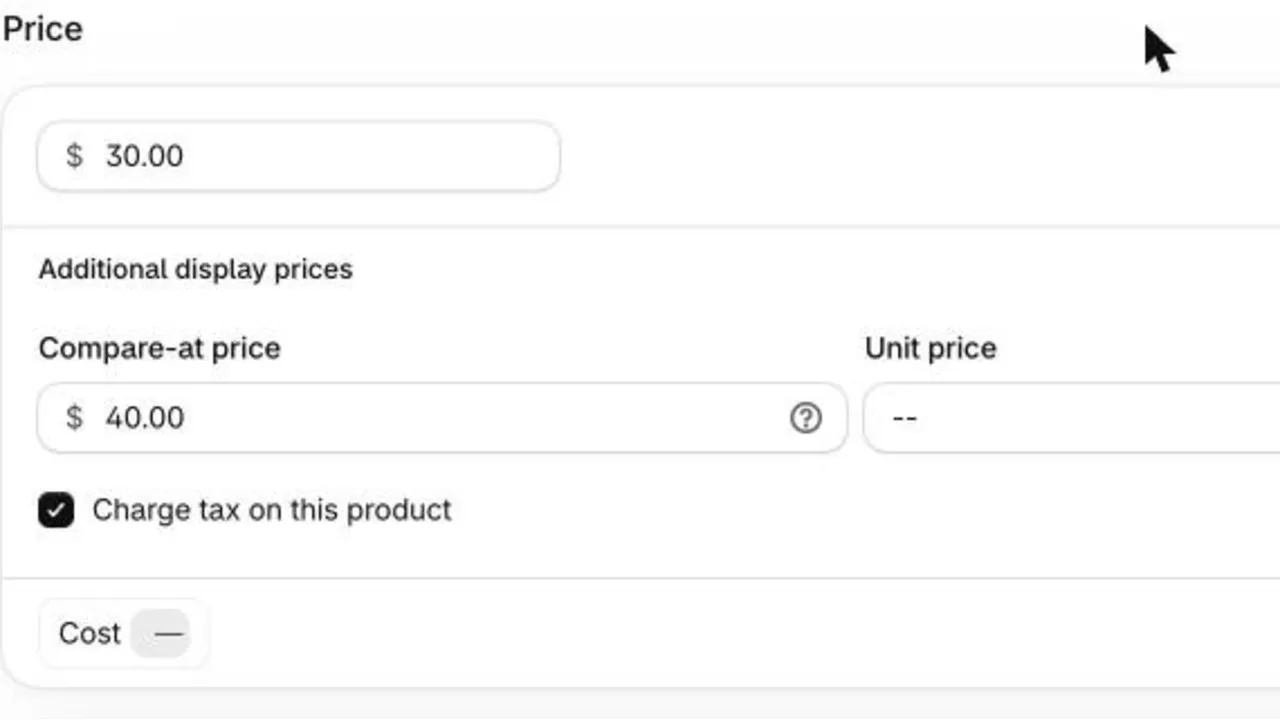
- In the Price section, open Additional display prices if it's collapsed. You see Compare-at price.
- Copy the number from Compare-at price into the price field above it.
- Clear Compare-at price completely.
- Click Save. Shopify confirms with "Changes saved".
Each variant (size, colour) has its own price, so for those the bulk editor is faster.
Step 3: End the sale on many products in the bulk editor
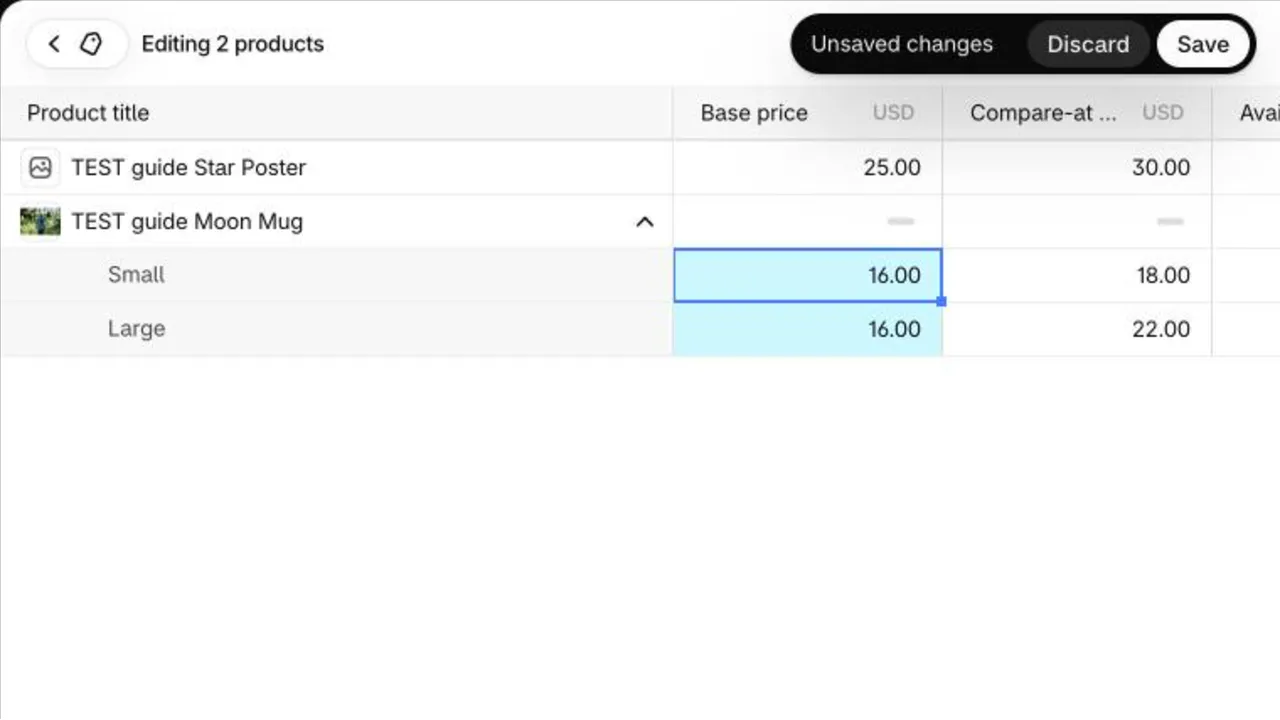
The bulk editor is a spreadsheet inside the Shopify admin, good for up to about 50 products. You don't have to type prices: you can copy the whole Compare-at column into the price column.
- Click Products, narrow the list to your sale products (search or filter by tag) and tick them.
- Click Bulk edit.
- Click Columns (top right), type "compare" and tick Compare-at price. The price column is called Base price here.
- Click the first Compare-at price cell, hold Shift and click the last one.
- Press Cmd+C (Ctrl+C on Windows).
- Click the first Base price cell and press Cmd+V. Every row has its old price back.
- Select the Compare-at price cells again and press Delete. They go empty and show a grey 0.00.
- Click Save in the Unsaved changes bar. Shopify confirms with "Changes saved".
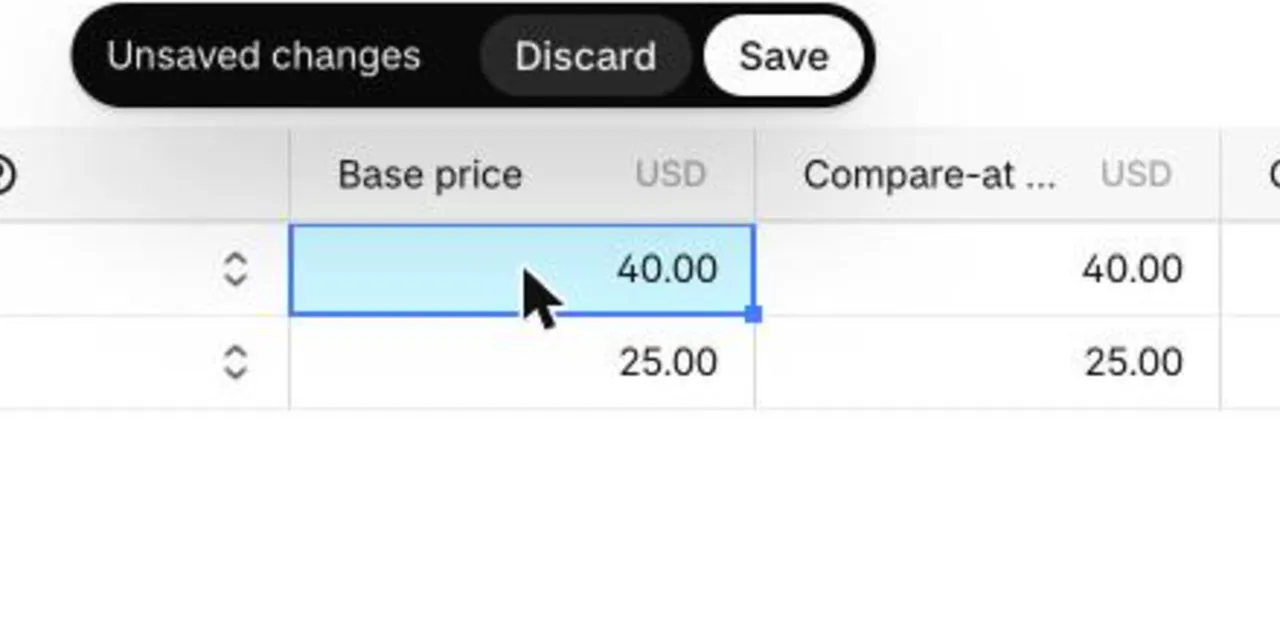
One check before you paste: every row you copy needs a value in Compare-at price. A product that was never on sale has an empty cell, and pasting it would leave that product with no price. Leave those rows out of the selection, or paste in smaller blocks. Then read the Base price column once before you click Save.
Step 4: End the sale on hundreds of products with a CSV
For a big catalogue, a spreadsheet formula beats copy and paste. The import mechanics (column names, variants, how overwrite wipes empty columns) are in how to import and bulk edit Shopify products with a CSV. Here's the sale-specific part.
- Export your products as in Step 1. Keep that file as your backup and work on a copy.
- In the copy, delete every column except Handle, Title, Option1 Name, Option1 Value (plus Option2 and Option3 if you use them), Variant Price, Variant Compare At Price and Status. Those are the names my export used. Don't rename them.
- Add a helper column. If Variant Price is column E and Variant Compare At Price is column F, write
=IF(F2="",E2,F2)and copy it down. It takes the old price where there is one and keeps the current price where there isn't. - Paste the helper column over Variant Price as values only, then delete the helper column.
- Empty every cell in Variant Compare At Price but keep the column. With overwrite on, an empty cell deletes the value, which is exactly what you want here.
- Click Products, Import, choose the file, tick Overwrite products with matching handles, untick Publish new products to all sales channels, click Upload file, check the preview and click Import products.
My file for two test products after the swap:
Handle,Title,Option1 Name,Option1 Value,Variant Price,Variant Compare At Price,Status
test-guide-sale-product-a-delete-me,TEST guide sale product A (delete me),Title,Default Title,40.00,,draft
test-guide-sale-product-b-delete-me,TEST guide sale product B (delete me),Title,Default Title,25.00,,draft
Both products came back at their old prices with empty Compare-at prices. I keep Status in the file so the import can't change it by accident.
If your sale was a Shopify discount
Then your product prices never changed, and ending the sale is much simpler. Creating discounts is covered in how to set up discounts in Shopify. Here's how they end.
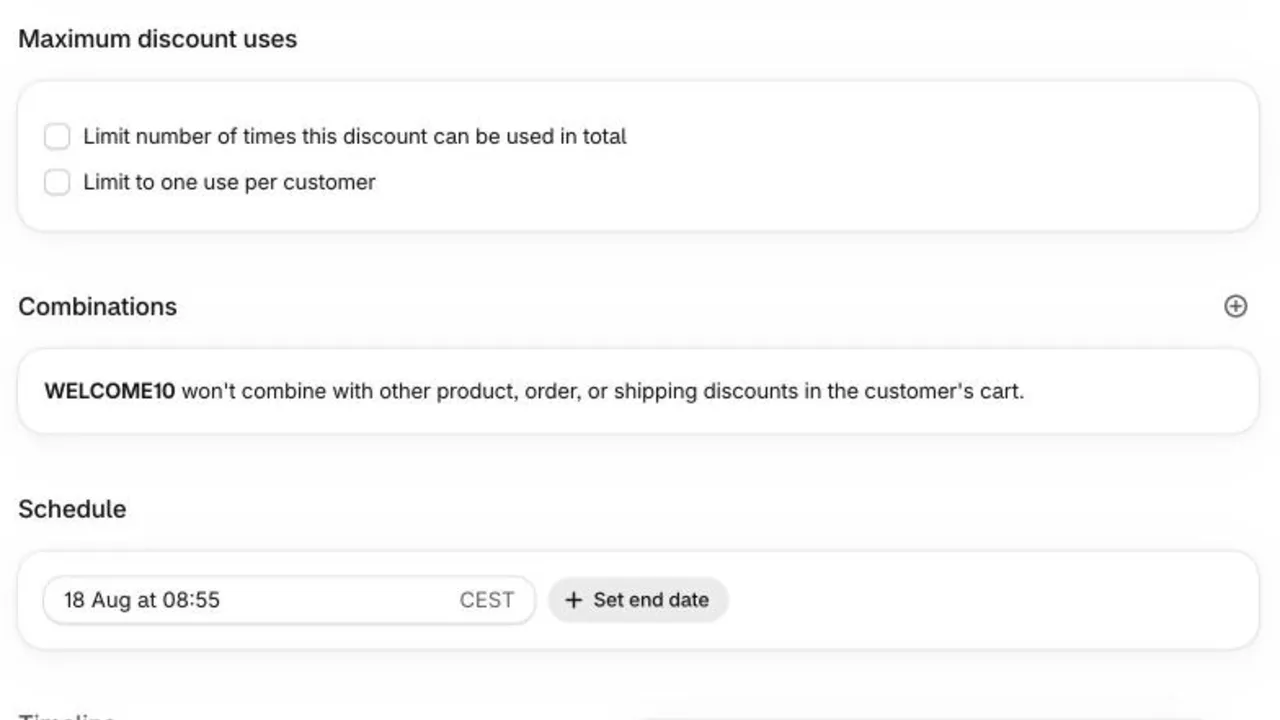
The end date. In the discount's Schedule section, click Set end date. Shopify uses your store's time zone. Watch the time: when I picked the end date, the time defaulted to 00:00 (start of day). A sale "until 30 November" set like that stops at the start of 30 November, a day early. The time list stops at 23:30, but you can type 23:59 into the field.
Expired. When the end date passes, the status changes from Active to Expired. An expired discount does nothing but stays in your Discounts list with its usage numbers.
Ending an automatic discount right now:
- Click Discounts and open the discount.
- Click More actions, then Deactivate.
- Shopify warns "This discount will expire now and all unsaved changes will be lost." Click Deactivate.
The status becomes Expired and the end date is set to now. More actions now offers Activate, but reactivating sets the discount to Active with no end date (Shopify's discount management page), so set a new end date straight away.
Codes customers still have. You can't pull a code out of inboxes, and you don't need to. Once it's expired, a customer who types it at checkout sees "Enter a valid discount code" (Shopify's discounts FAQ), and shareable discount links only work for active discounts. If a good customer complains, I'd just give them the price. It costs a few dollars and buys goodwill.
Deactivate, don't delete. Delete can't be undone and you lose the discount's history.
If a sale app changed your prices
Many angry reviews of sale apps tell the same story: the merchant uninstalled the app and the sale prices stayed.
Here's why. Many sale apps don't use Shopify discounts. They rewrite your product prices directly, like Step 3, and keep your original prices in their own database so they can put them back when the campaign ends. The originals are not in Shopify. Uninstall the app and nothing puts them back. Let the app crash halfway through a revert and some products stay on sale.
Before you uninstall a sale app:
- Stop every campaign inside the app with the app's own button.
- Wait until the app says the revert is finished. On a big catalogue this takes a while.
- Open five or six products in Shopify and check Price and Compare-at price yourself.
- Export your products (Step 1), so you have the corrected prices on file.
- Only then uninstall.
Never edit prices by hand while a campaign runs. Ask the merchant at the top.
If the app is already gone, rebuild the prices from the best source you have:
| Source | When it works | How to use it |
|---|---|---|
| A product export from before the sale | You exported before the sale | Import it with overwrite, keeping only the handle, option, price and compare-at columns (Step 4). A full restore. |
| Compare-at price | The app wrote the old price there, as most do | Copy it back into Price with Step 3 or 4. Check a few products first: some apps put an inflated "was" price there. |
| Order history | The product sold before the sale | Open an order from before the sale and read the price on the line item. Slow, so only for products with no other source. |
| If none of these has the price, it's gone, and you'll have to set it again from your costs. Write it down this time. |
Clean up what else the sale left behind
- The "Sale" collection. An automated collection with the condition "Compare at price is set" empties itself once Compare-at price is cleared. In my test the products left it, but the count in the admin took a few minutes to catch up. A manual collection you have to empty or unpublish yourself under Products, Collections.
- Sale badges. In most themes the "Sale" badge comes from Compare-at price being higher than Price, so it goes with Step 3. If one stays, look for a product tag or a badge app.
- The announcement bar. "Black Friday: 30% off everything" doesn't switch itself off. In most themes it's under Online Store, Themes, Customize, in the header area as Announcement bar (Shopify's announcement bar guide).
- Market prices. If you set fixed prices for other countries under Markets, Catalogs, they override the converted prices, and a catalog can hold its own compare-at prices (Shopify's catalogs guide). Ending the sale on the product doesn't touch them, so check each catalog. If you never set fixed prices, there's nothing to do.
- Codes in popups and emails. A sale code in a welcome popup or email flow keeps going out. Swap it for your normal offer.
How I'd run the next sale so it ends in one click
My opinion: use an automatic discount with an end date and leave your product prices alone.
A discount doesn't touch your catalogue. It ends at the time you set or with one click under More actions, and there is nothing to revert, so nothing to forget.
The trade-off: an automatic discount shows in the cart and at checkout, not on the product page. If the crossed-out price matters to you, use compare-at prices, but plan the end when you plan the start.
Either way, before the sale starts:
- Export all products and put the date in the file name.
- Write down how and where you set up the sale.
- Put the end in your calendar, with the time zone.
The first week after the sale
Once prices are back, the sale's real value is the new customers. Three things are worth doing:
- Help them use what they bought. A short post-purchase email does more for the second order than another discount. My setup is in Klaviyo flows: which ones to set up first.
- Don't send another discount straight away, or they learn to wait for the next one.
- Read the numbers properly. Compare sales, orders and average order value with the same days last year, and check how many buyers were new, as in how to read Shopify Analytics reports.
Frequently asked questions
Why do my products still show the sale price after the sale ended?
Because the product prices themselves were changed and never changed back. Either Compare-at price was cleared but Price stayed at the sale price, or a sale app didn't finish its revert. Put the old price in Price and clear Compare-at price, by hand or in the bulk editor.
How do I remove the compare-at price in bulk?
Select the products, click Bulk edit, add the Compare-at price column under Columns, select the cells, press Delete and save. But copy the compare-at values into Base price first, or you keep selling at the sale price.
Can I schedule a sale to end automatically in Shopify?
Yes, if the sale is a Shopify discount: set an end date and time under Schedule, and type 23:59 if it should run to the end of the day. Product prices and compare-at prices have no schedule in the Shopify admin, so a sale built on them is ended by hand, by CSV or by an app.
Should I set the compare-at price to 0 to end a sale?
No, clear the field. Shopify's own troubleshooting says 0.00 is not the same as an empty field.