How to set up an abandoned cart flow in Klaviyo
By Michal Krkoska15 min read
I opened Klaviyo, clicked Create flow and typed "abandoned" into the search. I got twelve templates. Abandoned Checkout Reminder in four versions, Abandoned Cart Reminder in four more, plus abandoned search, abandoned collection and a WhatsApp one.
You need one of them. Maybe two.
This guide shows the setup I would use, built from scratch in my own Klaviyo account, with every click and the exact labels. Then it covers the three things that break most often: the "return to cart" button going to the home page or a 404, the email showing no products, and emails being skipped. Building the flow takes about 30 minutes. Most of that is writing the emails.
Checkout Started or Added to Cart: which trigger to use
A flow is a series of automatic emails. A trigger is the event that puts someone into the flow. For abandoned carts on Shopify, Klaviyo gives you two triggers, and the difference matters more than any template.
| Checkout Started | Added to Cart | |
|---|---|---|
| When it fires | The shopper enters their details at checkout and moves on to the next step. | The shopper clicks "Add to cart" on your store. |
| Who it reaches | Everyone who typed their email at checkout. Klaviyo knows who they are because they just told you. | Only shoppers Klaviyo already recognizes, for example because they clicked one of your emails before or signed up through a form. Anonymous visitors are not emailed. |
| Setup needed | Nothing beyond the Shopify integration. It works out of the box. | The Klaviyo app embed in your Shopify theme and Track behavioral events ticked in the Shopify integration settings (Klaviyo's instructions). |
| Link back to the cart | {{ event.extra.checkout_url }}, which opens their own checkout, with their items, on any device. | No ready-made checkout link. You link to your /cart page, which only shows the items on the same browser they used. |
| How serious the shopper is | Very. They were one step from paying. | Less. Many people use the cart as a wishlist. |
My opinion: start with Checkout Started. It reaches more people who were about to buy, the link really restores their order, and it needs no extra setup. Most "abandoned cart" flows that make money are actually abandoned checkout flows.
Add an Added to Cart flow later, once the first one runs well. If you do, give it one extra filter so the two flows never email the same person. I show it at the end.
Step 1: Create the flow and pick the trigger
I build it from scratch instead of using a template. The templates come with extra branches (email and SMS splits, A/B tests) that you then have to understand and delete. From scratch, you know what every box does.
- In Klaviyo, click Flows in the left bar, then Create flow (top right).
- Click Build your own (top right).
- Type a name, for example "Abandoned checkout", and click Create flow.
- A panel called Select a trigger opens. Click the Your metrics tab, then Shopify.
- Click Checkout Started.
You now see Set up trigger. Don't save yet. Two settings here decide whether the flow behaves.
Step 2: Set re-entry and the filter that stops emails to buyers
Re-entry criteria decides whether someone can go through the flow again. You have three choices: No re-entry, Allow re-entry and Allow re-entry after a time period.
- Choose Allow re-entry after a time period.
- Set Time period to 7 and Days. (Klaviyo suggests 30.)
Why 7 days? Someone who abandons a checkout today and another one next week is a real shopper who deserves another reminder. Someone who abandons three checkouts in one afternoon (it happens, people fiddle with sizes) should get one series, not three.
Now the most important setting in the whole flow, a profile filter. A profile filter is a condition the person must meet to stay in the flow. Klaviyo checks it when they enter and again before every email (Klaviyo's explanation).
- Scroll down to Profile filters and click Add.
- Click Add profile filter.
- In Select a condition..., choose What someone has done (or not done).
- Set Person has to Placed Order, then zero times, then since starting this flow.
- Click Save.
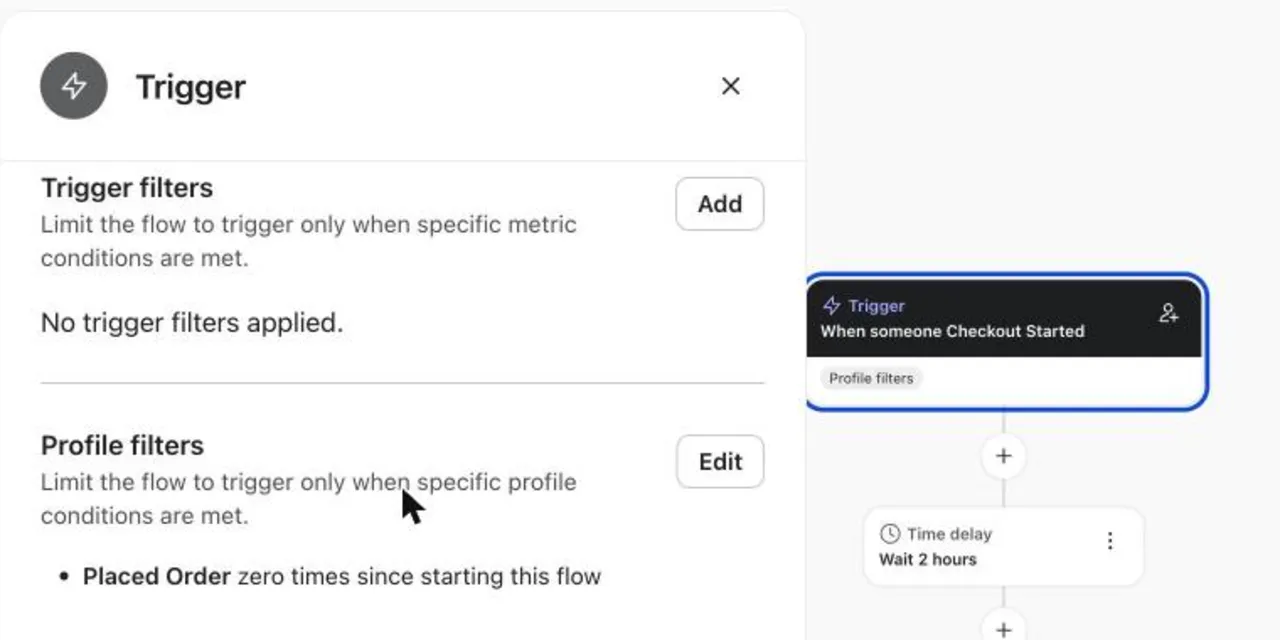
This filter is what stops your flow from asking people to finish an order they already finished. Without it, a customer pays, and two hours later you email them "You forgot something!" That looks careless.
Watch the third dropdown. The default is in the last 30 days. That would block anyone who bought from you in the last month, including your best repeat customers. You want since starting this flow: "they haven't bought since they abandoned this checkout".
Now click Save. Klaviyo shows Confirm your trigger selection with the warning "You can not change your trigger after you save it." That is true. If you picked the wrong trigger, you rebuild the flow. Click Confirm and save.
Step 3: Add the time delays and emails
Here is the setup I recommend:
| Step | What | Why |
|---|---|---|
| Wait 2 hours | Time delay | Long enough that people who are just slow (looking for their card, asking their partner) finish on their own. Short enough that they still remember what they wanted. |
| Email 1 | "You left something behind", their items, a button back to checkout. No discount. | Most recovered orders come from this one. It's a reminder, not a sales pitch. |
| Wait 1 day | Time delay | |
| Email 2 | Answer the reason people hesitate: shipping times, returns, sizing, reviews. | The ones who didn't come back after a reminder usually have a doubt. Remove it. |
| Wait 2 days | Time delay | |
| Email 3 | Last reminder. If you use a discount at all, it goes here and nowhere else. | Three emails is enough. After that you are annoying people who decided no. |
So: three emails, at about 2 hours, 1 day and 3 days after the checkout. Klaviyo's own advice is close to this: 2 to 3 emails, the first after 2 to 4 hours (Klaviyo's guide).
About discounts. I don't put one in the first email. If every abandoned checkout gets 10% off within two hours, your regular customers learn to abandon every checkout. If your margins allow it, put a small code in email 3 only. I wrote about creating codes in how to set up discounts in Shopify.
To add the first delay:
- Click the + under the trigger.
- Hover Logic and click Time delay.
- In Set time delay, type 2 and choose Hours in the dropdown (it defaults to Days, careful).
- Click Save.
To add the first email:
- Click the + under the delay and click Email.
- Fill in the Subject line and Preview text.
- Under Settings, untick Skip recently emailed profiles for this first email. More on this below.
- Click Save.
Repeat for the other delays and emails. Every new email is created with status Draft, which means it sends nothing. Leave it that way until the end.
Step 4: Add the cart items and the button back to checkout
This is where most people get stuck, so go slowly.
- In the email panel, under Template, click Select template.
- Click Flow template types and tick Abandoned cart. Now you only see templates built for this flow.
- Pick one and click Use template.
The template contains two things you need:
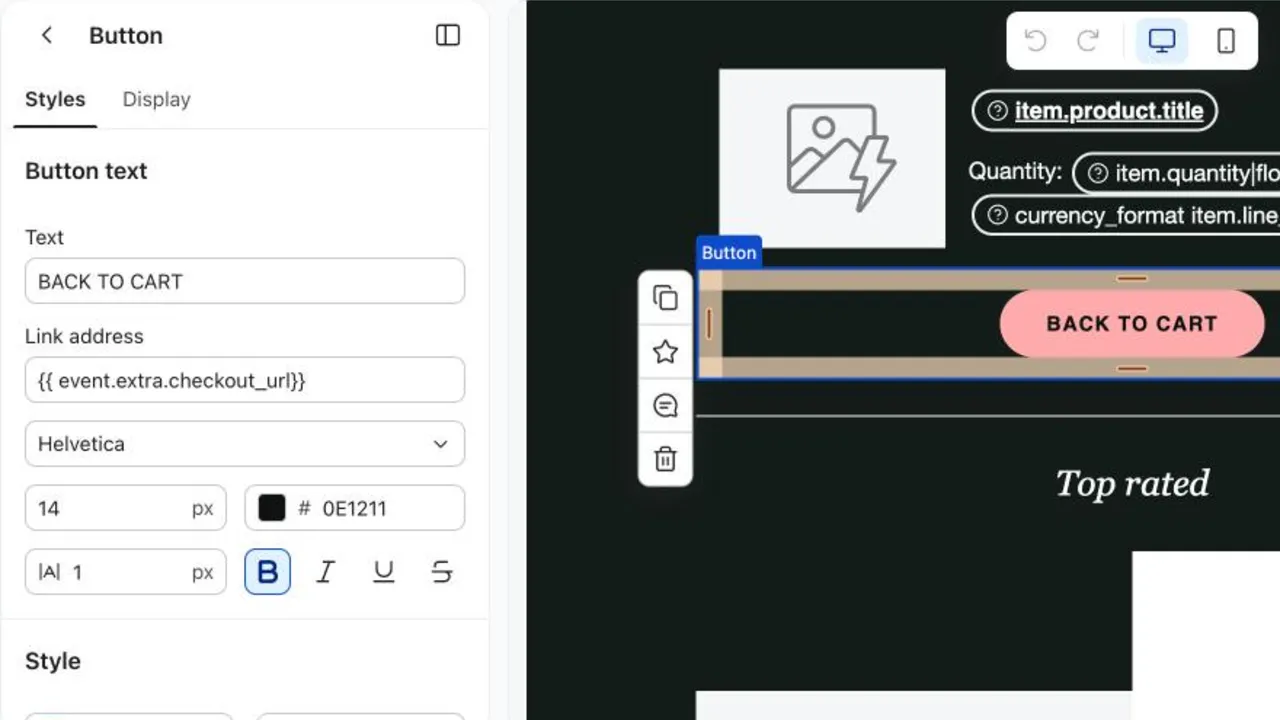
- A Table block with Dynamic rows. "Dynamic" means it repeats once for every item in that person's cart. It shows the picture,
item.product.title, the quantity and the line total. You don't need to set anything up. It reads the items straight from the Checkout Started event. - A BACK TO CART button. Click it and look at Link address. It says
{{ event.extra.checkout_url }}. When the email is sent, Klaviyo replaces that with the link to this person's own Shopify checkout.
Change the colors, the text and the logo as much as you like. Keep those two blocks. If you delete the table, the easiest way to get it back is to add the pre-built flow from the library again and copy the block from there.
To check it, click Preview at the top of the editor and open Links. Klaviyo fills the preview with a real recent checkout from your store. In my account, the button link turned into a proper /checkouts/.../recover address on my store, and the table showed the actual product. That's how you know it works.
Step 5: Test without emailing customers, then turn it on
When you leave the editor, the top right button says Review and turn on. Don't click it yet.
To test safely, set each email to Manual instead of Draft (the Status dropdown in the email panel), turn the flow on, then go through checkout on your own store with your own email and stop before paying. With Manual, Klaviyo moves each recipient to a Needs Review queue at send time instead of sending the email (Klaviyo's guide to manual flow messages), so you can see that you entered the flow and the email looks right. When you're happy, switch the emails to Live. Emails already waiting in Needs Review are not sent by that switch, as the same guide says. Send or cancel them by hand.
One thing that confuses everybody: if you test with an email that has already ordered recently, or already went through the flow, you may be filtered out. Use a fresh email address for testing.
When the "return to cart" link goes to the home page or a 404
These are the cases I found again and again in the Klaviyo community, with the fix for each:
| What you see | Why it happens | Fix |
|---|---|---|
| The button goes to the home page | The checkout link expired in Shopify, usually because that person already bought. Klaviyo just passes on the link Shopify gave it (thread). | Make sure the Placed Order zero times since starting this flow filter is there. Then buyers never get the email. |
The button goes to http://none/ | The shopper used a Buy it now button, and that checkout came through without a link (thread). | Link to your cart page instead, or remove Buy it now. Neither is perfect. This one is not fully solved. |
| The button does nothing or is empty | The flow is triggered by Added to Cart, which has no checkout link, but the email uses {{ event.extra.checkout_url }} (thread). | Use the checkout link only in a Checkout Started flow. In an Added to Cart flow, link to https://yourstore.com/cart. |
| "Page not found" | The link is built from {{ organization.url }} plus a path, and a slash is missing or doubled. | Write your domain out in full, with https, instead of using {{ organization.url }}. |
| "Not Found" on WooCommerce | Same slash problem. WooCommerce uses a cart rebuild key, not a checkout link (thread). | https://yourstore.com/cart?wck_rebuild_cart={{ event.extra.CartRebuildKey }} with your real domain. |
| The cart is empty after clicking | They opened the email on their phone but shopped on their laptop, and the link only points to /cart. A cart page lives in one browser. | In a Checkout Started flow, use {{ event.extra.checkout_url }}. That restores the checkout on any device. |
When the email shows no products
Three causes cover almost every case:
- You added a Product block instead of the cart table. The Product block in the editor shows products from a feed, like new arrivals or best sellers. It never shows what this person left behind. People search for "abandoned cart" in that block and only see feeds. The cart items come from the Table block with Dynamic rows in the abandoned cart templates. Start from one of those.
- The flow has the wrong trigger. The cart table reads the items from the Checkout Started event. If you copy it into an Added to Cart or browse abandonment flow, there is nothing to read and the table stays empty.
- You're looking at the preview without real data. If your store has no recent checkouts, the preview has nothing to fill in. Do a test checkout yourself first.
Why emails are skipped and how to see the reason
Every flow skips people. That's normal. Click the email in the flow, click View details, and look at the skipped recipients. Each one has a reason (Klaviyo's list):
| Skip reason | What it means | Do something? |
|---|---|---|
| Fails Flow Filters | They bought after entering the flow. | No. This is your filter doing its job. A flow where "most people are skipped" is often a flow where most people bought. |
| Smart Sending | They got another email from you in the last 16 hours, Klaviyo's default window (Klaviyo's Smart Sending guide). | Untick Skip recently emailed profiles on email 1. Leave it ticked on emails 2 and 3. |
| Fails Additional Filters | They didn't meet a filter you set on that one email. | Check the email's Additional filters. |
| Person Suppressed | They unsubscribed, or their address bounced or reported you as spam. | No. Klaviyo will never email them, and it shouldn't. |
Why I turn Smart Sending off for email 1: if you sent a newsletter this morning, everyone who opened it, clicked through and started a checkout would be skipped. Those are your most interested people. The 2 hour reminder is the one email they actually want.
And if nothing at all is sent, check the obvious first: is the flow on, and are the emails Live? Emails in Draft send nothing, and emails in Manual wait for you forever.
Adding an Added to Cart flow
Once the checkout flow runs, you can catch people one step earlier.
- Create a second flow the same way, but choose Added to Cart as the trigger. Klaviyo also has a ready template called Abandoned Cart Reminder with the label Shopify Added to Cart Trigger.
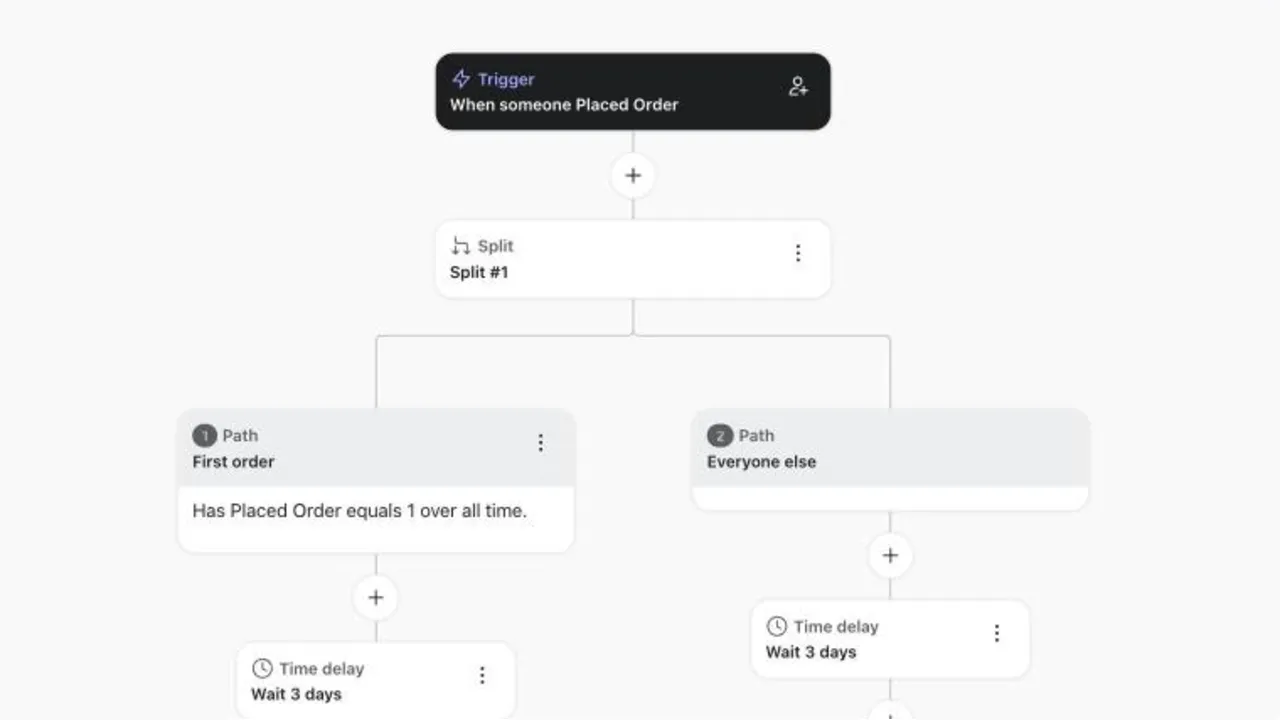
- Add two profile filters, joined with AND: Checkout Started zero times since starting this flow and Placed Order zero times since starting this flow. The first one hands people over to your checkout flow the moment they start checkout, so nobody gets both.
- One or two emails are enough. Link the button to
https://yourstore.com/cart.
Browse abandonment is the same idea one step earlier still: the trigger is Viewed Product, and it emails recognized shoppers who looked at a product and left. Klaviyo has a template called Browse Abandonment. Add filters for Added to Cart, Checkout Started and Placed Order, each zero times since starting this flow, so the three flows never overlap. I'd send one email. These people were only looking.
Frequently asked questions
Should I run Checkout Started and Added to Cart flows at the same time?
Yes, if you add the filter Checkout Started zero times since starting this flow to the Added to Cart flow. Then a shopper is in only one of them at a time. If you only build one, build Checkout Started.
Why does my abandoned cart link go to my home page?
Most often the shopper already bought, so Shopify expired the checkout link. Add the Placed Order zero times since starting this flow filter so buyers never get the email. When you test, start a fresh checkout yourself instead of reusing an old one.
How long should I wait before the first abandoned cart email?
I use 2 hours. Klaviyo's pre-built flows use 4 (Klaviyo's guide). Below 1 hour you mostly email people who were about to finish anyway, and after a day many have forgotten or bought somewhere else.
Should I include a discount code?
Not in the first email. It trains customers to abandon their cart and wait for the code. If you want one, put a small one in the last email only.
How do I test the flow without emailing real customers?
Set every email to Manual, turn the flow on and do a checkout on your own store with a fresh email address. Klaviyo queues the emails for review instead of sending them. Switch them to Live only when everything looks right.