How to find and add negative keywords in Google Ads
By Michal Krkoska11 min read
Last week I spent $255 on Google Ads and got 26 clicks. That is almost $10 per click. Ouch.
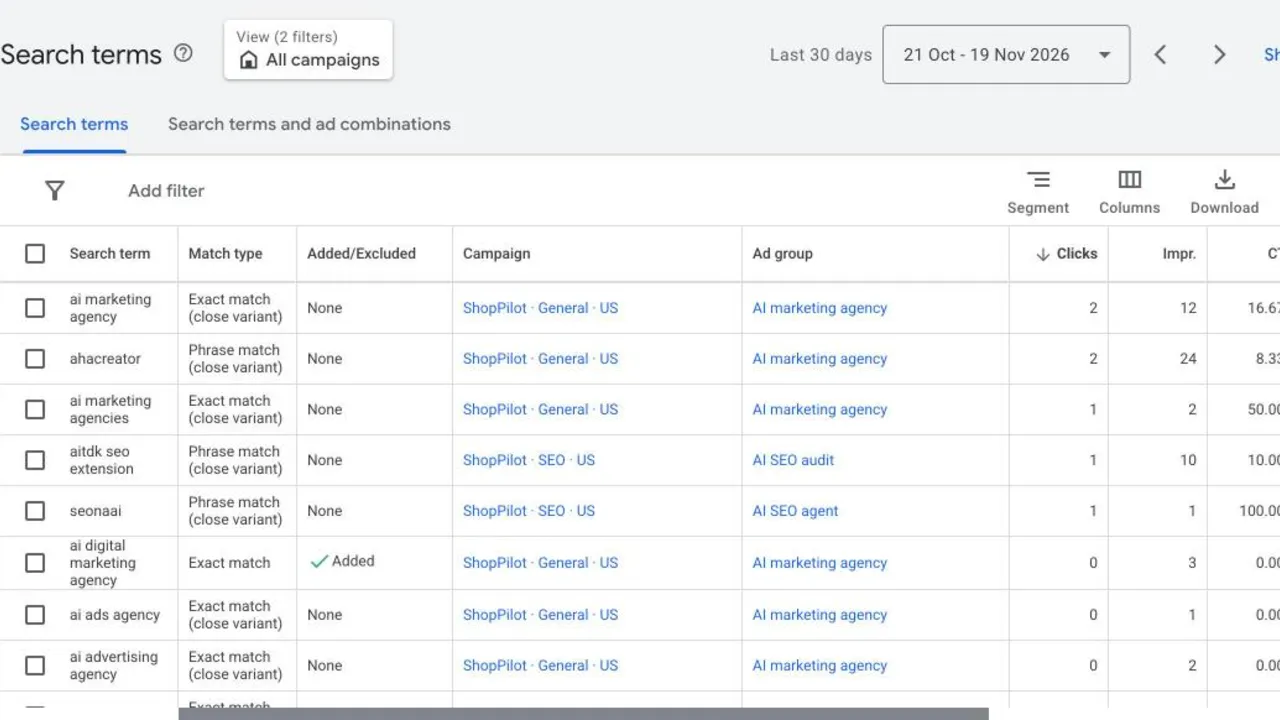
So I opened the report that shows what people actually typed before they clicked. My keyword was "ai marketing agency". The most common searches Google showed my ads for were "aitdk", "ahacreator", "muze ai" and "stefanbrain".
As far as I can tell, those are all names of other products and companies. People were looking for somebody else, Google showed them my ad anyway, and two of them clicked. Each of those clicks cost me about $10.
This is the problem that negative keywords fix. They stop you paying for clicks like these, which brings your cost per useful click down. This guide shows you how to find these searches and block them, step by step, with my own account as the example. It takes about 15 minutes once you know where to click.
What a negative keyword is
A keyword is a word or phrase you give Google to say "show my ad when people search for this".
A search term is what a person really typed. It is often not the same as your keyword, because Google is allowed to show your ad for searches it thinks are similar.
A negative keyword is the opposite of a keyword. It tells Google "never show my ad when the search contains this".
That's the whole idea. You are not improving your ads. You are just telling Google where to stop spending your money.
Why you need them, even if you were careful
I thought I was safe. I used exact match for almost every keyword, which is supposed to be the strictest setting. I assumed exact match means "show my ad only for exactly this search".
It doesn't. Google matches your keyword to "close variants", which means anything Google decides has the same meaning. In my account, Google decided that "ahacreator" is a close variant of "ai marketing agency". I would love to hear the reasoning.
So here is my first strong opinion: do not trust match types to protect your budget. The only thing that protects it is looking at the real searches and blocking the bad ones yourself.
And don't expect Google to remind you. Google earns money on every click, including the useless ones.
Step 1: Open the search terms report
- Open Google Ads and click Campaigns in the left bar.
- Click Insights and reports.
- Click Search terms.
You now see a table with one row per search. Three columns matter:
- Search term: what the person typed.
- Match type: how Google connected it to your keyword. "Close variant" means Google improvised.
- Added/Excluded: whether this search is already one of your keywords, or already blocked.
Now change two things, or the table will mislead you:
- Set the date range to at least the last 30 days (top right). One week is usually too little data.
- Sort by cost. Click Columns, add Cost if it's missing, then click the Cost header. The default sorting is by clicks, but you care about where the money went.
One thing nobody tells you: this report is incomplete. Google hides searches that only a few people made, for privacy reasons (Google's explanation). In my case the report shows the searches behind only 7 of my 26 clicks. For the other 19 clicks, about $190, I will never know what people typed.
That is annoying and you can't fix it. It just means the searches you can see deserve your full attention.
Step 2: Decide what to block
This is the only part that needs thinking. Go through the list from the top and ask one question for each search:
Could this person ever become my customer?
Not "did they buy". Just "could they".
Here is how that looked in my account:
| Search term | Could they become a customer? | Decision |
|---|---|---|
| ahacreator | No. They want a specific other product. | Block |
| aitdk seo extension | No. They want a specific other product. | Block |
| claude seo skill | No. They want a free add-on for an AI chatbot. | Block |
| google cost per click estimator | No. They want a calculator from Google. | Block |
| ai marketing agency | Yes. This is exactly who I want. | Keep |
Look at the last row. "ai marketing agency" got 2 clicks and cost me about $19. A lot of guides (and a lot of AI tools) would tell you to block any search that costs money and doesn't convert straight away. I wrote more about that trap in how to run Google Ads with AI.
Please don't. Two clicks tell you nothing. If you block every search that didn't convert in its first week, you will end up blocking your own customers, and your campaign will slowly starve.
So my rule is simple:
- Block a search when the person wants something you don't offer. One click is enough evidence, because the reason is the meaning of the search, not the numbers.
- Never block a search only because it hasn't converted yet. If a relevant search still has no conversions after 50 or more clicks, the problem is probably your landing page or your offer. A negative keyword won't fix that.
The searches worth blocking usually fall into a few groups:
- Other companies' names, when people are trying to reach that company.
- Job seekers: "jobs", "salary", "careers", "internship".
- People who want it free: "free", "template", "download", "open source". Careful with this one. If you have a free trial, "free" might be your best customer.
- People who want to learn, not buy: "course", "what is", "definition", "examples".
- A different product with a similar name.
Step 3: Add the negative keyword
- In the search terms table, tick the box next to each search you want to block.
- A blue bar appears at the top. Click Add as negative keyword.
- Choose where to add it. Google gives you three options:
- Ad group: blocks it in this one ad group only.
- Campaign: blocks it in this whole campaign.
- Negative keyword list: blocks it in every campaign that uses the list.
- Click Save.
Which one should you choose? My opinion:
- Use a negative keyword list for things you never want. Other companies' names, "jobs", and so on. You add them once and they are blocked everywhere.
- Use Campaign for things that are only wrong for this campaign.
- Ignore the Ad group option unless you are doing something advanced. Google selects it by default, and it means the same bad search can still show your ads from a different ad group.
Step 4: Fix the match type (most people skip this)
When you click Add as negative keyword, Google fills in the search with square brackets around it, like this: [ahacreator].
The brackets mean exact match. With exact match, Google blocks that search only when it is typed exactly like that. So [ahacreator] blocks "ahacreator", but "ahacreator pricing" and "ahacreator review" still show your ad.
That is almost never what you want. You can change it by editing the text in the box before you save. There are three options:
| You type | Called | What it blocks |
|---|---|---|
[seo extension] | Exact match | Only the search "seo extension", with nothing added. |
"seo extension" | Phrase match | Any search that contains "seo extension" in that order, such as "aitdk seo extension". |
seo extension | Broad match | Any search that contains both words, in any order, such as "extension for seo". |
My opinion: for other companies' names, delete the brackets. You want every search that contains that name gone. Keep the brackets only when one specific phrasing is bad and you are not sure about the rest.
There is one more trap. Remember how Google stretched my keyword to "close variants"? It does not do that for negative keywords. Negative keywords are taken literally. If you block "job", the search "jobs" still gets through. You have to add the singular and the plural yourself (Google's own example is "flower" and "flowers").
So Google reads your keywords generously and your negative keywords strictly. Both choices happen to make Google more money. What a coincidence :D
Step 5: Put the permanent ones in a list
A negative keyword list is a saved set of negative keywords that you can attach to many campaigns. If you later create a new campaign, you attach the list and it is protected from day one.
- Click Tools in the left bar.
- Click Shared library, then Exclusion lists.
- On the Negative keyword lists tab, click the blue + button.
- Give the list a name that says what's in it, for example "Other companies" or "Job seekers".
- Type or paste your negative keywords, one per line, and click Save.
- Back in the table, tick the box next to your list. A blue bar appears. Click Apply to campaigns and pick your campaigns.
You can have up to 20 lists, with up to 5,000 negative keywords in each (Google's limits). You will not run out.
There is also an account-wide option. Under Admin, then Account settings, there is a Negative keywords section. Anything you add there is blocked in every search and shopping campaign in the account, including future ones, up to 1,000 keywords (details here). I'd use it for the truly universal ones, like "jobs".
What about Performance Max?
I don't run Performance Max. In my experience it sends poor quality visitors to my website, and Google Search ads are the only ones worth my money. If you do run it, you still need negative keywords, probably more than anyone.
For a long time you could not add them to a Performance Max campaign yourself. You had to contact Google support and ask them to do it. You can still find forum threads from people stuck at exactly that step.
That has changed. You can now add negative keywords to a Performance Max campaign directly, and Google's instructions show where. Two things to know:
- They only apply to the Search and Shopping parts of the campaign, not to YouTube or Display.
- The account-wide negative keywords from Step 5 also cover Performance Max. Set those up first, because they protect every campaign at once.
How often should you do this?
- New campaign: every week for the first month. This is when most of the junk shows up.
- After that: every two weeks, or once a month if your spend is small.
Put it in your calendar. Honestly, this is the most boring job in Google Ads, and that is exactly why it gets skipped and why it works.
One last check after you add negatives: make sure none of them blocks one of your own keywords. It happens to everyone at some point, usually on a Friday afternoon. Open your keyword list and read it next to your negatives. If your ads suddenly stop showing for a keyword you care about, this is the first place to look.
Frequently asked questions
How many negative keywords should I have?
There is no right number. A small account might have 30, a large one several thousand. If you add them only when you see a real bad search, you will end up with the right amount.
Should I copy a "universal negative keyword list" from the internet?
I wouldn't paste one in blindly. Those lists block words like "free", "cheap" and "review", and for many shops those are buyers. Read every word and ask whether it's bad for your business.
Will negative keywords lower my costs?
They lower wasted spend. Your total spend often stays the same, because Google spends the freed budget on other searches. The goal is that those other searches are better ones.