How to fix 404 errors and create redirects in Shopify
By Michal Krkoska16 min read
One Shopify merchant opened Google Search Console and found 766 pages marked Not found (404). They did the sensible thing: exported the list, matched every old address to a new one in a spreadsheet, and uploaded it to Shopify. It failed. Eleven replies later, the thread still has no answer (the thread).
I tested every part of this in my own store's admin so you don't have to guess. This guide shows how to find the 404s that actually matter, how to redirect them one at a time or by the hundred, what Shopify quietly refuses to do, and where a deleted product should send people. The setup takes 10 minutes. A migration with hundreds of old URLs takes an afternoon, mostly in a spreadsheet.
What a 404 and a redirect are
A 404 is the "page not found" answer your store gives when nobody lives at an address. Every store has some. Someone mistypes a link, you delete a product, an old blog post goes away.
A redirect tells browsers and Google "this page moved, go over there instead". Shopify's redirects are 301 redirects, which means "moved permanently". I checked the answer my store sent, and it was a 301 every time. There is no setting for any other kind, and you don't need one.
A 404 is not an error you must fix. It's often the correct answer. Google says that 404s for pages you removed without a replacement are not necessarily a problem. The job is to find the few 404s where a real person or a real link is still arriving, and send those to the right place.
Step 1: Find the 404s that matter
The best list comes from Google Search Console.
- Open Google Search Console and pick your store.
- In the left bar, click Pages (under Indexing).
- Scroll to Why pages aren't indexed and click the row Not found (404).
- Click Export at the top right if the list is long. You get a spreadsheet of every address.
I explain the rest of this report in how to fix pages not indexed in Google Search Console. Here I'll only cover the 404 row.
Now go through the list. Most of it is noise. Here is what I would ignore and what I would fix:
| Address looks like | What it is | Fix it? |
|---|---|---|
/products/old-product | A product you deleted or renamed. | Yes, if it had sales, links or ads pointing at it. Redirect it. |
/collections/old-collection | A collection you deleted or renamed. | Yes. Collections often have links from your own menus and from other sites. Redirect it. |
/blogs/news/old-post | A blog post you deleted. | Only if it had traffic or links. Otherwise leave it as a 404. |
/product/blue-shirt/, /shop/blue-shirt.html, /index.php?route=... | Addresses from your old platform before you moved to Shopify. | Yes. This is the most valuable group. See the migration section below. |
/collections/vendors?q=..., /search?q=... with odd text | Spam searches somebody created on your store. | No. Leave them as 404. I wrote about these in how to remove spam and junk URLs from Google. |
/wpm@..., /web-pixels-manager@..., /cdn/... | Shopify's own system addresses. | No. Shopify sends a 404 on purpose. |
Addresses with a typo, like /prodcuts/... | Somebody linked to you wrong. | Only if the link is on a site that sends you visitors. Otherwise ignore it. |
How do you know whether a page still gets visitors? In Search Console, open Performance, click + Add filter, choose Page and paste the address. If it had clicks in the last few months, people are still landing on it.
My rule: if a person might still arrive at that address, redirect it. If only Google remembers it, let it be a 404. Google forgets 404s on its own.
Step 2: Decide where it should go
This is the part most guides get wrong. They tell you to redirect everything to your home page so the 404s "go away". Please don't.
A redirect is a promise: "the thing you wanted is over here". If somebody clicks a Google result for a blue linen shirt and lands on your home page, the promise is broken. They have to start searching again, and most won't. Google sees it the same way. In its guide to moving a site, Google says don't redirect many old URLs to one irrelevant page such as the home page, and that it may treat those redirects as soft 404s. A soft 404 is Google deciding "this is really a missing page, it just pretends not to be". So you gain nothing.
Here is where I would send each kind of page:
| The old page was | Send it to | Why |
|---|---|---|
| A product you replaced with a newer version | The new product. | The visitor wanted this thing. The new one is the same thing. |
| A product you renamed (new handle) | The same product at its new address. | Nothing changed but the address. |
| A product you stopped selling, with similar products in stock | The collection with the closest products. | The visitor sees alternatives right away. |
| A product you stopped selling, with nothing similar | Nowhere. Leave it as a 404. | A redirect to something unrelated is a broken promise. An honest "not found" page with a search box is better. |
| A collection you merged into another one | The new collection. | Same products, new home. |
| A blog post you deleted | A newer post on the same topic, or nowhere. | Only redirect when the new page answers the same question. |
One more tip: make your 404 page useful. In Online Store, Themes, Customize, pick the 404 page template and add a search box and your best collections. Then the 404s you leave alone still help people.
Step 3: Create a redirect
In the admin, URL redirects live under the menus:
- Click Content in the left bar, then Menus.
- Click URL redirects at the top right.
- Click Create URL redirect.
You see two fields:
- Redirect from: the old address that now shows "page not found".
- Redirect to: where visitors should land instead. Type
/for the home page.
- Fill in both and click Save redirect. Shopify shows "Your redirect was created" and the redirect works right away.
I tested what each field accepts. Here is what I found:
| What I typed | What happened |
|---|---|
A full address in Redirect from, like https://mystore.com/test-guide-Old-Product | Accepted. Shopify removed the domain and saved /test-guide-old-product, all lowercase. |
| Uppercase letters in the old address | Doesn't matter. Both /test-guide-old-product and /test-guide-Old-Product redirected. |
A trailing slash, like /test-guide-old-product/ | Also redirected. |
A path in Redirect to, like /collections/shirts | Accepted. This is what you want for anything on your own store. |
An external address in Redirect to without https:// | Refused with "Target is invalid". |
An external address with https:// | Accepted, and it worked. You can send people to another website. |
| Redirect to the same address as Redirect from | Refused: "Target can't be the same as path". |
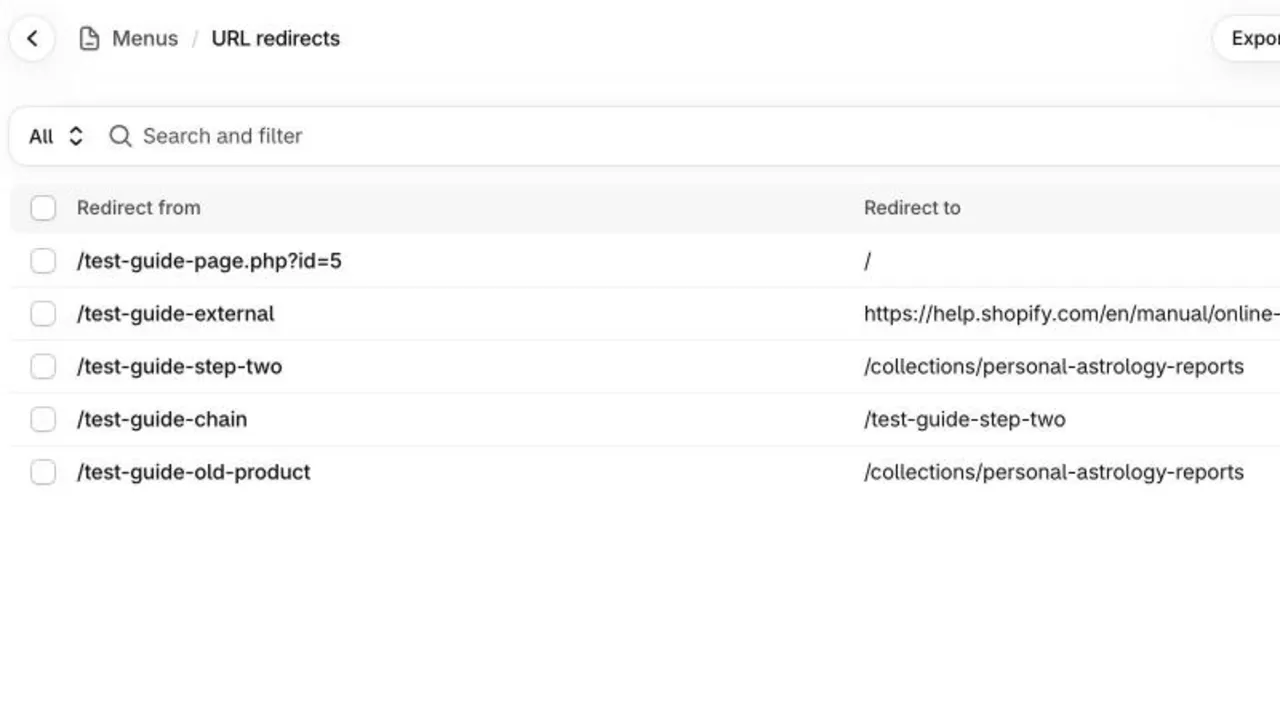
| Redirect to an address that is itself redirected | Refused: "Target can't redirect to another redirect". More on that under chains. |
| Redirect to an address that doesn't exist | Accepted without a warning. Shopify does not check that your target page exists, so check it yourself. |
Redirect to is a plain text box. There is no search or product picker, so copy the address from your storefront's address bar and paste the part after the domain.
Step 4: Check that it works
Open a private browser window and type the old address. You should land on the new page, and the address bar should change to the new address.
If it doesn't redirect, it's almost always one of these:
- The old address still shows a page. Shopify only redirects addresses that are broken. If the old product still exists, even with zero stock, it wins and the redirect never fires (Shopify's rule). Set the product to Draft or delete it first. Careful: if you later set it back to visible, Shopify deletes the redirect automatically.
- A typo. Compare both fields letter by letter.
- Your browser remembers an old redirect. Browsers cache 301s. The private window usually avoids this.
One nice thing I noticed: if the visitor's address has extra parameters, Shopify passes them on. /test-guide-old-product?utm_source=test landed on /collections/...?utm_source=test. So your ad tracking survives the redirect.
How to add hundreds of redirects with a CSV file
Typing redirects one by one is fine for ten. For a hundred, use a spreadsheet.
The file needs exactly two columns, with these headers. This is Shopify's own sample template, which you can download from the import dialog:
Redirect from,Redirect to
/example_product.php,/products/example-product
- Make the file in Google Sheets: column A Redirect from, column B Redirect to, one redirect per row. Then File, Download, Comma-separated values (.csv). I prefer Sheets over Excel here, because Excel likes to "help" with special characters and file encoding, and that's a common reason imports fail.
- In Shopify, go to Content, Menus, URL redirects and click Import. You also get an Import URL redirects button on the empty page if you have no redirects yet.
- Click Add files and pick your file. The dialog says it accepts .csv, .txt and .xls. Click Upload file.
- Shopify shows Import details with every row it read. Check them, then click Import redirects.
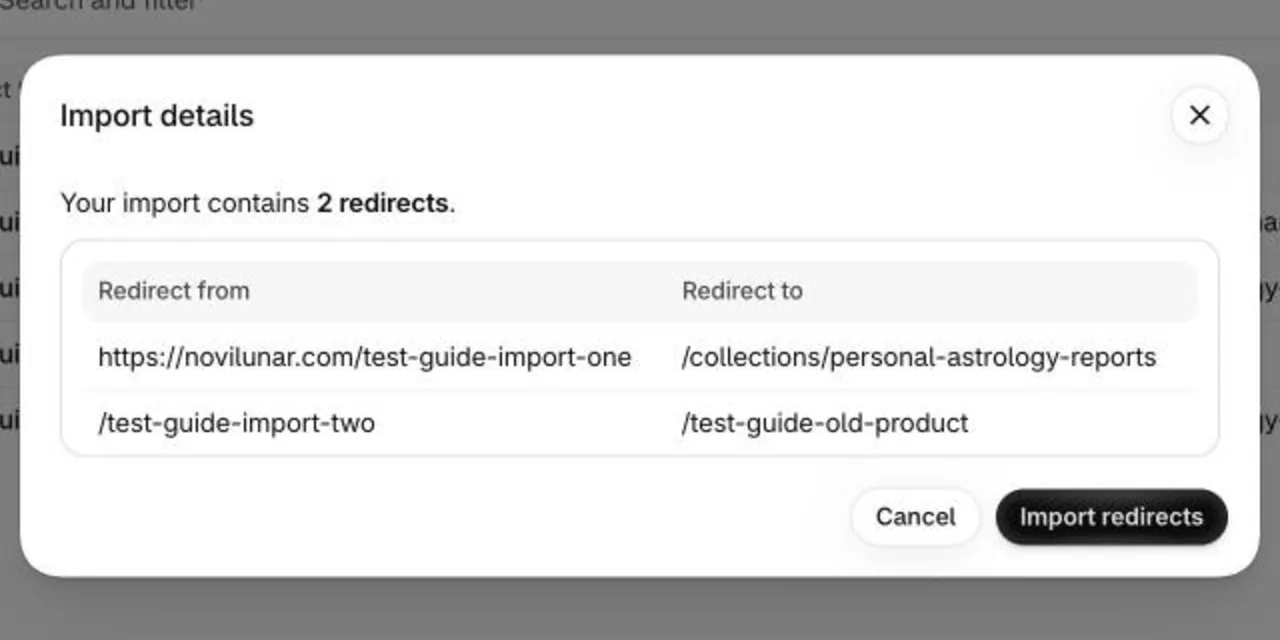
- Shopify imports in the background. When it's done, it shows a summary like "Import complete with errors: 1 redirect has been added to your store. 1 redirect contains errors and couldn't be imported to your store."
That summary doesn't say which row failed or why. Shopify sends the details in a summary email when the import is complete. So when an import fails, check your email before you change anything.
What I learned from my test file:
- Full addresses work in the file too. My row
https://mystore.com/test-guide-import-onewas saved as/test-guide-import-one. You can paste addresses straight from the Search Console export without cleaning them. - A row that points to another redirect fails. My second row pointed at an address that was already redirected, and that was the row Shopify refused.
- Rows for pages that still exist won't work, for the same reason as above.
To get your redirects out again, click Export. You can export the current page, all redirects, the ones you selected, the ones matching your search, or a date range, as CSV for Excel, Numbers, or other spreadsheet programs or as a Plain CSV file.
To find and clean up redirects, use Search and filter at the top of the list. The search looks at both columns, which is handy: search for an old product handle and you see every redirect from it and to it. The only filter is Date added. To delete several, tick their boxes and click Delete selected redirects, then Delete. Shopify warns that "deleted redirects cannot be recovered", so export first if you might want them back.
Moving hundreds of old URLs after a migration
If you came to Shopify from WooCommerce, Magento, Wix or another Shopify store, this is the job that matters most. Every old product address has links, Google rankings and maybe ads pointing at it. Shopify uses its own fixed address format, /products/handle and /collections/handle, so almost every old address breaks the day you switch.
Here is how I would do it:
- Get the full list of old addresses before you switch. Download the old site's sitemap (usually
oldstore.com/sitemap.xml) and export your top landing pages from Google Analytics for the last 12 months. If you already switched, use the Search Console 404 export from Step 1 instead. - Put them in column A of a sheet. One address per row.
- Look for patterns. Most platforms have one. WooCommerce uses
/product/blue-shirt/, which becomes/products/blue-shirtif your handles kept the same names. A formula like=SUBSTITUTE(A2,"/product/","/products/")does hundreds of rows in a second. - Fix the rest by hand. Products whose names changed, categories that became different collections. This is the slow part, and it's worth it for anything with traffic.
- Check the targets. Every address in column B must open a real page. Shopify won't check this for you.
- Import, then test 10 random rows in a private window.
- Keep the redirects. Google says to keep them for at least a year, and I'd keep them forever. They cost nothing. A standard Shopify store can hold up to 100,000 redirects (Shopify's limits).
Moving from one Shopify store to another on a new domain is different. The old store can't redirect to the new one while it still serves those pages. The usual way is to connect the old domain to the new store, so the addresses stay the same and nothing needs redirecting at all. Ask yourself whether you really need new addresses before you build a map of 2,000 rows.
Redirect chains: how they happen and how to fix them
A redirect chain is a redirect to an address that redirects again. A goes to B, B goes to C. Each hop makes the page slower, and Google says to redirect straight to the final page.
Shopify blocks chains, but only in one direction. I tested both:
- A to B, when B is already a redirect: refused with "Target can't redirect to another redirect".
- B to C, when A already points to B: accepted. My store then sent visitors from A to B to C, two hops.
The second case is exactly how chains happen in real life. You change a product's handle and tick the redirect box, so Shopify adds a redirect. A year later you change it again, and now the first redirect points at a dead middle address, which redirects again. Where to change a handle, and why to do it only on the product page, is in how to edit SEO titles and meta descriptions in Shopify.
The fix takes a minute:
- In URL redirects, search for the middle address (B).
- You see two rows: one from B and one to B.
- Click the row that goes to B, change Redirect to to the final address (C), and click Save redirect.
I'd do this check every time you change a handle or import a batch.
What Shopify can't redirect
Knowing the limits saves you hours of trying. Some of these I hit myself, and the rest are in Shopify's documentation:
| You want to redirect | Can Shopify do it? |
|---|---|
| A product or page that still exists | No. Redirects only work for broken addresses. Draft or delete the page first. |
A whole pattern, like everything under /old-blog/ | No. Each row is one exact address. An app that supports wildcard redirects is the only way. |
An address with parameters, like /page.php?id=5 | Only that exact address. In my test, /test-guide-page.php?id=5 redirected, but ?id=6, no parameters, or ?id=5&utm_source=x all stayed 404. Each version needs its own row. |
Collection tag filters, like /collections/shirts/blue | No. Shopify blocks these even when no product has that tag. |
System paths that start with /cart, /orders, /apps or /services | No. Shopify reserves them. |
/products, /collections and /collections/all | No. These are fixed. |
An address ending in .html to the same address without .html | No. Pick a different target. |
About addresses like /collections/shirts/products/blue-shirt: Shopify shows every product at this longer address too, but its pages tell Google the short /products/blue-shirt is the real one. So Search Console usually lists the short version, and that's the one to redirect. If it lists the long version, add a row for that exact address too.
Frequently asked questions
Do 404 errors hurt my Shopify store's SEO?
Not by themselves. Google says 404s for pages you removed without a replacement are not necessarily a problem. What hurts is losing a page that had visitors and links, and your own menus or products linking to dead addresses. Fix those, and ignore the rest.
Should I redirect all 404s to my home page?
No. Google may treat mass redirects to the home page as soft 404s, so you gain nothing, and visitors who wanted a specific product have to start over. Redirect each address to the closest matching page, or leave it as a 404 if nothing matches.
Why is my Shopify redirect not working?
Usually the old address still shows a page, so Shopify ignores the redirect. Check in a private window, set the old product to Draft if it still exists, and compare both fields for typos. If the address has parameters after a ?, the redirect only works when they match exactly.
Why does my redirect CSV import fail?
The most common causes are wrong headers, a file saved in the wrong encoding, a target that is itself a redirect, or old addresses that still show a page. The headers must be Redirect from and Redirect to. Shopify emails you the details of failed rows, so read that email before you change the file.
Does Shopify create redirects automatically?
Only when you change a product's handle on its own page and tick the redirect box. Deleting a product, changing handles in the bulk editor or importing a product CSV does not create redirects. Everything else you add yourself under URL redirects.