How to fix pages not indexed in Google Search Console
By Michal Krkoska17 min read
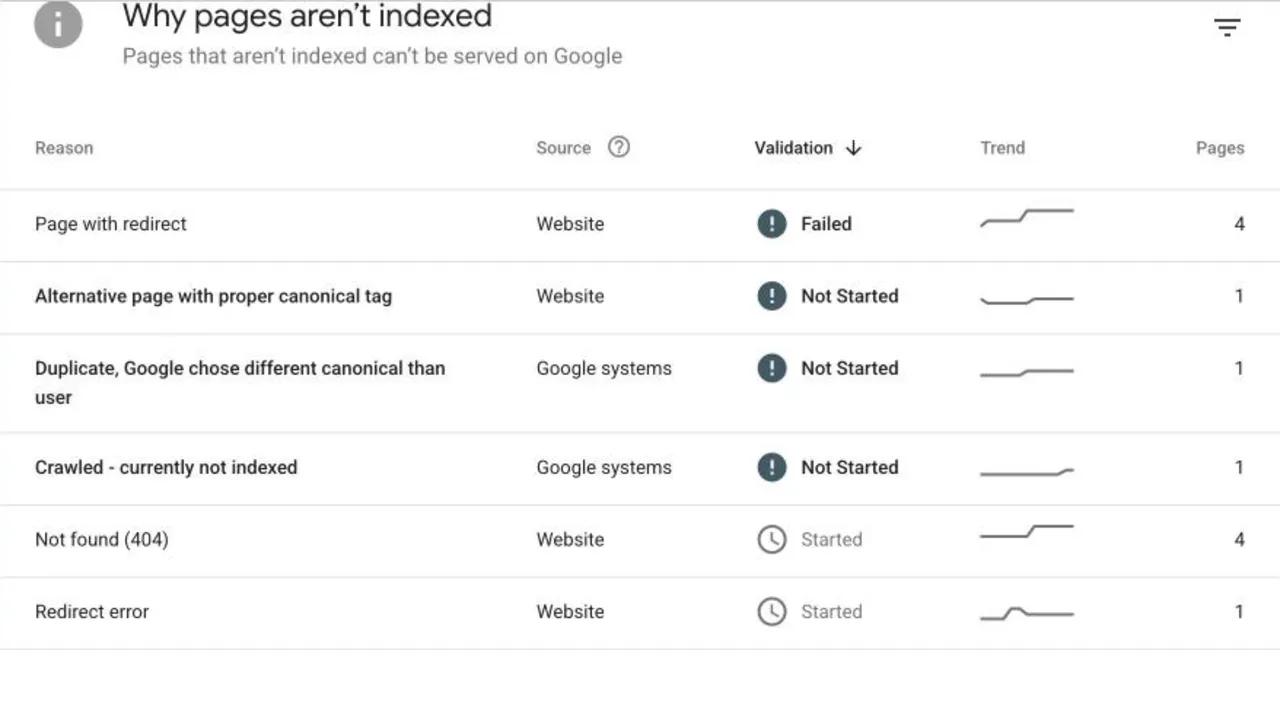
I opened Google Search Console for shoppilot.ch this morning. It says 8 pages are indexed and 12 are not, for 6 different reasons. One row even has a red "Failed" next to it.
That looks like a website on fire. It isn't. When I went through the 12 pages one by one, exactly zero of them were pages I want on Google. Most were old addresses that now redirect, a few were pages I deleted on purpose, and one was a URL with a literal asterisk in it that Google found on a Chrome Web Store page.
This is the normal state of almost every website. The trick is telling the noise apart from the one or two rows that really cost you visitors. This guide goes through every common reason in plain words, says which ones to ignore, and gives the exact steps for the ones worth fixing. Sorting your own report takes about 20 minutes.
What "indexed" means
Crawling is when Google's robot, Googlebot, visits a page and downloads it.
Indexing is when Google decides to store that page in its database, the index. Only pages in the index can show up in search results.
So a page goes through three stages: Google finds the address, Google crawls it, Google indexes it. Every "not indexed" reason tells you at which stage the page stopped and why.
One more thing before you start, and it's the most important sentence in this guide. Google itself says you should not expect all URLs on your site to be indexed. The goal is not zero rows in the "not indexed" table. The goal is that every page you actually want people to find is indexed. Those are two very different jobs, and the second one is much smaller.
Step 1: Open the Page indexing report
- Open Google Search Console and pick your site in the box at the top left.
- In the left bar, under Indexing, click Pages.
- At the top you see two boxes: Not indexed and Indexed, each with a number.
- Scroll down to the table called Why pages aren't indexed.
The table has five columns. Two of them matter:
- Source: either Website or Google systems. "Website" means your site told Google not to index the page (a redirect, a 404, a noindex tag). "Google systems" means your site said yes and Google said no.
- Validation: whether someone has clicked Validate fix for that reason. More about that button in Step 6.
The Not indexed box on my site says "6 reasons", but the table has 7 rows. The seventh, Discovered – currently not indexed, shows 0 pages. Search Console keeps a reason in the table for a while after the last page leaves it. Ignore rows with 0.
Step 2: Sort every reason into "ignore" or "check"
Click any row and Search Console shows a list of Examples: the actual URLs with that problem. Do this for every row. You can't judge a reason by its name, only by the URLs under it.
Here is every common reason, what it means and what I do about it.
| Reason | What it means in plain words | Real problem? |
|---|---|---|
| Page with redirect | This address sends visitors to another address. Google indexes the other one. | No, if the redirect is on purpose. Ignore it. |
| Not found (404) | The page doesn't exist. | No, if you deleted it on purpose. Yes, if a real page or a link you care about points to it. |
| Alternative page with proper canonical tag | This page says "the real version of me is over there", and Google agreed. | No. Google's own help page says there is nothing you need to do. Ignore it. |
| Duplicate without user-selected canonical | Google found several copies of the same page, none of them says which one is the real one, so Google picked one by itself. | Usually no. Check that the copy Google picked is the one you want. |
| Duplicate, Google chose different canonical than user | You said "index this version", and Google picked a different one. | Sometimes. Check which one Google picked. |
| Redirect error | The redirect is broken: it loops, or the chain of redirects is too long. | Yes, if it's an address people or links still use. Fix the redirect so it goes straight to the final page. |
| Excluded by 'noindex' tag | The page has a tag in its code saying "don't index me". | No, if you added it on purpose. Yes, if it's on a page you want found. |
| Blocked by robots.txt | Your robots.txt file tells Googlebot not to visit this address. | No, if it's a cart, checkout or admin page. Yes, if it's a real product or article. |
| Crawled - currently not indexed | Google visited the page and decided it wasn't worth storing, for now. | Yes, if it's an important page. This is the hard one. |
| Discovered – currently not indexed | Google knows the address but hasn't visited it yet. | Yes, if it's an important page and it stays here for weeks. |
Now let me show what these looked like on my two sites, because the names alone are confusing.
Page with redirect: almost always fine
On shoppilot.ch, the four URLs here are http://shoppilot.ch/, https://www.shoppilot.ch/, http://shoppilot.ch/product/ and https://shoppilot.ch/product. They are the old or alternative spellings of my real addresses. They are supposed to redirect. That's exactly how it should work.
You only have a problem if a page you want indexed appears here. That would mean it redirects somewhere you didn't intend.
Not found (404): fine if you deleted the page
Mine are /services and /ai-transformation, pages from an old version of the website that I removed. Google still remembers them and checks now and then. A 404 is the "page not found" answer a server gives, and Google says 404s are not a problem when the page was removed without a replacement.
Fix it only in two cases:
- The page moved. Add a 301 redirect, a permanent forward from the old address to the new one. Anyone with an old link, and Google, lands on the right page.
- The page should exist. Something is broken. Restore it.
Alternative page and duplicates: check which version won
A canonical is the one official version of a page, for when the same content lives at several addresses. You declare it with a tag in the page's code, and Google can agree or disagree.
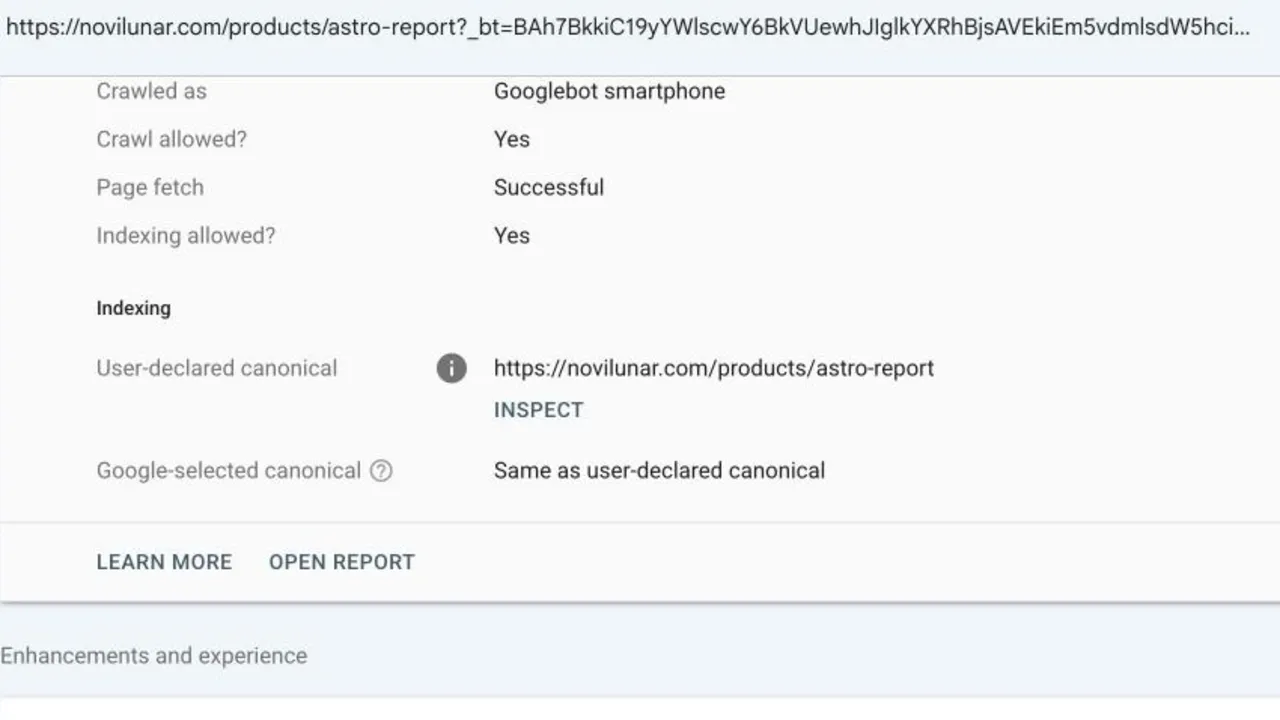
My Shopify shop has 25 pages under Alternative page with proper canonical tag. They are all the same product page with a long parameter glued to the end of the address (/products/astro-report?_bt=...). Each one tells Google "the real version is /products/astro-report", Google agrees, and the real version is indexed. Nothing to do. Shopify shops always have a pile of these.
Duplicate, Google chose different canonical than user is worth one minute. On shoppilot.ch, the URL is https://shoppilot.ch/product/, an old address that now forwards to the home page. Google decided the home page is the real version and indexed that one instead. Fine by me.
How to check yours: use URL Inspection (Step 3) on the URL and look at two lines, User-declared canonical and Google-selected canonical. If Google picked a version you're happy with, ignore it. If it picked the wrong page entirely, the two pages are probably too similar. Make the page you want clearly different and more useful, and link to it from your own site. If your site runs on Shopify, I go through every kind of duplicate address it creates in how to fix duplicate content and canonical errors in Shopify.
Excluded by 'noindex' tag: check you meant it
A noindex tag is a line in a page's code that says "don't put me in search results".
On my Shopify shop, the only URL here is a discount link, the kind you send in an email that applies a code and forwards to a collection. It carries a noindex tag, and that's correct: nobody should land on a discount link from Google.
It's a real problem when a page you want found carries the tag. The usual culprits: an SEO plugin setting, a "hide from search engines" checkbox, or a whole site that was set to noindex during building and nobody turned it off at launch. To fix it:
- Find the setting in your website builder or SEO plugin and switch it off for that page.
- Open the page in your browser, right-click, choose View page source, and search for
noindex. It should be gone. - Use Test live URL (Step 3) to confirm Google sees it too.
Blocked by robots.txt: check the address
robots.txt is a small file at the root of your site (for example yoursite.com/robots.txt) that tells search robots which addresses they may not visit.
Shopify and most shop systems block the cart, checkout, account and search pages by default. Seeing those here is fine.
If a product or article appears here, open your robots.txt and look for a Disallow: line that matches its address. Remove or narrow that line. In Shopify, that means editing the robots.txt.liquid template; in WordPress, usually your SEO plugin.
One trap: robots.txt is not a way to keep a page out of Google. Google can still index a blocked page if other sites link to it, because it never gets to see your noindex tag. To hide a page, allow crawling and use noindex, as I show step by step in how to remove spam and junk URLs from Google.
Step 3: Inspect one URL with URL Inspection
For the two hard reasons, "Crawled" and "Discovered", you need to look at individual URLs.
- In the reason's list of Examples, click a URL. A panel opens on the right.
- Click INSPECT URL. Or paste any URL into the bar at the very top, Inspect any URL in '(your site)', and press Enter.
- Wait a few seconds for the result.
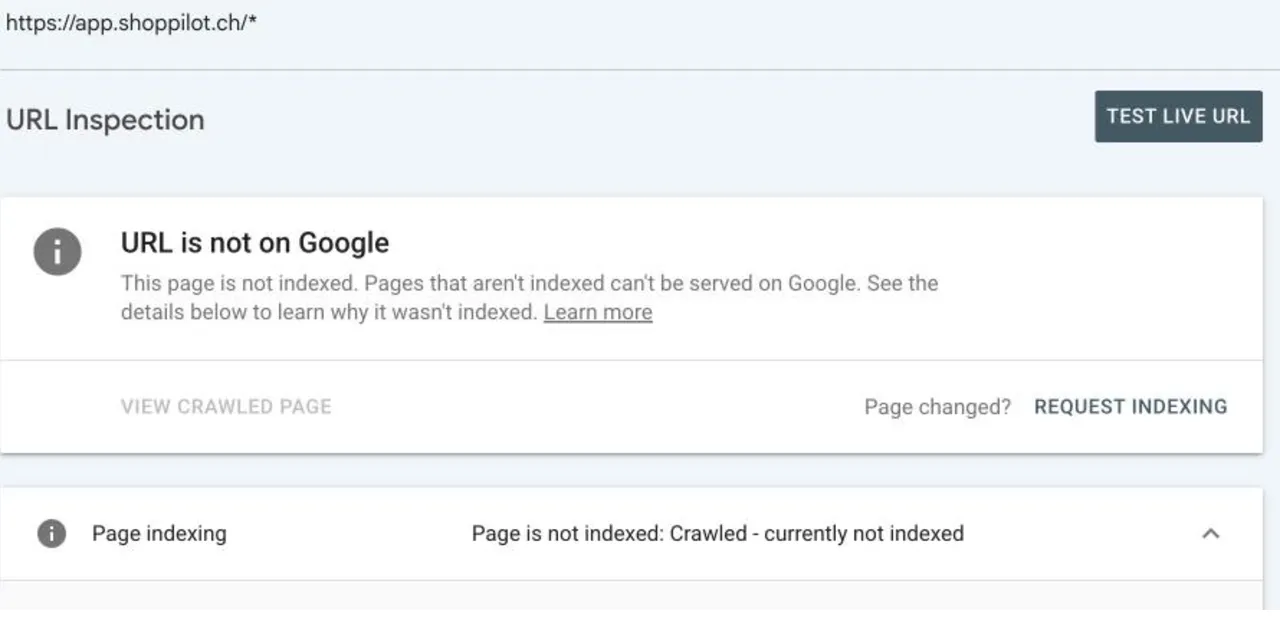
The top box says URL is on Google or URL is not on Google. Below it, open the Page indexing row. The useful lines are:
- Sitemaps: whether the page is in a sitemap, the list of your pages you give Google. If it says none and your site runs on Shopify, submitting your Shopify sitemap takes two minutes.
- Referring page: a page where Google found a link to this one. If it says None detected, Google only knows the page from your sitemap.
- Last crawl: when Googlebot last visited. N/A means never.
- Crawl allowed? and Indexing allowed?: if either says No, you have a robots.txt or noindex problem from Step 2, not a quality problem.
- User-declared canonical and Google-selected canonical: the two lines from the duplicates section.
Then click TEST LIVE URL at the top right. This fetches the page right now, instead of showing what Google saw last time. It takes a minute or two. If it says URL is available to Google and Page can be indexed, the technical side is fine.
This is where most people get stuck, and you can see it in every Search Console forum thread: "live test passes, sitemap is fine, still not indexed". If the live test passes, the problem is not technical anymore. Google can index the page. It has decided not to, yet. Which brings us to the two reasons that actually matter.
Step 4: Fix "Discovered – currently not indexed"
This means Google knows the address but hasn't bothered to visit it. Google's official explanation is that crawling it was expected to overload the site, so it postponed it. On a small site that doesn't overload anything, the real meaning is simpler: Google doesn't think the page is important enough to visit yet.
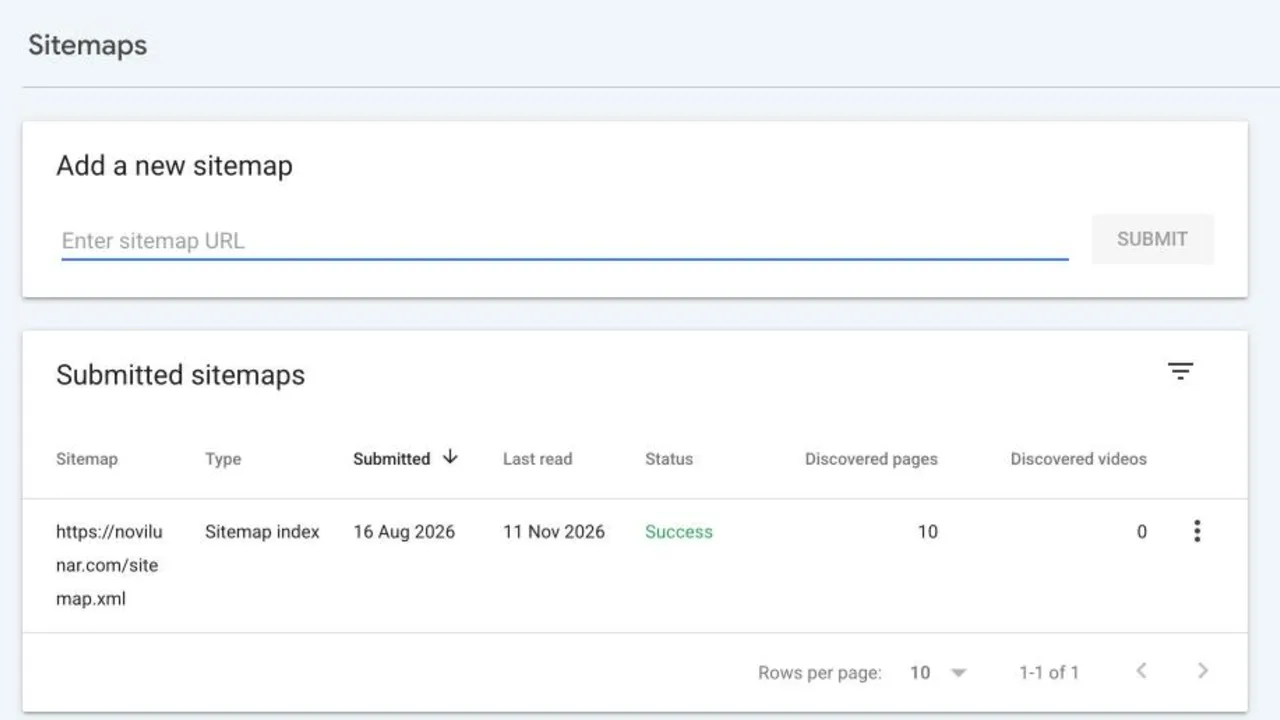
On my Shopify shop there are four pages here, including the contact page. URL Inspection shows Sitemaps: https://novilunar.com/sitemap.xml and Referring page: None detected. So Google knows the page only from the sitemap. As far as Google can tell, no page anywhere links to it. And the live test says URL is available to Google. Technically perfect, practically invisible.
That's the pattern behind most "Discovered" pages, and here is what fixes it, in order of how much it helps:
- Link to the page from pages Google already indexed. Your homepage, your main menu, a popular article, a collection page. A link from a page Google values is the strongest signal you control that this page matters. A sitemap entry says "this exists". A link says "this is important".
- Get one link from outside your site. A supplier, a partner, a directory in your industry, a guest post. New sites with no outside links wait the longest.
- Check the page isn't a near-copy. Fifty product pages with the same description and a different color name look like one page to Google.
- Then click REQUEST INDEXING in URL Inspection for your most important few pages.
And if it's a page like a privacy policy or an opt-out form? Leave it. Nobody searches for your data-sharing opt-out page.
Step 5: Fix "Crawled - currently not indexed"
This one is harder. Google visited the page, read it, and decided not to store it. Google's help page says this is a common message for many sites and doesn't necessarily mean something needs fixing.
My own example on shoppilot.ch is the URL https://app.shoppilot.ch/*, with a literal asterisk. That's not a real page. It's the login screen of the app, at an address Google picked up from a Chrome Web Store listing. Google crawled it, saw a login screen, and decided nobody needs it in search results. Google is right. I ignore it.
When an important page lands here, Google is telling you it doesn't think the page is worth showing. In my experience, the reasons are almost always one of these:
- It says nothing new. A product page with the manufacturer's description, which 200 other shops also have. An article that repeats the top ten results.
- It's thin. A category page with two products and no text. A blog post of 150 words.
- It looks like another page on your site. Ten articles about nearly the same thing.
- Nothing links to it. Same as with "Discovered".
So the fix is not a button. It's this:
- Make the page clearly worth indexing. Write your own product description. Add real photos, sizes, delivery details, a short FAQ. For an article, answer the question better than the pages already ranking.
- Merge pages that compete with each other. Keep the best one and redirect the others to it with a 301.
- Link to it from your homepage, menu or best pages.
- Click REQUEST INDEXING once, after you've changed the page.
- Wait two to four weeks before you judge it.
Step 6: Use the buttons the right way
There are two buttons people click far too often.
Request indexing
In URL Inspection, next to Page changed?, there is REQUEST INDEXING. It puts the page in a priority queue for crawling. That's all it does.
- Google says requesting does not guarantee indexing, and that requesting the same URL many times won't make it any faster.
- There is a daily limit on how many URLs you can request. Google doesn't publish the number, and it's small.
- Crawling can take from a few days to a few weeks.
My rule: request indexing once, for a new or substantially changed page you care about. Never for pages you haven't improved. If the page was not good enough last time, asking again changes nothing. Google crawls it again and comes to the same conclusion.
Validate fix
Open a reason and you see VALIDATE FIX next to Finished fixing?. It tells Google "I fixed every page with this problem, please check". Google rechecks the URLs over about two weeks, sometimes much longer.
Use it only after you fixed something real, for example removed a wrong noindex tag from 30 pages. Don't use it for reasons that were never a problem.
You can see what happens otherwise in my cover picture. The Page with redirect row says Failed. Of course it does. The URLs still redirect, because they are supposed to. Validation fails when enough pages still have the issue, and the "issue" here is the site working correctly. A failed validation on a row like that means nothing, and you can ignore it.
What actually gets a page indexed
After all the reasons and buttons, my honest opinion is short.
Google indexes pages it thinks people will want, on sites it trusts. Everything you control comes down to three things:
- The page is worth it. Original, specific, useful. Not a copy of the supplier's text.
- Your own site says it matters. It's linked from your homepage, menu, or best pages, not just listed in a sitemap.
- Someone else says it matters. Even one or two real links from other sites make a big difference for a new site.
Sitemaps, request indexing and validate fix are only messengers. They tell Google a page exists. They can't convince Google it's worth storing.
So when the "not indexed" number goes up, don't panic. Open each row, look at the URLs, and ask one question: is this a page I want people to find on Google? If not, ignore it. If yes, make it better and link to it. That's the whole job.
Frequently asked questions
How long does it take Google to index a new page?
For a site Google already knows, often a few days. For a brand-new site with no outside links, it can be several weeks, and some pages wait for months. Requesting indexing can speed up the first crawl, but Google says crawling can take from a few days to a few weeks either way.
My live test passes and the page is in my sitemap. Why is it still not indexed?
Because the live test only checks that Google can index the page, not that it wants to. Once the technical side is fine, the decision is about how useful and how important the page looks. Improve the content, link to it from your best pages, and try to get one outside link.
Should I worry when Search Console emails me about a "new reason preventing your pages from being indexed"?
Open the report and look at the URLs before you do anything. Most of these emails are about redirects, deleted pages or duplicates, which are normal. Only act if a page you want found is on the list.
Can I pay someone to get my pages indexed?
You can pay someone to fix technical problems like a wrong noindex tag or a robots.txt block, and that's a fair job for a freelancer. Nobody can make Google index a page it doesn't find useful. Be careful with "instant indexing" services. They can get a page crawled, but they can't make Google keep it.
Does an "Indexed" page mean it will get traffic?
No. Indexed only means the page is allowed to appear. Whether it ranks depends on how well it answers what people search for. Check Performance in Search Console to see which indexed pages actually get impressions and clicks.