How to submit your Shopify sitemap to Google
By Michal Krkoska16 min read
My Shopify store, novilunar.com, sells exactly three products. Google Search Console says my sitemap has 10 discovered pages, and that 4 of them are not indexed.
Ten pages from three products? And a sitemap that says "Success" but still leaves pages out of Google? If you have ever submitted a sitemap and then stared at "Couldn't fetch" for a week, you know the feeling: the report looks precise, but it doesn't tell you what is going on.
This guide shows you where Shopify keeps your sitemap, how to submit it, what every column in the report means, and what to do (and not do) when it says "Couldn't fetch". Submitting takes two minutes. Understanding the report takes ten.
What a sitemap is, and what Shopify does for you
A sitemap is a file that lists the pages of your website, so search engines like Google can find them. It's written in XML, a format meant for machines, so it looks ugly in a browser. That's normal.
Here is the good news: Shopify makes your sitemap for you. Every store has one at your own domain followed by /sitemap.xml. Mine is https://novilunar.com/sitemap.xml. Shopify keeps it up to date by itself whenever you add a product, collection, page or blog post (Shopify's help page).
Open yours in a new tab. Mine starts with a comment from Shopify that says the sitemap "can not be edited manually, but is kept up to date in real time". So you can't edit it, and you don't need to.
What you see is not a list of pages. It's a sitemap index: a sitemap that lists other sitemaps. These are called child sitemaps. Mine has five:
| Child sitemap | What it lists | In my store |
|---|---|---|
sitemap_products_1.xml | Your homepage, then every product, with its main image. | The homepage and my 3 products, so 4 URLs. |
sitemap_collections_1.xml | Every collection. | 2 collections, including the default "frontpage" one. |
sitemap_pages_1.xml | Your pages, like Contact or About. | 2 pages: contact and data sharing opt-out. |
sitemap_blogs_1.xml | Your blog and its posts. | 1 URL, the blog itself. |
sitemap_agentic_discovery.xml | A file Shopify adds for AI shopping agents. | 1 URL, agents.md. |
Add them up: 4 + 2 + 2 + 1 + 1 = 10. That's where my "10 discovered pages" come from. Your store will have different numbers, and a big store has several product sitemaps (sitemap_products_1.xml, sitemap_products_2.xml and so on), because one sitemap file has a size limit. Google's limit is 50,000 URLs per file (Google's limits).
Things you will not find in your Shopify sitemap:
- Product variants. A t-shirt in five colors is one product page, so it's one URL.
- Unlisted products. Shopify removes them from the sitemap and tells search engines not to index them (Shopify on product status).
- Draft and archived products. They are not on your online store, so there is nothing to list.
- Cart, checkout and account pages. Nobody wants those in Google anyway.
- Anything you hid with the
seo.hiddensetting. More on that below.
Step 1: Use the right Search Console property
A property is how Search Console calls one website you have verified. There are two kinds, and mixing them up is behind a lot of sitemap trouble (Google's explanation):
| Property type | Looks like | What it covers |
|---|---|---|
| Domain | novilunar.com | Everything on the domain: with and without www, http and https, every subdomain. You verify it with a DNS record. |
| URL prefix | https://novilunar.com/ | Only addresses that start with exactly that text. https://www.novilunar.com/ is a different property. |
My opinion: use a Domain property if you can. It covers every version of your address, so you can't pick the wrong one.
I have a live example of the trap. My other site, shoppilot.ch, is a Domain property. When I open the URL prefix version https://shoppilot.ch/ instead, Search Console says Oops, you don't have access to this property. Same website, different property, nothing there. If your sitemap report looks empty or strange, first check which property is selected in the top left.
The second check: the sitemap must be on your primary domain, the one your store actually shows in the address bar. Not yourstore.myshopify.com, and not a domain that redirects somewhere else. Shopify's help says every extra domain you don't use for selling in another country should redirect to your primary domain (Shopify's help page), and Google doesn't follow redirects for a submitted sitemap (Google's Sitemaps report help).
Step 2: Submit the sitemap
- Open Google Search Console and pick your store's property in the top left.
- In the left bar, under Indexing, click Sitemaps.
- At the top you see a box called Add a new sitemap, with a field that says Enter sitemap URL.
- Type the full address of your sitemap, for example
https://novilunar.com/sitemap.xml. - Click SUBMIT.
That's it. Two notes:
- Submit only
sitemap.xml. Don't submit the child sitemaps one by one. Google reads the index and finds the children itself. My index lists all five children, and I never submitted any of them. - Full address or just "sitemap.xml"? In a Domain property, the field is empty, so type the full address. In a URL prefix property, the start of your address is already filled in, so you type only
sitemap.xml. That's why Shopify's own instructions tell you to typesitemap.xml(Shopify's help page).
If your store still has a password page, stop here and remove it first. Google can't read the sitemap of a store in private mode (Shopify's help page). This one catches a lot of people who submit the sitemap the day before launch.
Step 3: Read the Submitted sitemaps table
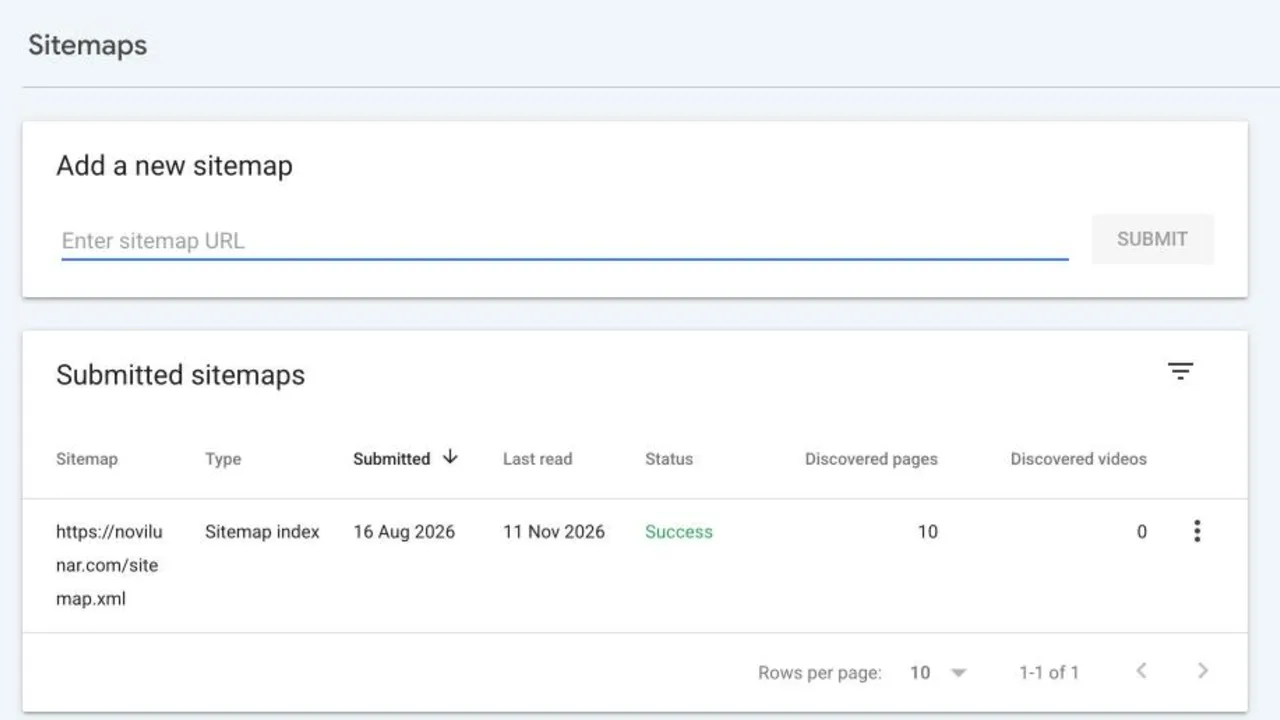
Below the box is a table called Submitted sitemaps. Here is what each column means (Google's Sitemaps report help):
| Column | What it means | Mine |
|---|---|---|
| Sitemap | The exact address you submitted. | https://novilunar.com/sitemap.xml |
| Type | Sitemap index if it lists other sitemaps, Sitemap if it lists pages directly. A Shopify store always shows Sitemap index. | Sitemap index. My shoppilot.ch site, which is not on Shopify, shows Sitemap. |
| Submitted | The last time you submitted it. | 16 Aug 2026 |
| Last read | The last time Google actually downloaded it. Empty if Google never managed to. | 11 Nov 2026 |
| Status | Success, Has errors or Couldn't fetch. | Success |
| Discovered pages | How many page addresses Google found in it, counting each one once. For an index, this adds up all the children. | 10 |
| Discovered videos | The same for videos. | 0 |
Notice that "Submitted" and "Last read" are months apart in my account. I submitted once in August, and Google keeps coming back by itself. You don't need to resubmit to keep it fresh.
Step 4: Open the sitemap's details
Click the row. The details page shows Last read, Total discovered pages and Total discovered videos, a status line (mine says Sitemap index processed successfully) and a table called Sitemaps read with every child sitemap.
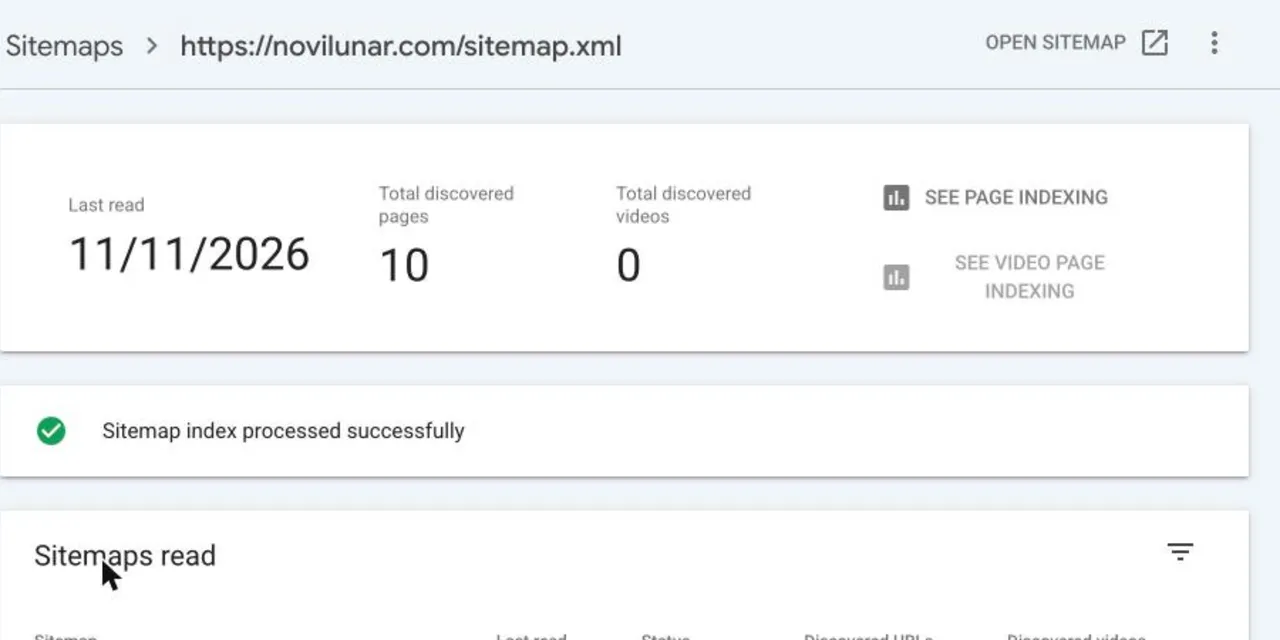
This child table is the useful part. Each child has its own Last read, Status and Discovered URLs. In mine, the products sitemap was read on 18 Nov, the pages sitemap on 10 Nov. So Google reads the children on their own schedule, not all at once. If one child says "Couldn't fetch" and the others say "Success", your store is fine. Google just hasn't got to that one yet.
At the top right there are two more things:
- OPEN SITEMAP opens the file itself.
- The ⋮ menu has one option: Remove sitemap. Removing it only takes it out of this report. Google doesn't forget the sitemap or the pages in it (Google's Sitemaps report help). So removing and re-adding changes nothing for Google. Keep that in mind for the next section.
What "Couldn't fetch" actually means
Here is the most important sentence in this guide: "Couldn't fetch" usually means "Google hasn't fetched it yet", not "something is broken".
That is not my theory. In the Google Search Central forum, Product Experts (experienced volunteers Google recognizes) say it again and again. One pinned post explains that until Google processes a sitemap, the report shows "Couldn't fetch", and that when there is a real problem you get a more specific message instead (the pinned thread). They also say that some sitemaps get processed quickly and others take months.
Google's own documentation agrees in its own careful way: submitting a sitemap "is merely a hint" and doesn't guarantee that Google will even download it (Google's sitemap guide).
Is that frustrating? Very. Google could just show "Not fetched yet" instead of something that looks like an error. But knowing this saves you a week of panicking.
So the real question is: is it "not yet", or is it actually broken? Here is how I'd check, in this order.
Check 1: Can you open the sitemap yourself?
Open your sitemap address in a private browser window, where you are not logged in to Shopify. If you see the XML, the file is public. If you see your store's password page, that's your problem (see Step 2).
Check 2: Can Google open it?
Paste the full sitemap address into the search bar at the top of Search Console (Inspect any URL), then click TEST LIVE URL. Look for Page fetch: Successful (Google recommends this check). Ignore anything it says about indexing: it's a sitemap, not a page, and nobody wants it in search results.
Check 3: Is it the right address in the right property?
Is it your primary domain, with or without www exactly as your store uses it? Is it inside the property you selected? A sitemap on www.yourstore.com submitted while your store really lives on yourstore.com redirects, and Google doesn't follow redirects here.
Check 4: Did you or an app edit robots.txt?
robots.txt is a file that tells search engines what they may not visit. Shopify's default one doesn't block the sitemap. It even points to it: mine ends with Sitemap: https://novilunar.com/sitemap.xml. Open yourstore.com/robots.txt and make sure nobody added a rule that blocks /sitemap.
If all four checks pass, your sitemap is fine. It's "not yet". Wait.
Which "Couldn't fetch" fixes are real, and which are superstition
I went through the forum threads people keep landing on. Here is the honest summary:
| Fix people try | Does it work? | Why |
|---|---|---|
| Turning off the store password | Yes, if the store had one. | Google can't read a sitemap behind a password (Shopify). |
| Submitting the primary domain instead of myshopify.com, or the right www version | Yes, if the address was wrong. | Google doesn't follow redirects for a submitted sitemap (Google). |
Submitting only sitemap.xml instead of every child | Yes. It keeps the report clean. | Google finds the children from the index. |
| Fixing a robots.txt rule that blocks the sitemap | Yes, if there was one. | Google won't fetch what robots.txt forbids. |
| Resubmitting once after you fixed a real problem | Yes. | Google retries a failed sitemap for a few days, then you need to submit it again (Google). |
| Waiting | Yes, and it's the most common fix. | Google processes sitemaps when it decides to. |
| Removing and resubmitting every day | No. | Removing only changes the report. Google doesn't forget the sitemap. |
| Deleting and recreating the Search Console property | No. | A Product Expert put it plainly: it is not related to your property, so it changes nothing (the thread). You only lose your data. |
Renaming the sitemap, or adding ?v=2 to it | No. Shopify won't let you rename it anyway. | Google treats a new address as a new sitemap to process later. Back to the queue. |
| Installing a sitemap app | No, for this problem. | Shopify's sitemap already works. An app adds a second sitemap that waits in the same queue. |
| "Pinging" Google with your sitemap URL | No. | Google announced in June 2023 that the ping endpoint would stop working six months later, and it is gone now (Google's announcement). |
The forum thread that sums it up: a site owner removed and resubmitted their sitemap many times, made new sitemap files, tried versioned addresses, and was about to delete their whole property. The answer from the expert was that "Couldn't fetch" just meant Google hadn't processed it, and that there is no way to speed it up.
Why "Discovered pages" is not your number of products
People expect this number to equal their product count. It almost never does, and that's fine. Here's why:
- It counts URLs, not products. Collections, pages, blog posts and your homepage are in there too. That's why my three products became 10.
- Variants are not separate URLs. 200 products with 5 variants each is still 200 product URLs.
- Some products are left out on purpose. Unlisted, draft and archived products, and anything with
seo.hidden, are not in the sitemap. - It's from the last read. The number is as old as the Last read date. Products you added since then show up after Google reads the sitemap again.
- Each URL counts once. Google counts duplicates only once (Google's Sitemaps report help).
If the number is much lower than you expect, open sitemap.xml, open the products child, and count. If your products are in the file, Shopify did its job. The rest is Google's timing.
A sitemap doesn't get your pages indexed
This is the other big misunderstanding. "Success" means Google read the list. It doesn't mean Google put those pages in search results.
Click SEE PAGE INDEXING on the details page and you see what happened to the pages in your sitemap. For my store: 10 pages in the sitemap, 6 indexed, 4 not indexed, all 4 with the reason Discovered – currently not indexed. Google knows they exist. It hasn't bothered to visit them yet.
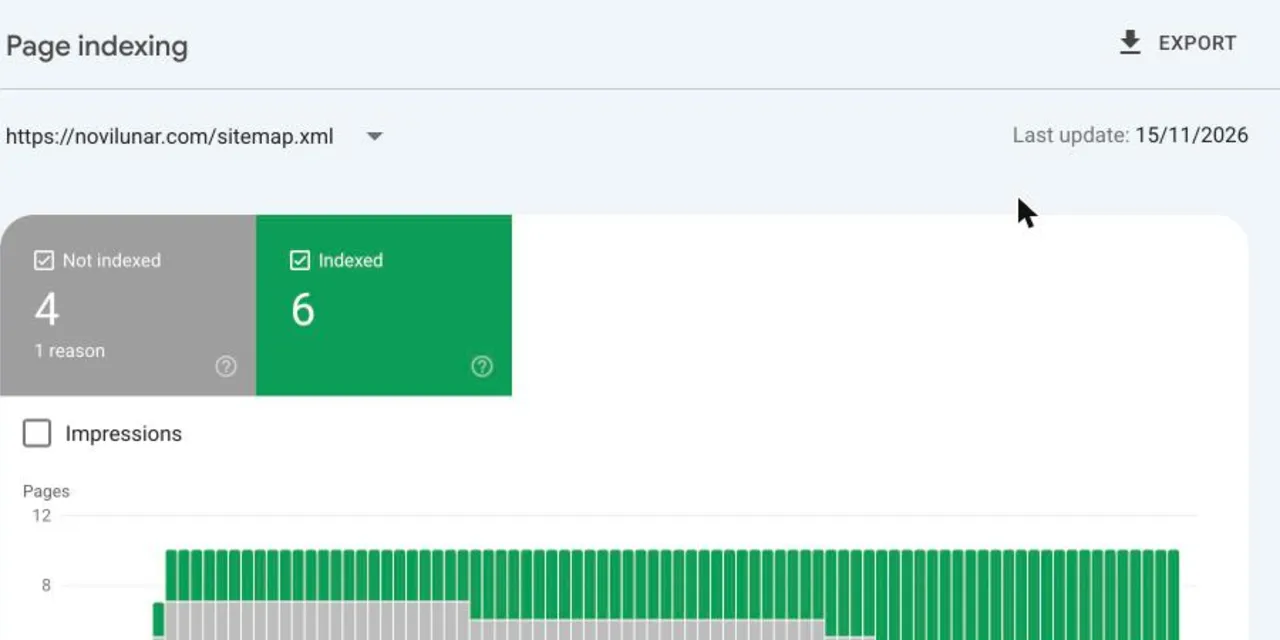
Google says it directly: a URL in a sitemap has no guarantee of being crawled or indexed (Google's Sitemaps report help). A sitemap says "this page exists". Links from your own homepage, menu and collections say "this page matters". For a small store with a normal menu, Google would find every page even without a sitemap.
So submit the sitemap once, then put your energy into the pages themselves. If you are stuck at "Discovered" or "Crawled - currently not indexed", I wrote a whole guide on how to fix pages not indexed in Google Search Console.
How to leave a page out of your Shopify sitemap
You can't edit the sitemap file, but you can tell Shopify to leave something out. Two ways:
For a product you still want to sell by direct link: set its status to Unlisted. Shopify removes it from the sitemap and adds a tag that tells search engines not to index it (Shopify on product status).
For a product, page or blog post you want hidden from search engines: use the seo.hidden metafield. You set it up once (Shopify's instructions):
- In Shopify, go to Settings, then Metafields and metaobjects.
- Under Metafield definitions, click Products, Pages or Blog posts.
- Click Add definition, pick SEO Hidden as the name, and make sure the Namespace and key is
seo.hidden. - Set the type to Integer, one value, maximum value
1, and click Save. - Open the product, page or blog post, set SEO Hidden to
1in its Metafields section, and click Save.
The item disappears from your sitemap, from search engines and from your store's own search. To undo it, clear the value and save.
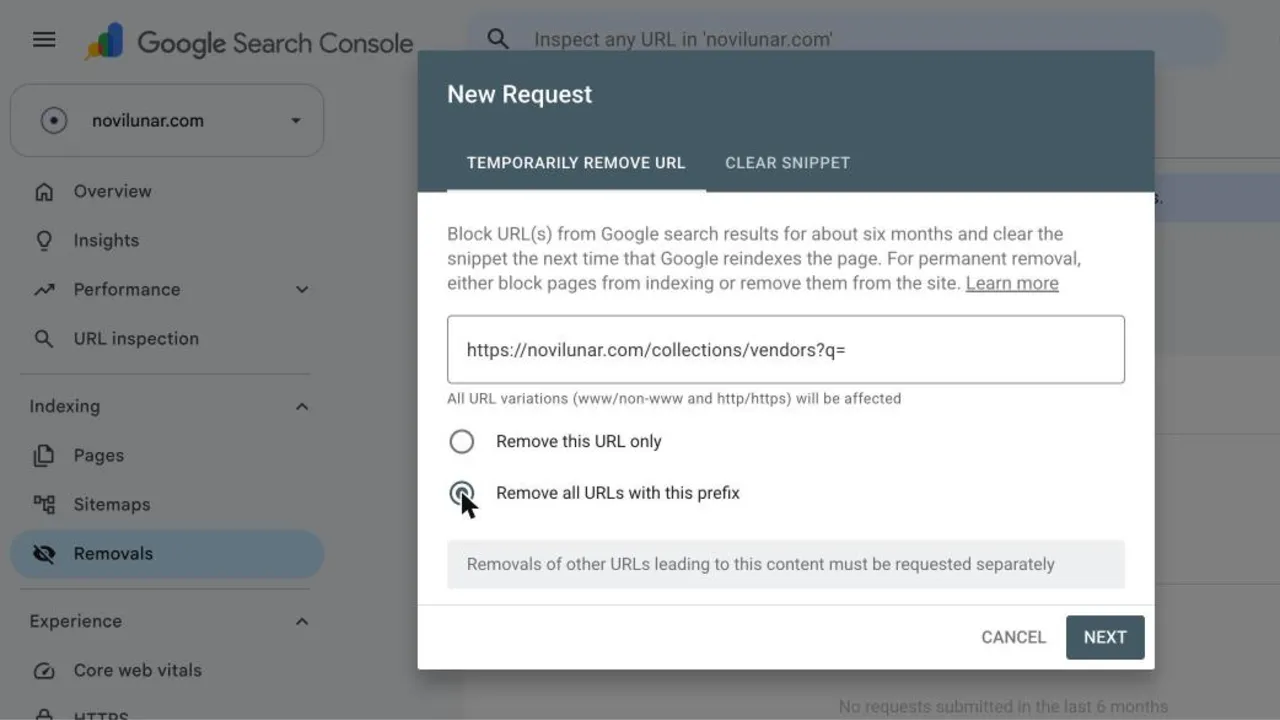
One warning: taking a page out of the sitemap doesn't remove it from Google. It only stops recommending it. If a page is already in Google and you want it gone, Google has to see that it shouldn't be indexed. Unlisted adds a noindex tag for exactly that, and seo.hidden hides the item from search engines too. Give Google time to visit the page again, or hide it sooner with the Removals tool, as I show in how to remove spam and junk URLs from Google.
Frequently asked questions
Do I need to submit my Shopify sitemap at all?
Not strictly. Shopify already lists it in your robots.txt, so Google can find it on its own. But submitting takes two minutes and gives you the Sitemaps report, which is the only place you see when Google last read it. I'd do it once on day one.
How long does it take until "Couldn't fetch" turns into "Success"?
There is no official number. Some sitemaps are read within minutes, others take weeks. If the four checks above pass, leave it alone and look again in a week.
Should I submit the child sitemaps for products and collections separately?
No. Submit only sitemap.xml. Google reads the index and finds the children. Submitting them separately just doubles the rows in your report.
My sitemap says Success. Why are my products still not on Google?
Because a sitemap only helps Google discover pages. Whether it visits and indexes them is a separate decision, based mostly on how useful and well linked the page is. Open SEE PAGE INDEXING on the sitemap's details page to see the reason for each page.
I have several domains or languages. Do I submit a sitemap for each?
Each of your Shopify domains has its own sitemap.xml at its root, and Shopify adds your languages to those sitemaps automatically (Shopify's help page). If you use separate domains for different countries, verify each one in Search Console and submit its sitemap.xml there. A domain that only redirects to your primary domain needs nothing.