How to fix duplicate content and canonical errors in Shopify
By Michal Krkoska14 min read
My Shopify shop has 9 pages on Google and 25 pages under Alternative page with proper canonical tag. That sounds like I have 25 duplicate pages and a content problem.
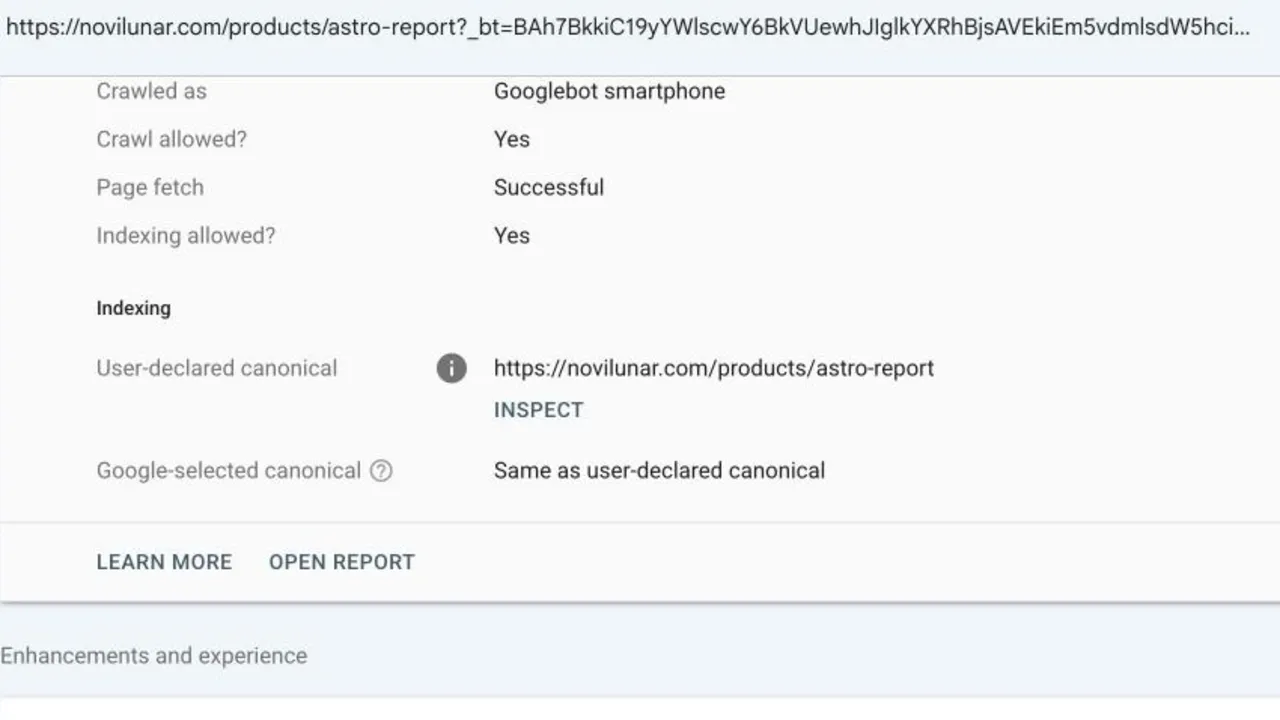
I don't. When I opened the list, all 25 were the same product page, /products/astro-report, with a different long code glued to the end: ?_bt=BAh7BkkiC19yYWlscw.... Every one of them tells Google "the real version of me is /products/astro-report", and Google agrees. The real version is indexed. The report is just Google keeping a diary of every address it has seen.
That is the main thing I learned digging into this: Shopify already handles almost all duplicate content for you. Most Shopify stores can ignore most of these rows. This guide shows how to tell the harmless ones from the few that are real, how to check any page yourself in one minute, and the exact fix for the real ones. It takes about 15 minutes for a normal store.
What a canonical tag is
Your shop shows the same page at many addresses. The product I just mentioned also opens at /collections/personal-astrology-reports/products/astro-report, at /products/astro-report?variant=58812315926873, and at any address with tracking codes added. Same page, many URLs.
Google doesn't want to show the same page five times in search results, so it picks one. That chosen address is the canonical: the one official version of a page.
A canonical tag is one line in the page's code where you say which address you want Google to use. It looks like this:
<link rel="canonical" href="https://novilunar.com/products/astro-report">
Google calls this tag a strong signal, but not a command. Usually Google follows it. Sometimes it decides it knows better.
A 301 redirect is the stronger tool. It doesn't ask Google to prefer an address, it forwards every visitor and Googlebot to it. Shopify uses redirects for some duplicates and canonical tags for others, as you'll see below.
The three Search Console reasons, and which ones need nothing
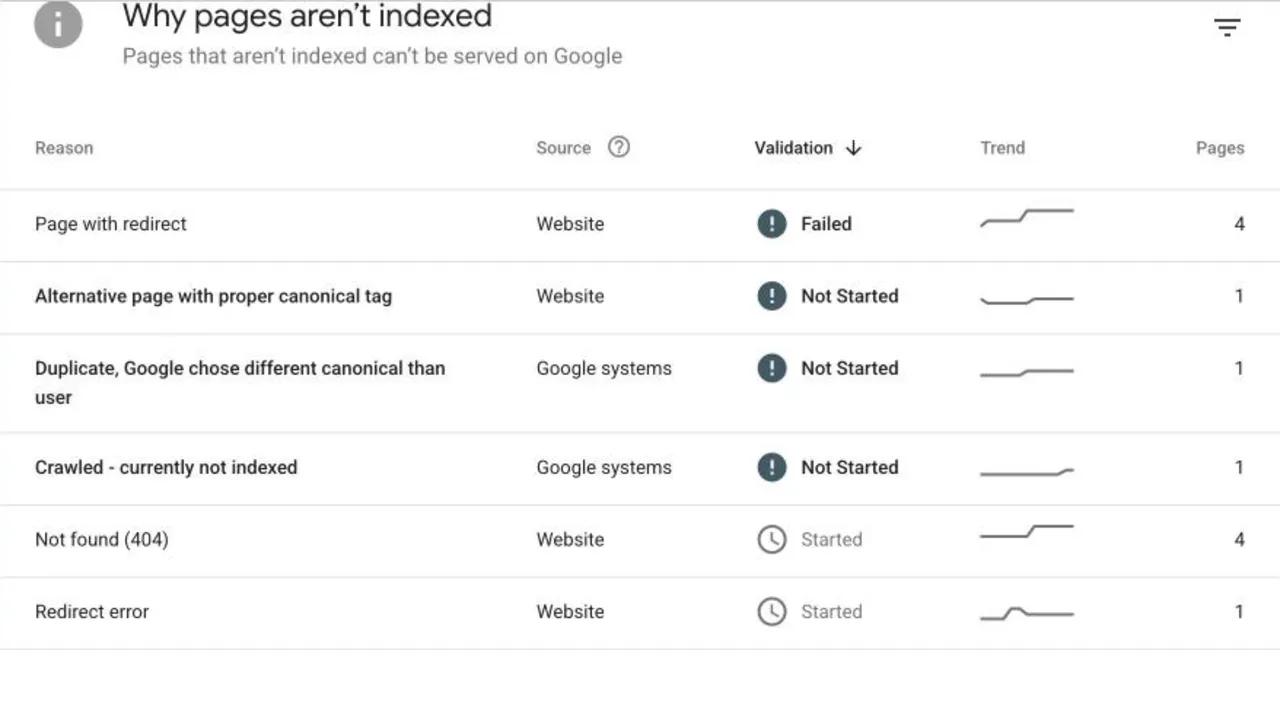
In Google Search Console, under Indexing, then Pages, the table Why pages aren't indexed can show three reasons about duplicates. If you want the short tour of every other reason in that table, I wrote it up in how to fix pages not indexed in Google Search Console. Here I go deep on these three only. (Google's help page and some accounts spell the first one "Alternate page with proper canonical tag". Same reason.)
| Reason | What it means in plain words | What I do |
|---|---|---|
| Alternative page with proper canonical tag | This address says "the real version is over there", and Google agreed and indexed the real version. | Nothing. Google's own help says there is nothing you need to do. |
| Duplicate without user-selected canonical | Google found several copies of the same page, none of them has a canonical tag, so Google picked one itself. | Check that Google picked the address I want. If yes, nothing. If no, find out why the page has no canonical tag. |
| Duplicate, Google chose different canonical than user | The page says "use this address", and Google ignored that and picked a different one. | Check which address Google picked. Often fine. Sometimes a real problem, usually two products that look the same. |
So the first reason is pure noise, the second is rare on Shopify, and only the third sometimes needs work.
Step 1: Look at the URLs, not the reason name
- Open Google Search Console and pick your store in the box at the top left.
- In the left bar, under Indexing, click Pages.
- Scroll down to Why pages aren't indexed and click one of the three reasons.
- Scroll down to Examples. This is the list of real addresses with that reason.
Now read the addresses. On Shopify, almost all of them fall into one of a handful of patterns:
- A product address with something after a
?, like?variant=,?utm_source=,?_bt=or?srsltid=. Those are variant choices and tracking codes. - A product inside a collection, like
/collections/shirts/products/blue-shirt. - A collection with
?page=2,?sort_by=or?filter.in it. - A collection with an extra word at the end, like
/collections/shirts/cotton. That's a tag page: the collection showing only products with that tag.
My 25 were all the first kind. I decoded one of those _bt codes, and it is a password-bypass token: the kind of link that lets someone into a store that is still locked before launch. Google picked those links up somewhere, crawled them, found the canonical tag and moved on. No harm done.
Step 2: Check one URL with URL Inspection
When an address looks odd, check it directly.
- In the Examples list, click the address. A panel opens on the right.
- Click INSPECT URL and wait a few seconds.
- Click Page indexing to open it, then scroll to the Indexing section.
- Read two lines:
- User-declared canonical: what your page's canonical tag says.
- Google-selected canonical: what Google actually chose.
For my _bt address, User-declared canonical is https://novilunar.com/products/astro-report and Google-selected canonical says Same as user-declared canonical. That's the picture at the top of this guide, and it's the answer you want: Google and my shop agree.
If Google-selected canonical shows a different address, open both addresses in your browser side by side. Google's help puts it bluntly: if the address you declared isn't similar to the page, Google won't ever choose it. So the question is always "do these two pages really look the same?"
Where Shopify creates duplicates, and what it already does about them
I went through every kind of duplicate address on my own store and read the canonical tag on each one. My store runs Shopify's free Heritage theme. Here is what I found:
| Duplicate address | Example | What Shopify did | Do I need to act? |
|---|---|---|---|
| Product inside a collection | /collections/personal-astrology-reports/products/astro-report | Canonical tag points to /products/astro-report. | No. Only check that your theme links to the plain product address (Step 4). |
| Variant parameter | /products/astro-report?variant=58812315926873 | Canonical tag points to /products/astro-report. | No. |
| Tracking parameters | /products/astro-report?utm_source=newsletter | Canonical tag points to /products/astro-report. | No. |
| Capital letters or a slash at the end | /products/ASTRO-REPORT, /products/astro-report/ | Canonical tag points to /products/astro-report. | No. |
| Sorting a collection | /collections/all?sort_by=price-ascending | Canonical tag points to /collections/all. | No. |
| Filtering a collection | /collections/personal-astrology-reports?filter.v.price.gte=10 | Canonical tag points to the plain collection. | No. |
| Page 2 of a collection | /collections/personal-astrology-reports?page=2 | Canonical tag points to itself, ?page=2 included. | No. That's correct, see below. |
| Tag page | /collections/personal-astrology-reports/digital-product | Canonical tag points to itself. | Only if you have many tag pages that show the same products as the collection (Step 5). |
| Store search | /search?q=astro | Has a noindex tag, so Google never indexes it. | No. |
| myshopify.com address | (my-store).myshopify.com/products/astro-report | 301 redirect to novilunar.com/products/astro-report. | No, as long as your own domain is the primary one (Step 3). |
| www version | www.novilunar.com/products/astro-report | 301 redirect to novilunar.com/products/astro-report. | No, as long as it's set to redirect (Step 3). |
| http version | http://novilunar.com/products/astro-report | 301 redirect to the https address. | No. Shopify does this for every store. |
Two things surprised people in the forums, so let me say them clearly.
Page 2 pointing to itself is right. A lot of SEO guides say page 2 of a collection should point its canonical to page 1. Google says the opposite: don't use the first page as the canonical for the whole sequence, because page 2 shows different products. Shopify does it the Google way. Leave it.
Tag pages are the one gap. Shopify treats each tag page as its own page with its own canonical. On my store, every product carries the tag digital-product, so /collections/personal-astrology-reports/digital-product shows exactly the same three products as the collection itself. That is a real duplicate that Shopify doesn't handle. It only matters if your theme shows tags as clickable filter links, so Google finds hundreds of them.
How to check the canonical of any page in one minute
You don't need an SEO tool for this.
- Open the page in Chrome.
- Right-click anywhere on the page and choose View page source. On a Mac you can also press Cmd + Option + U.
- Press Cmd + F (Ctrl + F on Windows) and search for
canonical. - Read the address after
href=.
If it's the plain address you want people to find, you're done. If there's no canonical line at all, or there are two of them, or it points somewhere strange, you have found a real problem. The usual cause is an SEO app or page builder that adds its own tag, or a theme that was edited by hand. One merchant review says it exactly: the app "created duplicate issues in Google Console."
Do the same check for one product, one product inside a collection, one collection and your homepage. Four pages, one minute.
Step 3: Make sure your own domain is the primary domain
This is the one setting that can break everything, so it's worth 30 seconds.
- In your Shopify admin, click Settings, then Domains.
- Find the domain with the Primary label next to it. It should be your real domain, like
novilunar.com, not themyshopify.comone. - Click every other domain in the list. Each one should say Type: Redirects to (your primary domain).
On my store, novilunar.com is Primary, and www.novilunar.com says Redirects to novilunar.com. Whether you pick the www or the bare version as primary doesn't matter to Google. What matters is that there is one primary and everything else redirects to it.
If the wrong one is primary, click the right domain, then Change next to Type, and make it the primary domain. Shopify's help covers the domain types in more detail. An alias domain is the one to avoid: it shows the same store without redirecting, which creates a full copy of your shop at a second address.
Step 4: Check that your theme links to plain product addresses
The canonical tag cleans up collection-scoped product addresses, but your own links still matter. Google's guide says to link internally to the canonical address. If every link on your site points to /collections/shirts/products/blue-shirt and only the canonical tag says /products/blue-shirt, you're sending Google mixed signals on every page.
Here is the check:
- Open one of your collection pages.
- Hover over a product (or right-click it and choose Copy link address).
- Look at the address.
/products/blue-shirtis good./collections/shirts/products/blue-shirtmeans your theme uses the old style.
My theme links to /products/astro-report. Some older and paid themes use a Liquid filter called within, which builds the collection-style address.
If your theme has it and you're comfortable with code:
- Click Online Store, then Themes.
- Next to your live theme, click the ... button and choose Duplicate. Always work on a copy.
- On the copy, click ... and then Edit code.
- Search the files for
within: collection. It's usually in a product card snippet. - Delete
| within: collectionfrom that line, so the link becomes the plainproduct.url. - Preview the copy, click a few products, and publish it when it works.
If you're not comfortable with code, I'd honestly leave it. The canonical tag already does the important part, and an independent test by a Shopify developer found that Google usually follows it on Shopify collection URLs. It's a nice-to-have, not an emergency.
Step 5: Fix near-identical products and tag pages
These are the cases where Duplicate, Google chose different canonical than user really means something.
Two products that look the same
Every product page declares itself as canonical. If you have "Blue shirt" and "Navy shirt" as two separate products with the same description, the same photos and a different name, Google may decide they're one page and keep only one in search. You'll see the other one under Duplicate, Google chose different canonical than user, with the first product as Google-selected canonical.
You have two good fixes:
- Make them really different. Own description, own photos, own details. If they deserve two pages, give Google a reason to show two.
- Merge them into one product with variants. Then add a redirect from the old product address to the new one. Shopify's help shows how to create URL redirects. Anyone with an old link, and Google, lands on the right product.
My opinion: if the only difference is color or size, merge. That's exactly what variants are for.
Tag pages that copy the collection
If your theme shows tags as filter links and Search Console lists a lot of addresses like /collections/shirts/cotton, Google recommends keeping filtered versions of a list out of the index with a noindex tag. In Shopify you can do that for all tag pages at once. In your theme's theme.liquid file, inside the <head> section, add:
{% if current_tags %}<meta name="robots" content="noindex, follow">{% endif %}
noindex keeps the tag pages out of Google. follow still lets Google follow the links to your products. Same rule as before: duplicate the theme first.
Most stores don't need this. If you see a handful of tag pages and no traffic problem, leave them.
What not to do
People panic about these reports and do things that hurt more than the duplicates ever could.
- Don't block duplicate addresses in robots.txt. Google can't read the canonical tag on a page it isn't allowed to visit. Google says plainly that robots.txt is not a way to choose a canonical.
- Don't put noindex on product variants or collection-scoped product pages. They already point to the right page. Noindex can only make it worse.
- Don't click VALIDATE FIX on "Alternative page with proper canonical tag". There is nothing to fix. Those addresses will still be alternatives next week, because they're supposed to be.
- Don't install an app to "fix canonicals" before you've checked the page source yourself. On a standard Shopify theme the tags are already right.
Frequently asked questions
Is "Alternate page with proper canonical tag" an error?
No. It means a duplicate address points to the real page and Google agreed. The real page is indexed. Google's own help says there is nothing you need to do, and on a Shopify store it's normal to see dozens or hundreds of these.
Does duplicate content get my Shopify store penalized?
No. Duplicate addresses like variants and collection-scoped products don't cause a penalty. Google simply picks one version and shows that. The only cost is when Google picks the wrong version, which is what URL Inspection lets you check.
Should I add canonical tags to my Shopify store myself?
Almost certainly not. Shopify's free themes add a canonical tag to every product, collection, page and blog post. Adding your own, or letting an app add one, often creates two tags on the same page, which is worse than one. Check the page source first.
Why does Google index the myshopify.com address of my store?
It usually means your own domain isn't set as the primary domain, or it was set late and Google still remembers the old address. Set your domain as Primary under Settings, then Domains. Shopify then redirects the myshopify.com addresses to it, and Google catches up after its next crawl.
Should I remove within: collection from my theme?
If your product links contain /collections/, it's a good cleanup, because your links then agree with your canonical tags. But it isn't urgent. The canonical tag already tells Google which address to show.